
In Gmail
Your shared inbox, right inside Gmail.
support@, info@ and every shared address sit next to your own mail. Assign emails to teammates and track their status from your own Gmail account.


 Rated 4.5 /5 on G2
No Credit Card Required
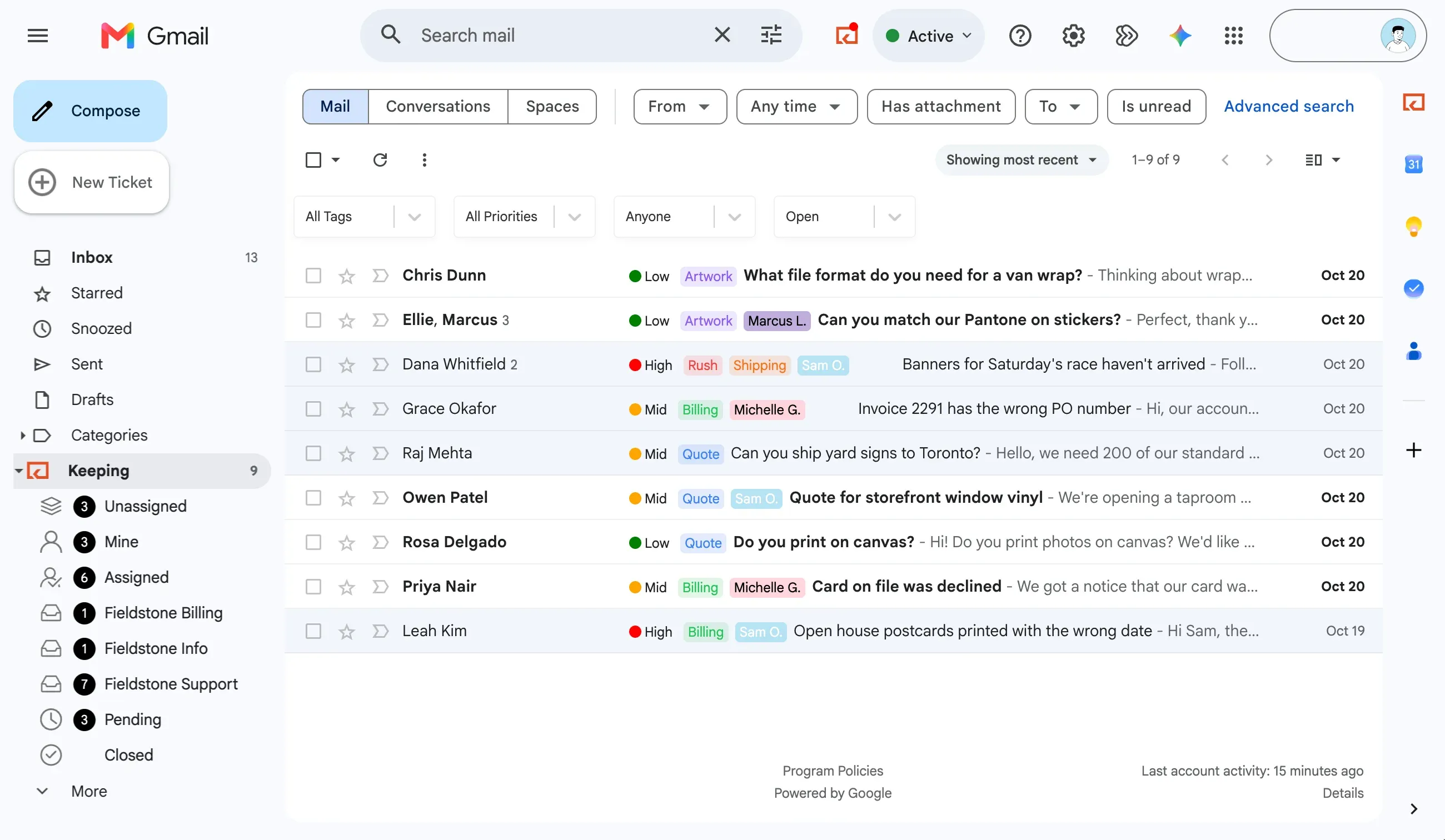
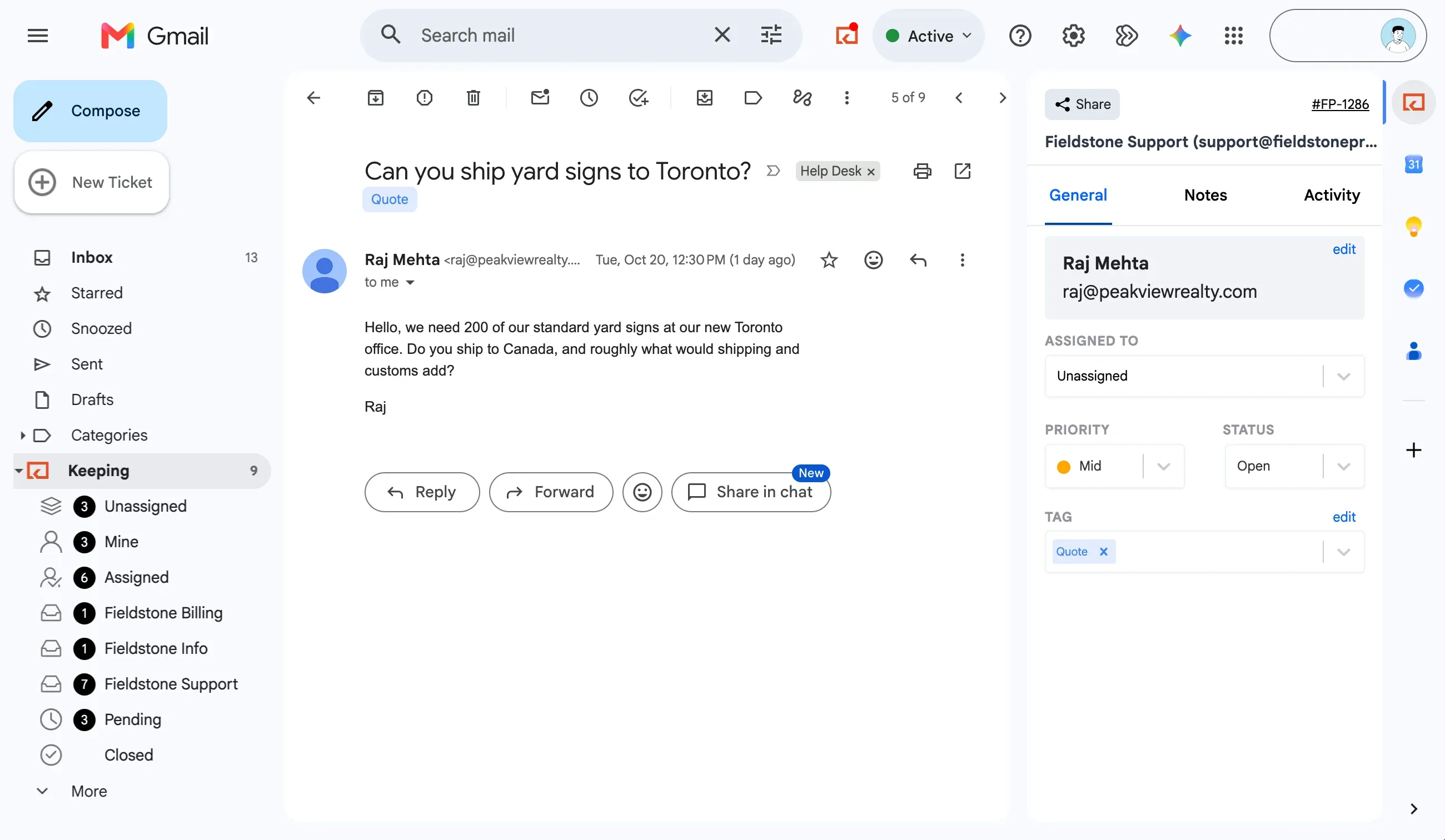
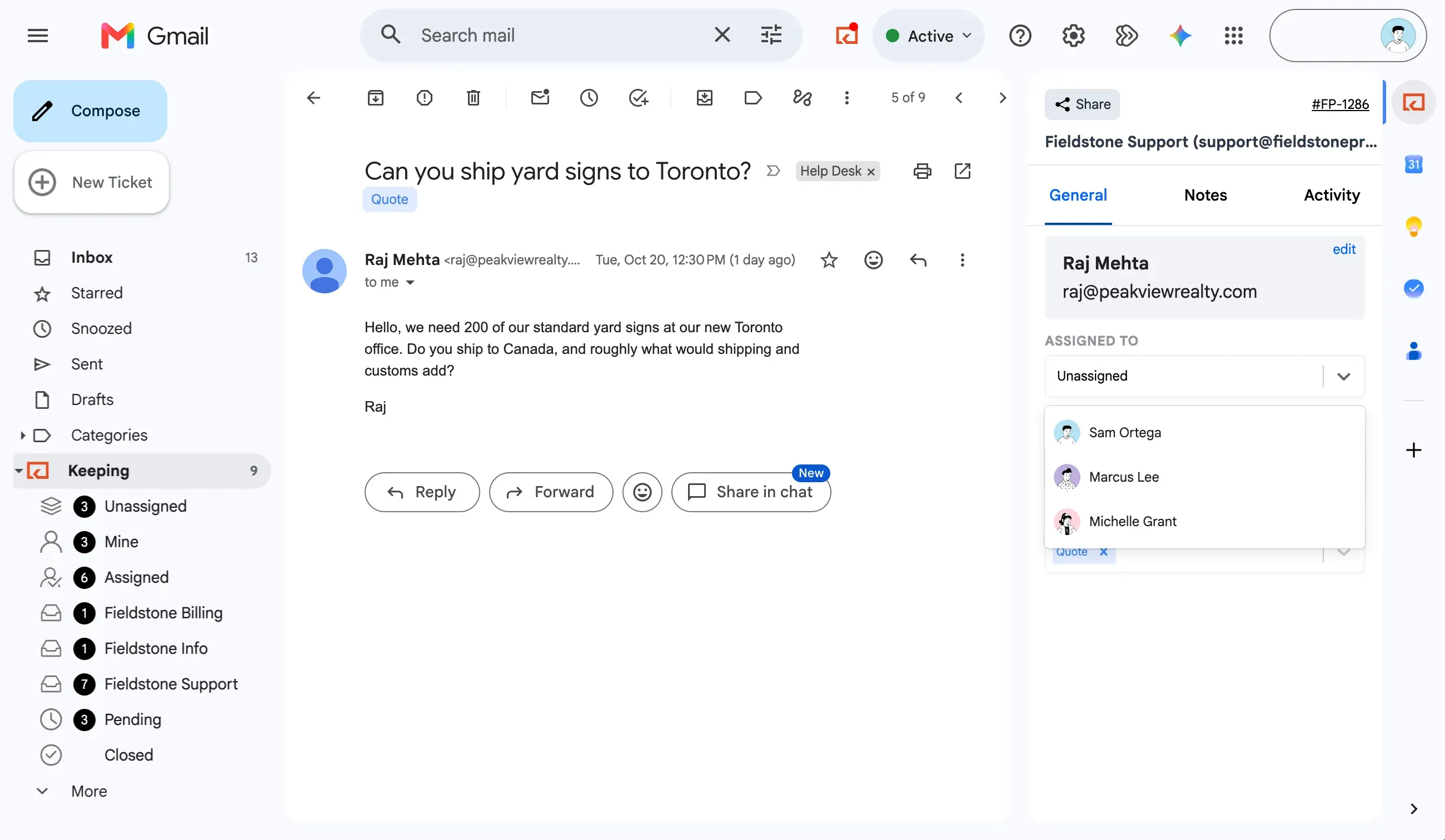
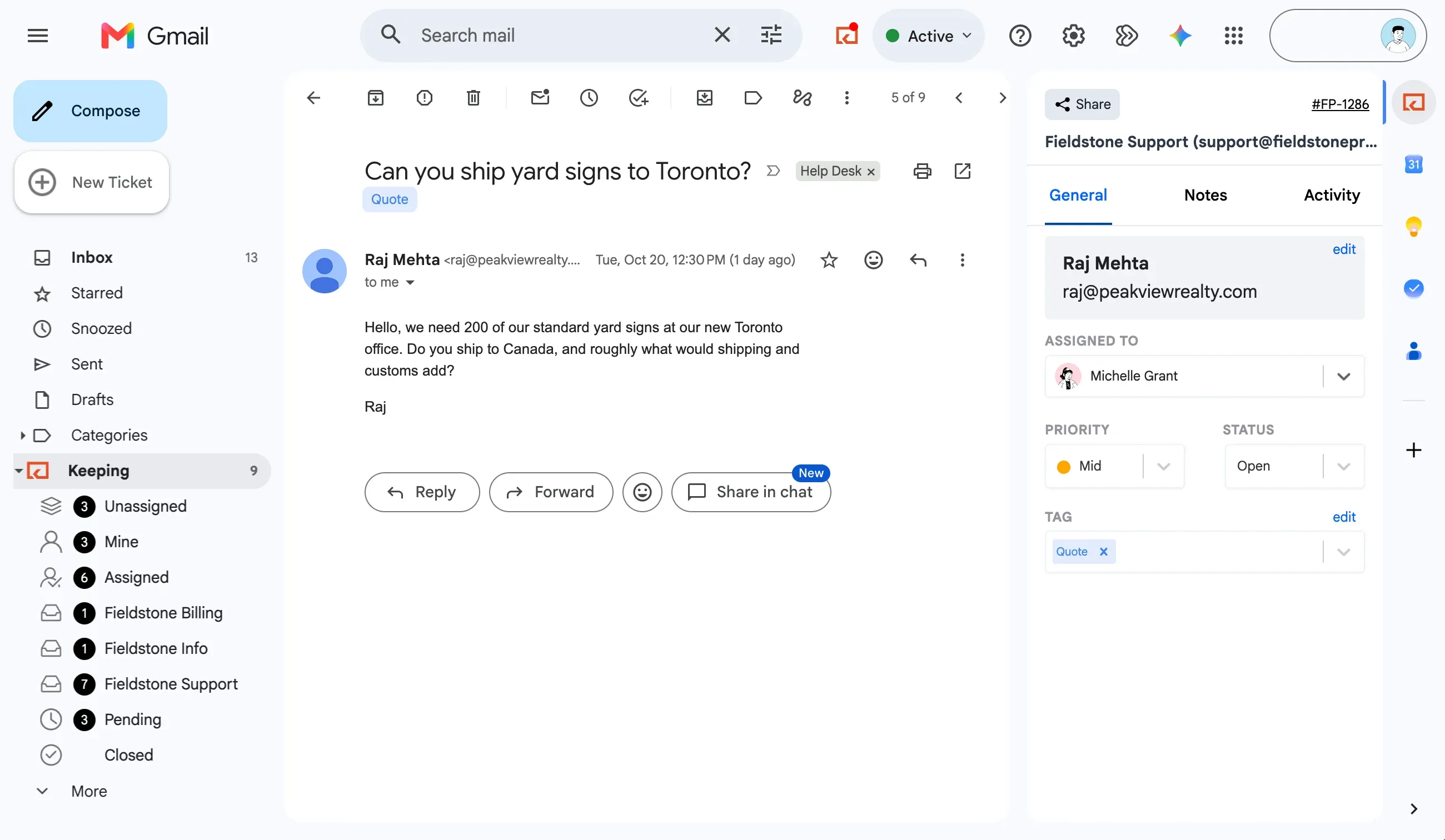
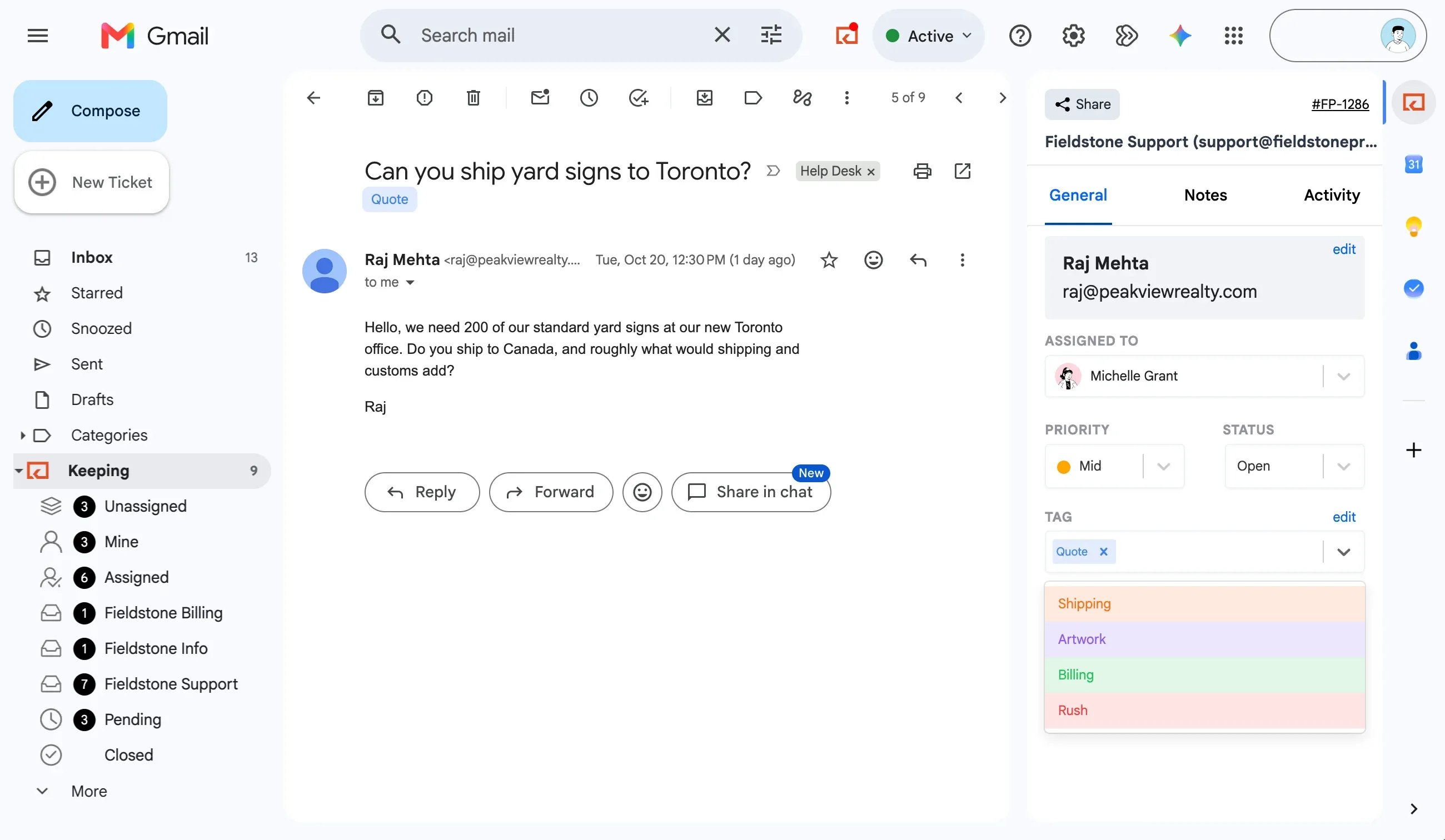
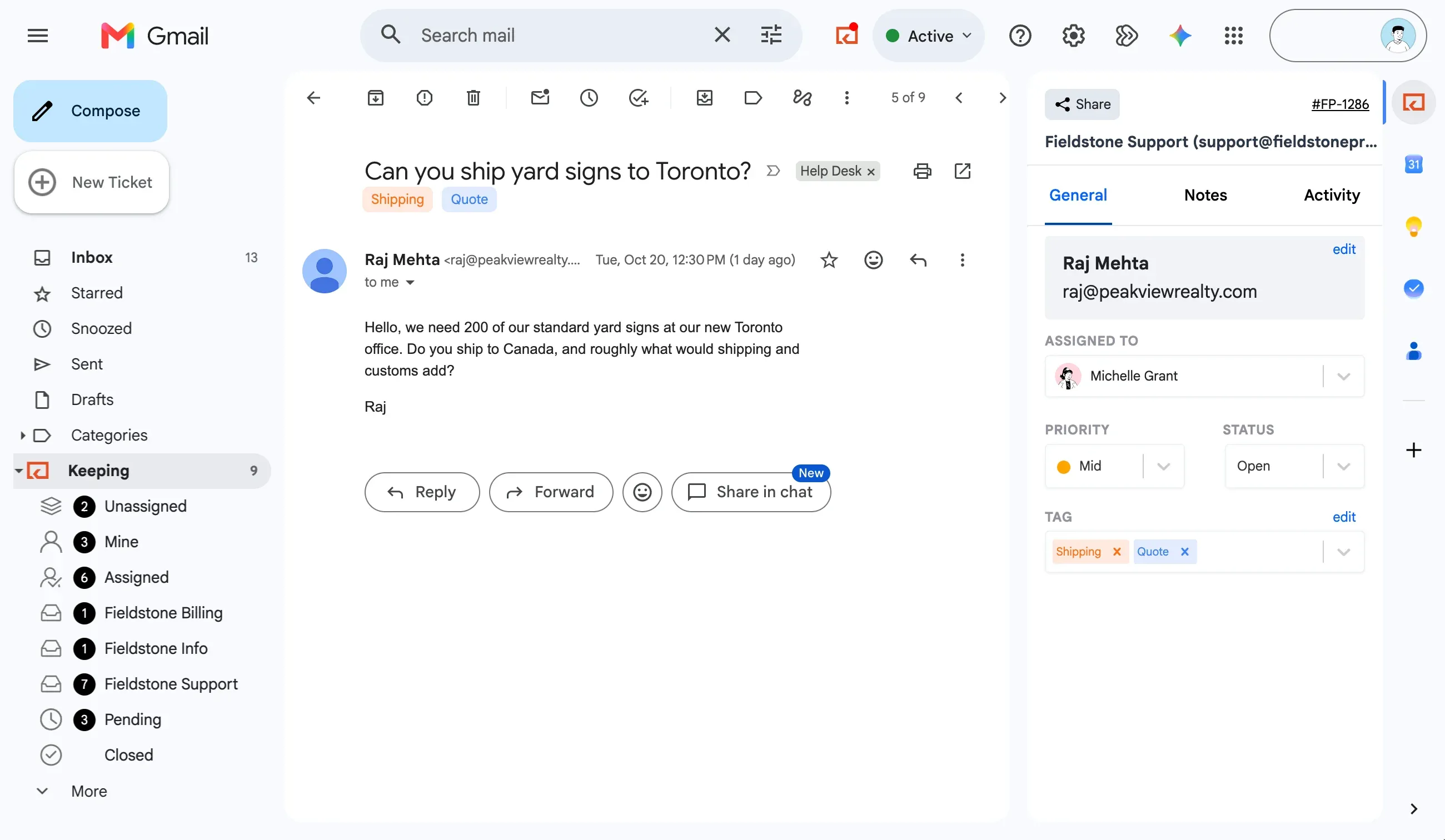
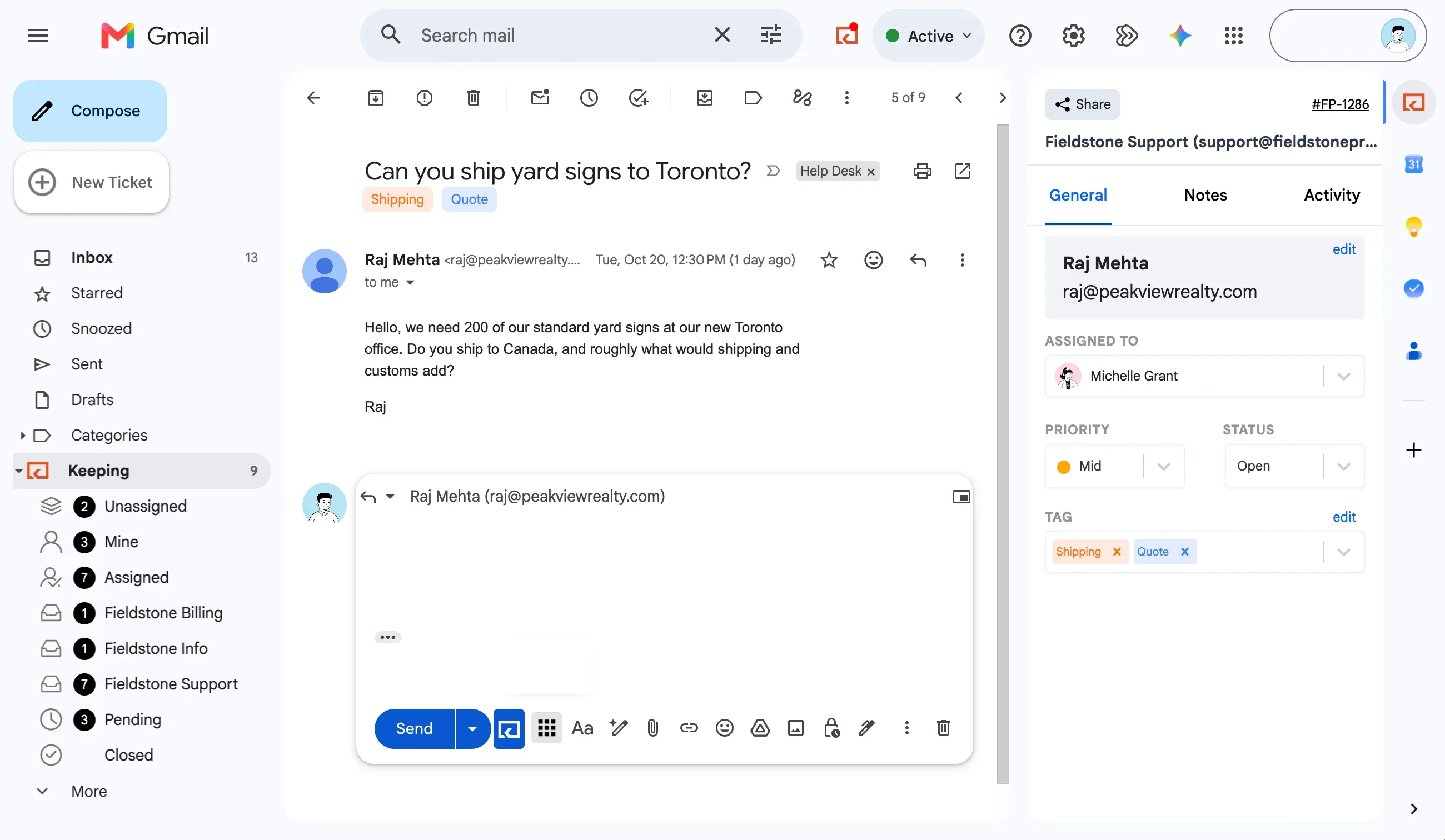
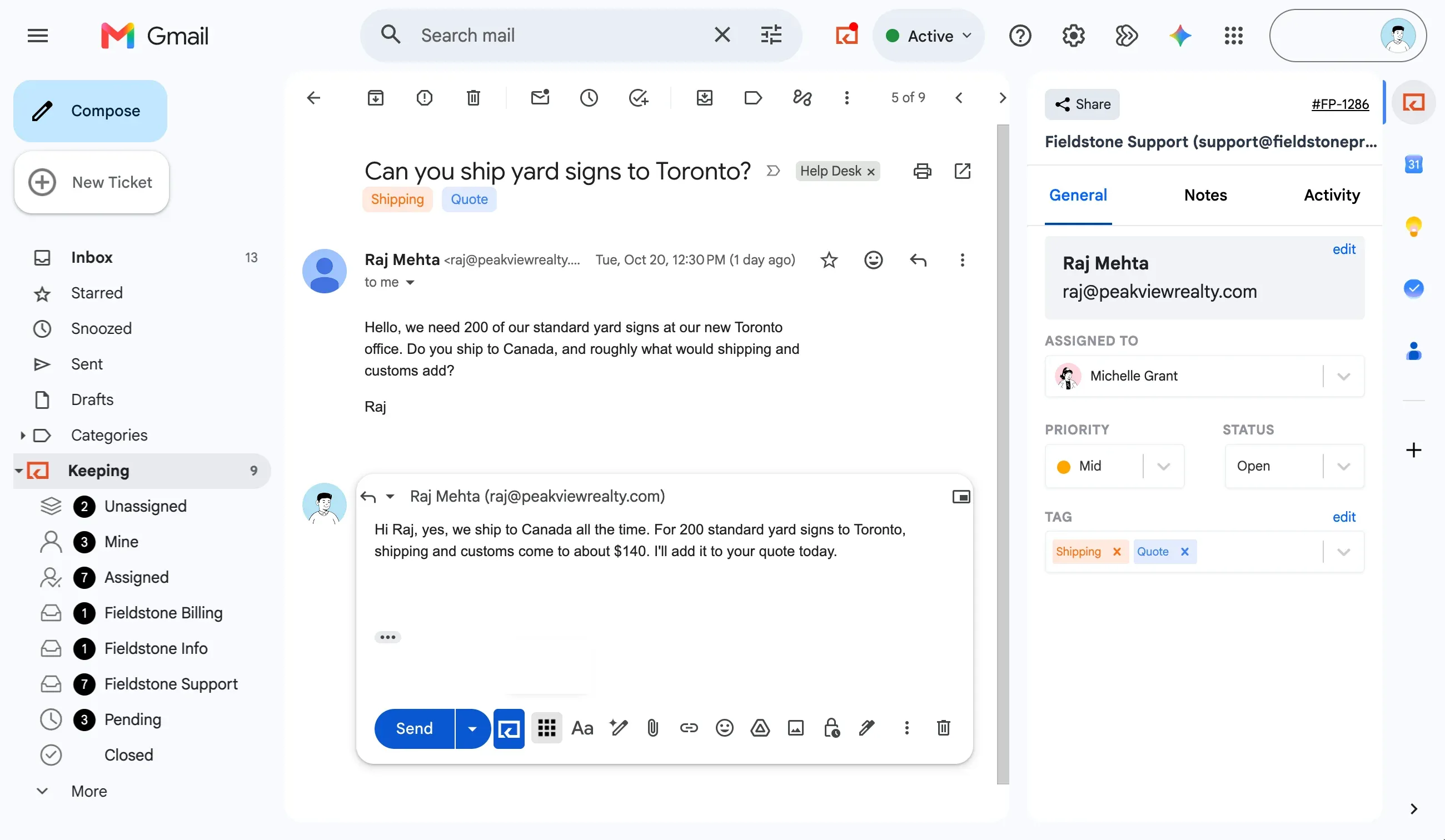
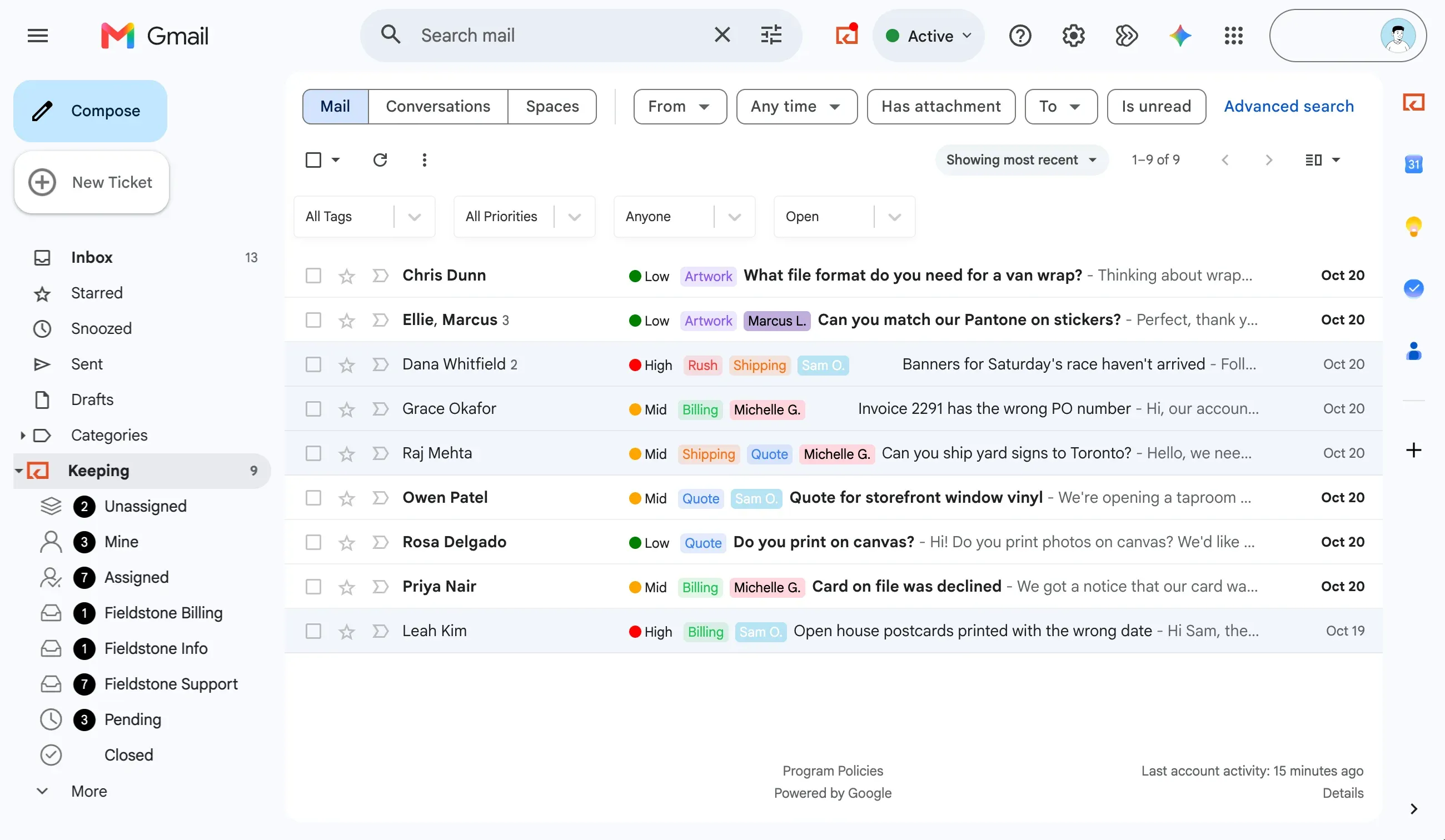

What you’ll see
Here’s what Keeping adds to Gmail
In your own Gmail account: a panel beside every shared email, and an owner on every row. Everything else is the Gmail you already use.
 Keeping - sam@fieldstoneprint.com - Fieldstone Print Mail

See it in your own GmailAdd Keeping, connect your shared address and assign your first email in a few minutes.
No Credit Card Required
Sharing one login, or a Google Group?
Better than a shared login or a Google Group
If your team shares one password for support@, or runs it as a Google Group, here’s what changes, and what doesn’t.
In one shared Gmail login, nobody owns Dana’s email, Raj got two answers, Grace’s email was marked unread again, and nobody knows who read Rosa’s. In Keeping in Gmail, every email shows its owner and a tag, and a banner warns you before a second reply.
In a Google Group, Dana’s email lands in six inboxes, Raj gets a reply-all “got it”, Michelle answers Grace from her own address, and nobody knows if Rosa is done. In Keeping in Gmail, every email shows its owner and a tag, and replies always come from support@.
No more double replies
See when a teammate has already started answering, before you hit Send.
What stays the same
Your own inbox stays yours
Everyone signs in with their own Google account and sees only the shared mailboxes you give them.
Customers just get an email
Replies come from support@. No ticket numbers, no portal, no “reply above this line.”
Your email stays in Google
Every message stays in Gmail. Stop using Keeping and nothing is locked away.
Verified G2 reviewer · Manufacturing
“There are no ticket numbers, no ‘reply above this line,’ no nothing. My customers get to interact with my team over email in the most direct and personal way possible.”
Getting started
Connect your mailbox and invite your team
Keep your existing email address. Install Keeping, connect the mailbox and invite the people who answer it.
Step 1
Add Keeping to your browser
Install the extension for Chrome or Safari and Keeping appears in Gmail.
 Keeping for Gmailwas added to Chrome
Step 2
Connect your shared address
support@, info@, sales@ or a Google Group. Sign in with Google or forward it, and bring in the last 28 days of email. The address stays the same.
Shared mailboxes4
- Fieldstone Supportsupport@fieldstoneprint.com7
- Fieldstone Infoinfo@fieldstoneprint.com1
- Fieldstone Billingbilling@fieldstoneprint.com1
- Fieldstone Careershr@fieldstoneprint.com0
+Add a mailbox
Step 3
Invite your team, assign the first email
Teammates join with their own Google accounts. Assign each waiting email to the person who will answer it.
- Dana WhitfieldRace banners haven’t arrivedSOSam O.
- Raj MehtaCan you ship yard signs to Toronto?SOSam O.
- Grace OkaforInvoice 2291 has the wrong PO numberMGMichelle G.
- Ellie BrooksCan you match our Pantone on stickers?MLMarcus L.
Not ready to connect your mailbox? After you sign in, try Keeping on a test mailbox first.
Same inbox, wherever your team is
Your team can use Gmail, the Keeping app or a connected AI assistant. Each shows the same owner, priority and status for an email.
In Gmail
At your desk, in Gmail
Your shared inboxes, right in Gmail’s sidebar.
In the Keeping app
Online in the Keeping app
Every mailbox on one screen, at your desk or on your phone.
In your AI assistant
In Claude, ChatGPT or Gemini
Ask your AI assistant what’s waiting, and act on it.
Frequently asked questions
Do I need Google Workspace?
Keeping runs in Gmail. Your team signs in with their Google accounts, and the shared mailbox can be an address you already have: a Google Workspace or Gmail address connects with Sign in with Google, and any other address, including a Google Group, connects by forwarding.
We use a Google Group for support@. Does Keeping work with it?
Yes. Keep the group and its address, and forward it to Keeping. Customers write to the same address, and every reply goes out from support@, never from someone’s personal email. Members can stay in the group if they still want a copy.
Which browsers does it work in?
Chrome and Safari on a computer. Keeping doesn’t run inside the Gmail phone app; on your phone, open the Keeping app in your browser and add it to your home screen.
Can my teammates see my personal email?
No. Teammates see the shared mailboxes you give them, and an admin chooses, mailbox by mailbox, what each person sees. Your own inbox stays yours.
What happens to the emails we already have?
When you connect a mailbox, you can bring in up to the last 28 days of email, so your team starts with what is already waiting.
What if we stop using Keeping?
Your email never leaves Google. Every message stays in Gmail, whether you use Keeping or not.
Does everyone on the team have to use Gmail?
No. Teammates who aren’t in Gmail all day can use the same inbox online in the Keeping app. An owner, status or note set in one shows in the other.
Keep exploring
Feature
In the Keeping app
Every mailbox and owner on one screen, at your desk or on your phone.
Feature
Automations
Assign, tag and reply by rule, including round robin.
For your team
Customer Support
A shared support@ inbox your whole team can answer from Gmail.
For your team
Google Groups
Turn a Google Group address into a shared inbox with owners.
Try it in your own Gmail today
Add Keeping to Gmail, connect support@ and give every email an owner.
Sign Up With GoogleNo Credit Card Required
Set Up in Minutes
Connect your mailbox, invite your team, and start assigning emails.
Play in the Sandbox
Use our test mailbox to explore Keeping without connecting your shared inbox.
SOC 2 Type II
Your data is protected with SOC 2 Type II compliance.