
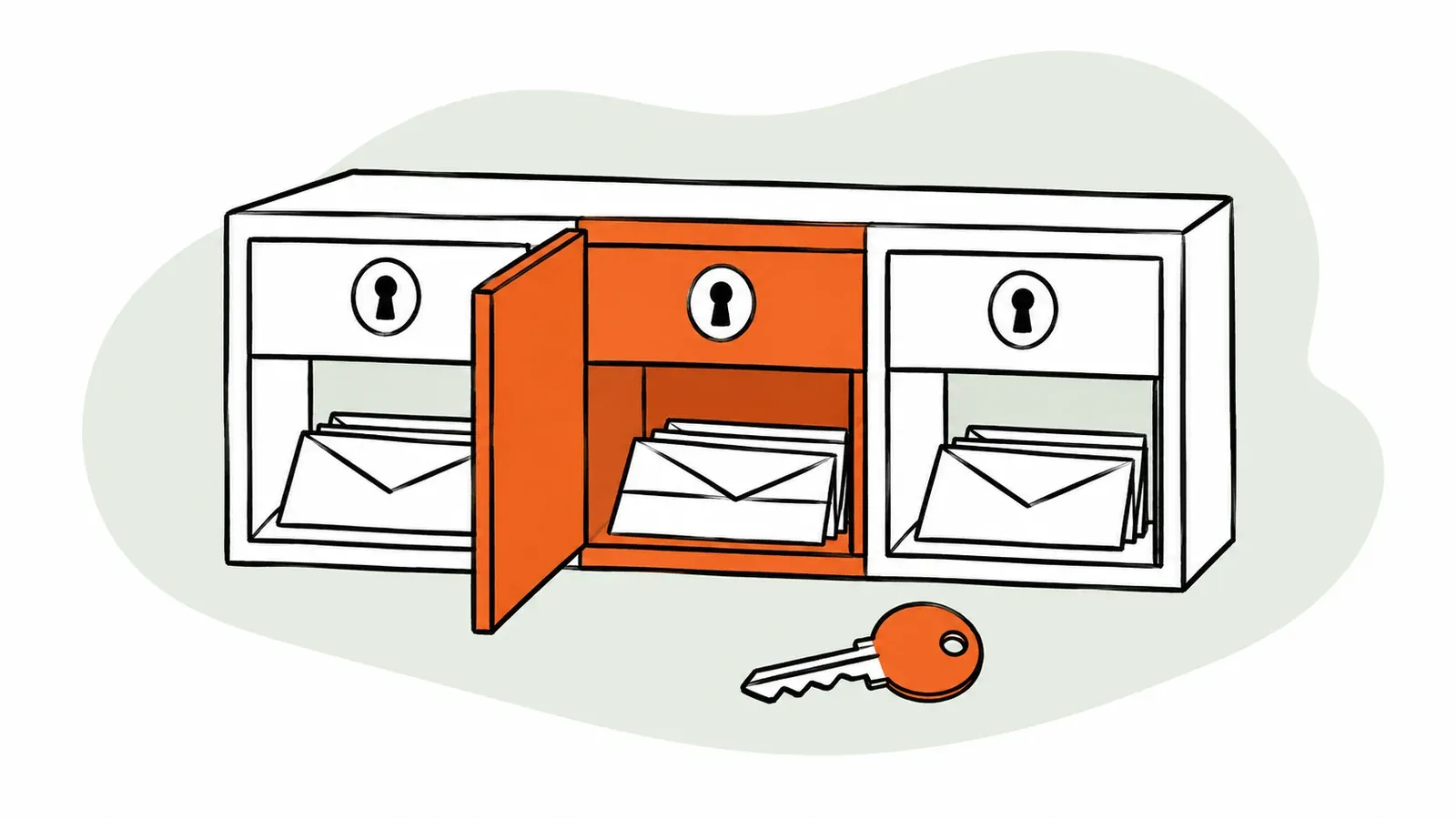
Gmail has no true shared mailbox in the Microsoft 365 sense, but Google now offers a native shared inbox built on delegation. If you’re looking for a Gmail shared mailbox, you have three built-in approaches to understand: a shared login, delegated access, or a Google Groups Collaborative Inbox. A shared inbox tool adds another option when you need more coordination inside Gmail.
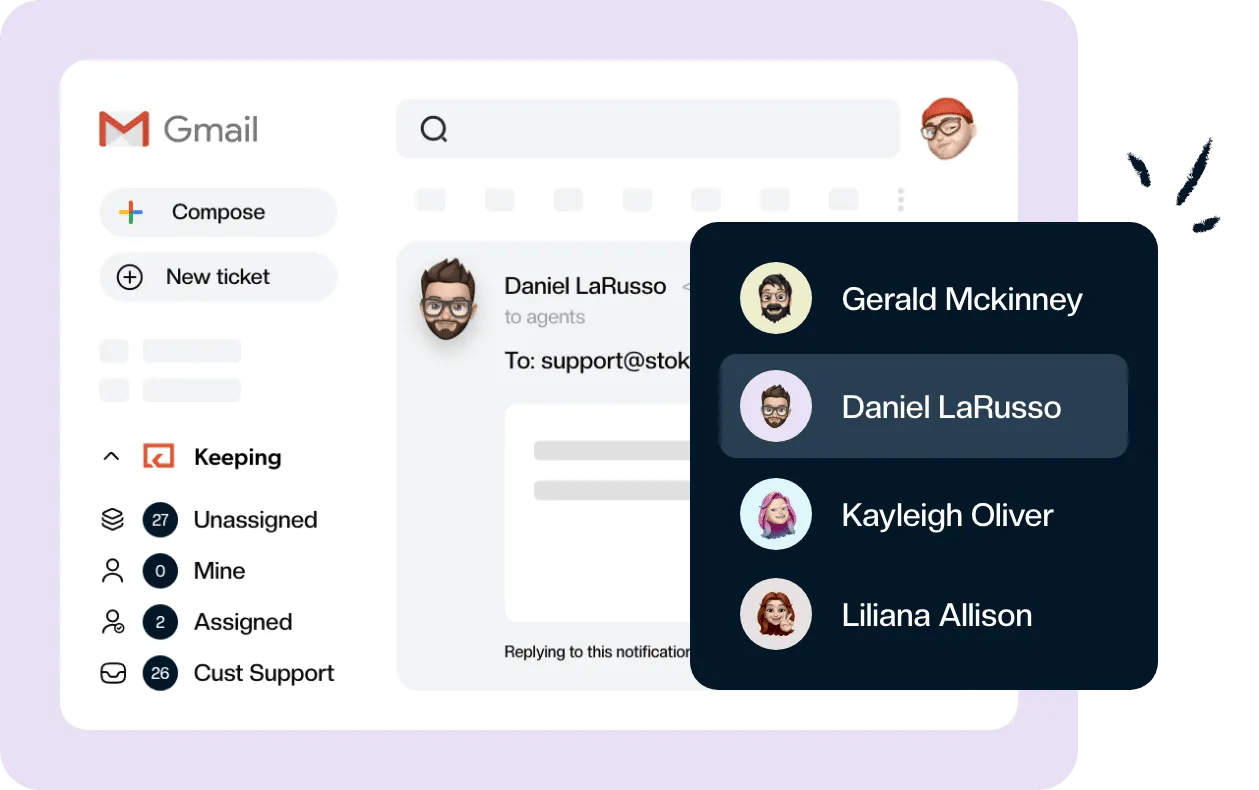
The right choice depends on what you need to share. Delegation gives several people access to the same messages. Groups adds conversation assignment in a separate interface. Tools such as Keeping combine access, ownership, internal notes, and visibility into teammates’ replies inside Gmail. Here’s how each approach works, what it costs, and where it falls short.
Does Gmail have a shared mailbox?
Google offers a shared inbox through its Workspace Admin console, built on delegated Gmail access. It lets several people read and send from one address, but doesn’t add conversation assignment, internal notes, or collision detection. Google Groups offers basic assignment separately; shared inbox tools bring a broader collaboration workflow into Gmail.
The terminology causes confusion. People searching for a shared mailbox usually want one address, such as support@company.com, that several teammates can answer through their own accounts. They don’t want to pass around a password or guess whether someone else has already replied.
Google’s newer shared inbox addresses the access part. It is a supported Google feature, so saying “Google has no shared inbox” is out of date. But a shared address and a shared support process are different things. Being able to open the mailbox doesn’t tell a teammate which request is theirs to handle.
For example, two people can open the same refund request in a delegated inbox. Both can read the history and send a reply. Neither has an assignment field that says who should investigate, nor an indicator that the other person is already writing an answer. Agreeing on labels can help, but the team has to maintain that convention.
Groups makes one important improvement: you can assign conversations and mark them complete. The catch is that those controls live in Google Groups, rather than beside the message in Gmail. Our explanation of what a shared inbox is covers the broader workflow.
Your account type matters, too. Personal Gmail supports delegation. Google’s Admin-console shared inbox requires a supported Workspace edition, and the business Groups workflow below assumes your administrator has enabled Groups for Business. An alias alone doesn’t create a separate inbox you can delegate.
If you’re actually setting this up in Microsoft 365, use our Outlook shared mailbox comparison. The Google setup and licensing assumptions are different.
Want to manage a shared mailbox in Gmail?
Keeping adds shared mailbox management to Gmail: assign each email, see who's already replying, and keep internal notes off the customer thread. Try it free for 14 days, with no credit card.
Three ways to share a Gmail mailbox, and what each costs
A shared password, delegation, and Collaborative Inbox can each give a team access to email. Their costs include the Google account, any additional software, and the coordination you still have to do yourself. Keeping is included as the fourth option so you can compare the whole decision in one place.
| Question | Shared password | Delegation / native inbox | Collaborative Inbox | Keeping Essentials |
|---|---|---|---|---|
| Money cost | Underlying account | Account cost; confirm native-inbox licensing | Workspace service included | $14/user/mo annually; $19 monthly; 2-user minimum |
| Needs Workspace? | No | Delegation: no; native inbox: yes | Business setup: yes | No |
| People | No team-access arrangement | 10 personal; 1,000 Workspace; ~40 concurrent; same-org Workspace access | Groups limits apply | Up to 10 agents |
| Inside Gmail? | Yes | Yes | Email copies only | Yes, desktop extension |
| Assignment | No | No | In Groups | Yes |
| Collision detection | No | No | No | Yes |
| Private notes | No | No | No dedicated workflow | Yes |
| Response-time reports | No | No | No | Standard reports |
| Mobile | Account login | Gmail app; phased rollout | Email copies / Groups web | Mobile portal |
Google’s delegation limits distinguish total delegates from simultaneous users. Adding 1,000 delegates doesn’t mean 1,000 people can work in the mailbox at once. Keeping prices above are USD and exclude your existing Google subscription; see current plans for billing details.
Option 1: Use a shared Gmail account password
Sharing a password gives everyone the same account access, but it is the weakest option for controlling who can use your mailbox. It may look free because you aren’t buying another tool. You pay for it through access problems and manual coordination.
One person sets up an account and distributes the login. Everyone can then read and reply as that account. There is no per-message owner, and sent email alone doesn’t reliably identify which teammate used the shared credentials.
Two-factor authentication creates another dependency: someone else may need the code or approval when they sign in. When a teammate leaves, removing their access means changing shared credentials and reviewing existing sessions. You can’t simply remove their individual delegate permission because you never created one.
There is also a practical reliability risk. Google warns that people signing into the same account from different locations can trigger temporary account lockdowns in its Gmail delegation help.
Verdict: use individual access instead. Delegation is available even for personal Gmail, so password sharing rarely solves a problem that requires it. If your real question is how to run a team Gmail inbox, start with the access method and then agree on who handles incoming requests.
Option 2: Share a Gmail mailbox with delegation
Delegation lets teammates use their own accounts to open a common mailbox. They can read, send, and delete its email without knowing its password. Google’s Admin-console shared inbox uses this same access model; the newer wizard helps administrators create or convert the shared address.
How to add a shared mailbox in Gmail with delegation
Use the desktop browser to grant access, even if your teammate will later work on mobile:
- Sign into the account you want to share and open Settings → See all settings.
- Choose Accounts and Import, or Accounts, then find Grant access to your account.
- Select Add another account, enter your teammate’s email, and send the invitation.
- Have the teammate accept the invitation. Allow up to 24 hours for access to become available.
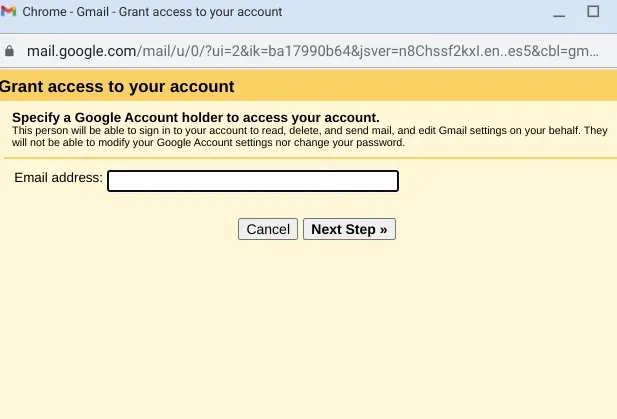
Existing screenshot from Keeping’s Gmail delegation guide; the dialog’s appearance may vary.
Personal Gmail allows 10 delegates. Workspace allows 1,000, with roughly 40 simultaneous users under typical use. Heavy activity or automated access can reduce that concurrent capacity. Workspace delegates must belong to the same organization, which may include more than one domain.
If the setting is missing, ask your administrator whether delegation is enabled. Delegation shares the mailbox broadly: it isn’t a way to give someone access only to invoices or one label. A teammate’s deletion affects the common mailbox, so make sure everyone understands the permission before accepting access.
How does Google’s new shared inbox work?
Google’s Admin-console shared inbox creates or converts an email account and grants delegates access to it. It’s available on Business Starter, Business Standard and Business Plus while Google releases it in phases, and it adds shared access, not ticket ownership. Our Google Workspace shared mailbox guide covers setup, conversion and licensing.
How to access a shared mailbox in Gmail
After receiving access, sign into your own Gmail account and open the profile menu. Select the account marked as delegated to open its inbox. On supported Gmail mobile apps, use the profile menu to select the delegated account there too. Confirm the displayed mailbox address before sending a reply.
Google announced delegated Gmail access on Android and iOS in June 2026 and resumed its rollout in August. Its help page still flags phased availability, so check your app if the account doesn’t appear. The old blanket claim that delegation is desktop-only no longer holds.
Delegation itself has no separate software charge. For a company address, the underlying Workspace account still has a cost. The remaining trade-off is coordination: everyone has access, but nobody automatically owns the next request.
Option 3: Use Google Groups Collaborative Inbox
A Google Groups Collaborative Inbox lets permitted members take or assign conversations, mark them complete, and find work by assignee or status. Unlike delegation, it adds basic ownership. Those controls live at groups.google.com; receiving group messages in Gmail doesn’t bring the assignment and resolution interface into your Gmail inbox.
For a Workspace team, start by confirming that Groups for Business is enabled. Then:
- Create a group for the shared address, or open the group you already use.
- In Group settings, enable Collaborative Inbox under the additional Google Groups features.
- Turn on conversation history and grant the moderation permissions needed to manage conversations.
- Add members and review who can view conversations, join, and post. Customer-facing groups need to accept appropriate external senders without exposing their archive publicly.
- Send a test request. Have one teammate take it, another find it by assignee, and then mark it complete.
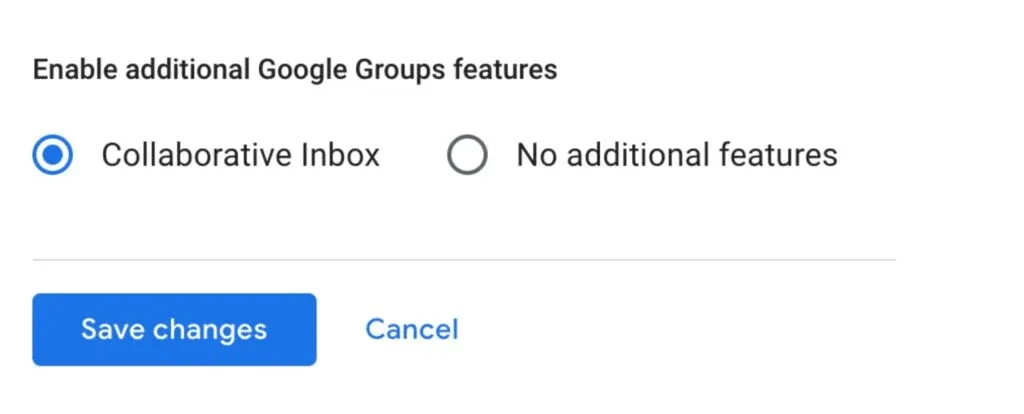
Existing setup screenshot from Keeping’s Google Groups Collaborative Inbox guide.
Google documents the required setup and permissions in Make a group a Collaborative Inbox. The test in step five matters: receiving an email copy and managing the group conversation are separate actions. If teammates answer only from their personal copies, they may miss the assignment state in Groups.
What does it cost? For the Workspace setup described here, Collaborative Inbox is part of the Groups service rather than a separate help desk subscription. The group address isn’t a new Gmail user mailbox. Your organization still pays for its users’ relevant accounts and needs the service available; don’t assume a personal Google Group has the same business configuration.
This option makes sense when basic assignment is enough and your team is comfortable checking Groups. The extra interface is less of a burden if someone already works there every day. It becomes more noticeable when people handle support between other responsibilities and spend the rest of their day in Gmail.
Choose how members receive email copies deliberately. A group that delivers everything to everyone can recreate the same “has anyone answered?” problem if nobody checks the shared conversation before replying. Our guide to using Google Groups for email covers the delivery side.
What the built-in options still leave you to manage
None of these approaches combines the following four capabilities inside Gmail. Groups does provide basic ownership, so the limitation depends on which method you choose:
- Ownership beside the email. Delegation has no assignment field. Groups has one, but teammates need to use the Groups interface to keep assignments and status meaningful.
- Visibility into replies in progress. Reading a message or applying a label doesn’t show that another teammate is composing an answer. A handoff in chat can help, but it requires a separate action every time.
- Internal context attached to the conversation. A customer thread and a private discussion serve different purposes. Forwarding messages or discussing them elsewhere means the next person has to find that context before answering.
- Response-time visibility. An inbox full of messages isn’t a report of how long customers waited. If you need to improve customer response time, you need a way to measure it consistently.
Consider a billing question that needs input from finance. Access lets everyone read it. Assignment tells one person to follow up. An internal note preserves the answer, and reporting helps you notice when that handoff routinely takes too long. Those are distinct jobs; simply adding more delegates doesn’t cover them. They are also the jobs that email collaboration tools exist to do; our comparison covers nine of them, split between add-ons that stay inside Gmail and platforms that replace it.
Option 4: Add a shared inbox to Gmail with Keeping
Keeping adds a shared inbox for Gmail through Chrome and Safari extensions. Agents can assign conversations, change their status, leave internal notes, and see teammate activity around replies. Standard reporting helps you review the work, while customers continue receiving ordinary email from your shared address.
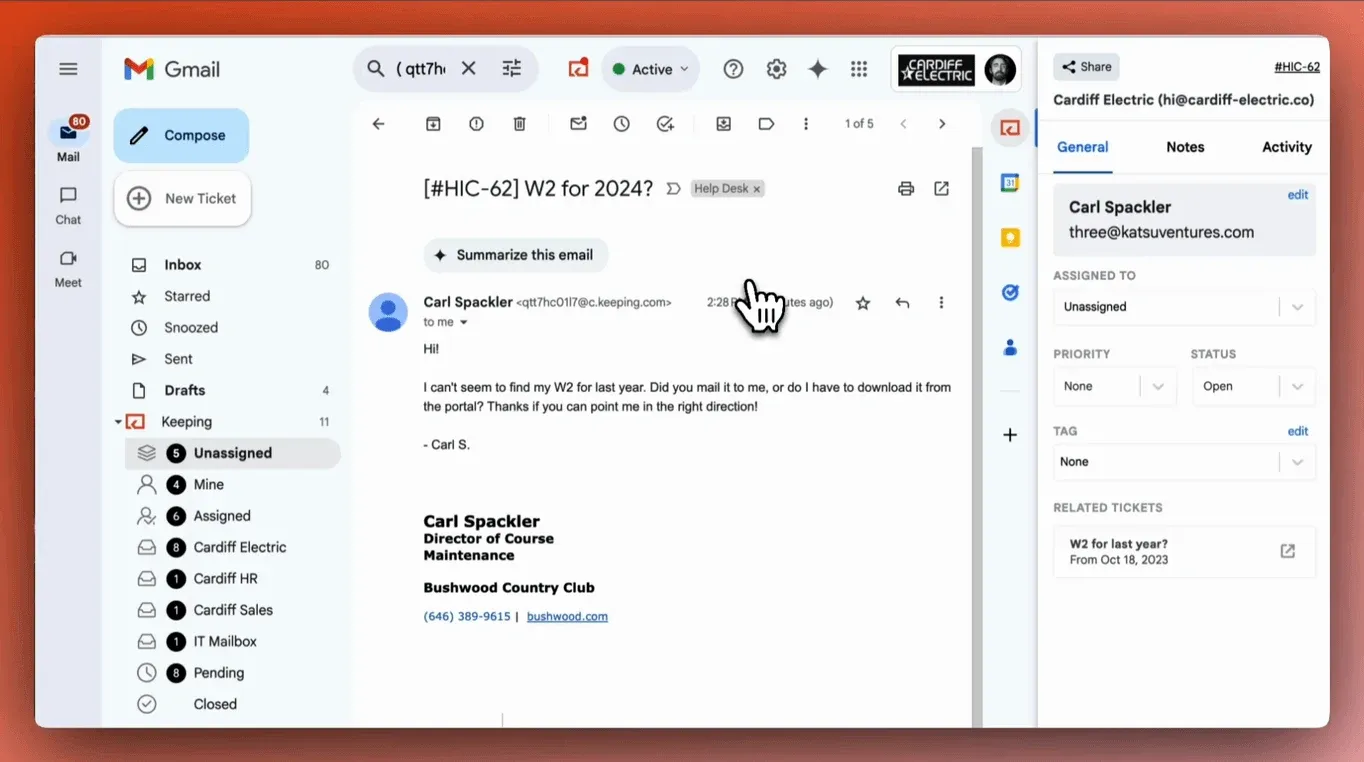
Product screenshot from Keeping’s shared mailbox management page.
This is useful for setting up a help desk in Gmail without making a separate help desk interface the team’s everyday destination. Keeping also has web and mobile portal access. The Gmail extension is a desktop workflow; don’t expect that sidebar to appear inside Google’s mobile app.
To get started:
- Create a trial account. Choose the people who will test the mailbox with you.
- Add your shared address. Follow the connection or forwarding instructions for your existing mailbox type.
- Invite your teammates. Give agents access to the relevant mailbox rather than sharing its password.
- Install Keeping in Chrome or Safari. Open Gmail and confirm that each agent can see the shared conversations.
- Test the full exchange. Send an outside email, assign it, add an internal note, reply from the shared address, and close the conversation.
That last test checks the actual workflow your team needs. Include a handoff between two agents, and confirm that the customer receives the intended sender address. If you’re starting with Groups, our Google Groups alternative page shows how the Gmail-based approach differs.
Essentials costs $14 per user per month with annual billing, or $19 month to month, with a two-user minimum. It includes two shared mailboxes, up to 10 agents, notes, collision detection, templates, standard reporting, and two workflows. For two agents, the subscription starts at a $28 monthly equivalent billed annually, or $38 on monthly billing.
Advanced costs $24 annually or $29 monthly per user. Round robin assignment, SLAs, shared drafts, and advanced reporting require Advanced; don’t choose Essentials expecting those capabilities. Check Keeping’s pricing against your agent count and required features before deciding.
If assignment, notes, and reply visibility are the missing pieces, try them on the email your team already handles. Start a free 14-day trial, with no credit card required.
Which option should you use?
Choose based on the coordination you need, rather than the biggest advertised user limit:
- An assistant or one or two colleagues need mailbox access: start with delegation. It’s a good fit when everyone can agree who handles what without an assignment system.
- You’re a Workspace administrator creating a shared address: check the native shared inbox wizard. It makes delegated setup more direct, but confirm availability and licensing first.
- Your team needs basic assignment and is comfortable outside Gmail: try Collaborative Inbox. Make Groups the place people check ownership and completion.
- Customer emails need owners, private context, and visible replies in progress: evaluate Keeping. Test the required features on the plan you intend to buy.
You don’t need to replace a working setup just because another option has more features. A delegated mailbox can be enough when responsibility is clear. Repeated duplicate replies, missed handoffs, or manual response-time spreadsheets are better reasons to reconsider it.
Once you have chosen the access method, use our team inbox management guide to establish the daily process.
Frequently asked questions about Gmail shared mailboxes
How do I access a shared mailbox in Gmail?
Open your Gmail profile menu and select the delegated account after accepting access. Supported Gmail mobile apps also offer delegated accounts in the profile menu, subject to rollout.
What is the main difference between Google’s collaborative inbox and shared inbox?
Collaborative Inbox is a Google Groups workflow with conversation assignment and completion controls. Google’s Admin-console shared inbox is a delegated Gmail mailbox, with shared access but no conversation assignment.
What are the downsides of using a shared mailbox?
Shared access alone can leave responsibility unclear and make duplicate replies or accidental deletions harder to manage. The exact limitations depend on the setup: Groups adds assignment, while dedicated tools can add collision detection, private notes, and reporting.
How do I get access to a shared mailbox?
Ask the account owner or administrator to grant access using the method your team uses. Personal Gmail supports 10 delegates; Workspace supports 1,000, roughly 40 concurrent under typical use, and delegates must be in the same organization.
How to add shared mailbox in Gmail
The owner grants delegated access from Gmail settings under Accounts and Import or Accounts, then Grant access to your account. After accepting the invitation, open the shared account from your profile menu.
How to create a shared email account in Gmail
Create the underlying Gmail account and grant delegates access instead of sharing its password. Workspace administrators can also use the shared email address wizard when it is available in their Admin console.
What is the difference between Google Groups and shared mailbox?
Google Groups distributes messages to members and can store a common conversation archive. Collaborative Inbox adds assignment in Groups; a delegated Gmail mailbox instead gives people access to the same Gmail account.