Gmail can make you dramatically more productive, or drown you in 400 unread messages. The difference is whether you use its built-in features or ignore them. This guide covers the six levers that actually move the needle, plus a seventh for teams.
Here’s the short answer: organize with labels and filters, learn a handful of keyboard shortcuts, let Gemini draft and summarize email, automate the repetitive stuff, master search operators, and cut notifications. If you share an inbox with a team, add assignment and collision detection. Everything below ranks by how much time it saves per week, not how clever it feels.
Two things have changed in 2026 that make this guide different from the average Gmail listicle. First, Gemini is genuinely useful now, particularly for summarizing threads and tightening drafts. Second, the center of gravity for most teams has shifted from “personal inbox” to “shared inbox,” which requires tools Gmail alone doesn’t ship with. We cover both.
All instructions match the current Gmail UI as of April 2026. Most tips work on free Gmail; where a feature needs Google Workspace, we flag it. Author: Cody Duval.
Jump to a section:
- Organize your inbox
- Master keyboard shortcuts
- Use Gemini to write and summarize
- Automate repetitive work
- Search like a power user
- Protect your focus
- Gmail for teams
- Power-user moves
- FAQ
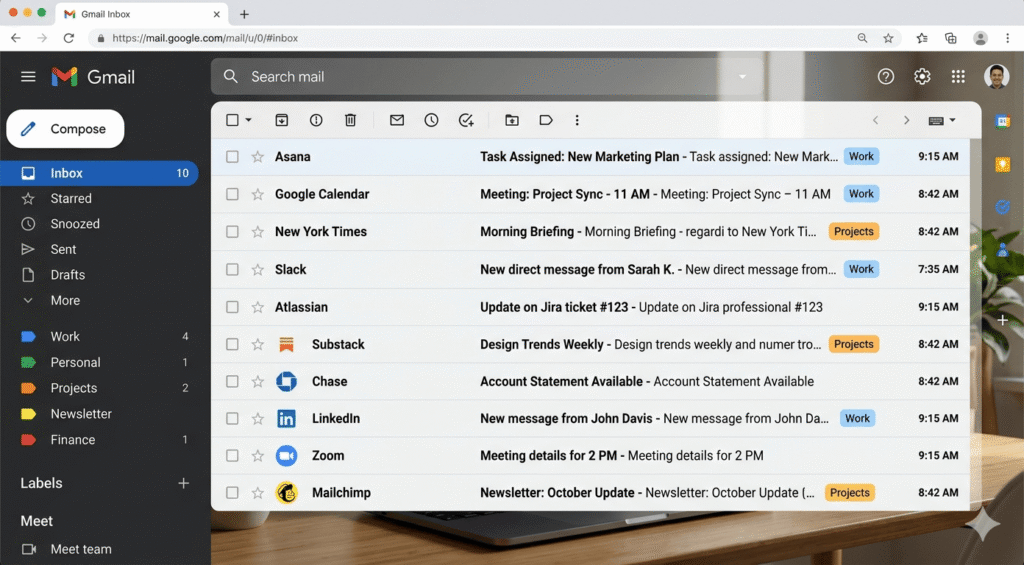
How to organize Gmail for productivity
The fastest way to organize Gmail is to combine three tools: labels to categorize messages, filters to apply labels automatically, and a Multiple Inboxes layout to see each category as its own pane. Set this up once and Gmail sorts itself for you. Everything else (stars, Priority Inbox, tabs) is a refinement on top.
Use labels instead of folders
Labels are Gmail’s version of folders, except a single message can carry more than one. That flexibility is the whole point. An email from a customer can be tagged Clients, Urgent, and Invoices at the same time, and archived out of your inbox without losing any of those contexts.
Create a label from the left sidebar by clicking More → Create new label. Keep your label tree shallow: three to five top-level labels beat a 40-label taxonomy you’ll abandon in a month. Nest sub-labels only when you have a real reason, like separating client projects under a single Clients parent.
Color-code the labels you look at most. Gmail shows the color in the inbox list, which turns label-scanning into a one-second glance.
One small feature that most people miss: you can share labels with teammates on Workspace accounts, which turns a label into a lightweight project folder the whole team can see. Not a replacement for a real shared inbox, but useful when two or three people need visibility into the same thread.
Set up filters to auto-label everything
Filters turn labels into an assembly line. Instead of tagging messages by hand, you define rules once and Gmail applies them forever. Newsletter from Stripe? Auto-label Finance, skip inbox, mark as read. Email to support@? Auto-label Support and star. This is the single highest-leverage setting in Gmail.
Create a filter the fast way: search for messages matching what you want to catch, click the filter icon on the right of the search bar, then Create filter. Choose the actions (apply label, archive, forward, mark as important) and save. Our complete guide to Gmail rules and filters walks through 10 filter recipes worth stealing.
The rule of thumb: any email you’ve archived without reading three times in a row should be filtered. You’ve already told Gmail what you think of it. Now make it official.
Turn on Multiple Inboxes
Multiple Inboxes lets you see up to five saved search results as separate panes alongside your main inbox. It’s the closest Gmail gets to a command-center layout. A classic setup: main inbox on the left, plus three panes for Starred, Awaiting reply (filter: from:me to:-me label:sent newer_than:7d), and Follow up.
Enable it under Settings → Inbox → Inbox type → Multiple inboxes. Define up to five sections with any search query. Full walkthrough: Gmail Multiple Inboxes setup guide.
Position the panes on the right of your inbox, not at the top. Right-side panes scan like a dashboard; top-stacked panes push your main inbox below the fold.
Let Gmail pre-sort with categories
Gmail’s default tabs (Primary, Promotions, Social, Updates, Forums) are a decent first-pass filter. Promotions peels marketing mail out of your primary view without you having to unsubscribe from every list. Keep Primary and Promotions on; turn the rest off if they’re empty or noisy. Settings live under Settings → Inbox → Categories.
Skip Priority Inbox (usually)
Priority Inbox tries to guess what’s important. For most people, filters you control produce better results than a black-box algorithm. If you want to try it anyway, turn it on under Settings → Inbox → Inbox type → Priority Inbox, but come back in a week and switch if it’s surfacing the wrong things.
If your inbox is already a wreck before you try any of this, start by cleaning up Gmail in 8 easy steps, then apply labels and filters to the result.
Master Gmail keyboard shortcuts
Keyboard shortcuts are the highest-ROI habit in Gmail. Memorizing 10 of them will cut your email time more than any app or plugin. Enable them under Settings → See all settings → General → Keyboard shortcuts → On, then save. Once enabled, press ? from anywhere in Gmail to open the full cheat sheet.
The 12 shortcuts worth learning first, in priority order:
| Action | Shortcut |
|---|---|
| Compose new email | c |
| Reply | r |
| Reply all | a |
| Forward | f |
| Send | ⌘/Ctrl + Enter |
| Archive conversation | e |
| Delete conversation | # |
| Mark as read | Shift + i |
| Star | s |
| Mute thread | m |
| Snooze | b |
| Next / previous message | j / k |
| Search mail | / |
| Open shortcut cheat sheet | ? |
Start with c, r, e, j, and k. Those five handle 80% of inbox navigation. Add the rest as they come up. Don’t try to memorize all 14 on day one.
The trick to actually sticking with shortcuts: cover your trackpad for a day. When your only option is the keyboard, muscle memory forms in hours instead of weeks. After that, you’ll click Archive once and wince.
If you want to go further, Gmail’s Custom keyboard shortcuts lab (Settings → Advanced) lets you rebind any action. Most people don’t need it, but if you live in Gmail all day, it’s worth 10 minutes.
Use Gemini to cut writing time
Gemini is Google’s AI assistant, and as of 2026 it’s baked into Gmail for most Workspace accounts. Used well, it replaces the hardest parts of email: starting a reply from a blank cursor, summarizing a 14-message thread, and rewriting a rushed draft to sound less terse. Used badly, it produces generic-sounding mush that makes you sound like a chatbot. Here’s where it’s actually worth using.
Help me write
Click the ✨ pencil icon in the Gmail compose window to open Help me write. Type what you want the email to say in plain language (“decline the meeting, suggest next Tuesday instead”), and Gemini generates a draft. Use the tone dropdown (Formalize, Elaborate, Shorten, I’m feeling lucky) to iterate until it sounds like you.
The best use case isn’t writing emails from scratch. It’s taking a draft you wrote and running Polish or Shorten on it. You keep the substance and voice, Gemini tightens the prose. A rough two-sentence reply you bashed out in 30 seconds becomes a clear three-sentence one in another 10.
Summarize long threads
On any thread with two or more replies, Gmail shows a Summarize this email button at the top. Click it and Gemini writes a 3–5 bullet summary of the whole thread. This is the feature that pays for itself instantly: no more scrolling through 12 nested replies to find the actual decision.
The side panel version (“What’s this email about?”) also works mid-thread and can answer specific questions like “What did Sarah propose for the deadline?” or “List the open questions in this thread.” For any thread over six messages, this is faster than scrolling.
Smart Reply and Smart Compose
Smart Reply offers one-tap canned responses (“Sounds good!”, “Thanks!”). Smart Compose completes sentences as you type. Both are on by default under Settings → General → Smart Compose. Keep Smart Compose on. It’s a genuine time-saver. Smart Reply is more hit-or-miss; useful on mobile, often too generic on desktop.
If you run customer support from Gmail, there’s a deeper play here. Gemini can draft tone-matched replies using your past responses as context. We break it down in how to supercharge Gmail for customer support with Gemini AI.
One caveat: don’t paste confidential data into Gemini prompts. Workspace admins can restrict what data leaves your tenant, but treat anything you feed Gemini as if it left the building.
Automate the stuff you do every day
Every repetitive email task in Gmail can be automated. Filters handle sorting. Templates handle repeated replies. Scheduled send handles timing. Auto-reply handles absences. Delegation handles “I’m not the right person.” Stack three or four of these and you’ll reclaim an hour a week without thinking about it.
The mistake people make here is trying to automate their inbox all at once. Don’t. Add one automation, live with it for a week, then add another. That’s how you build rules that survive, instead of a filter graveyard you abandon the first time something important gets archived by mistake.
Filters that do real work
Beyond labeling, filters can archive, delete, forward, mark as read, or star automatically. A few recipes worth stealing:
- Newsletters → skip inbox, apply Reading label. Read them on your schedule.
- Calendar invites → star and apply Meetings.
- Receipts (
has:the word "receipt") → apply Finance, archive. - Emails from your own domain → always mark as important.
- GitHub / Linear / Jira notifications → apply Dev label, skip inbox unless
@mention. - Automated “do not reply” senders → apply No-Reply, mark as read, skip inbox.
For ten more recipes, see Gmail automation: 10 easy techniques.
Templates for repeated replies
If you’re typing the same reply twice a month, make it a template. Enable under Settings → Advanced → Templates → Enable. Compose the email, click the three-dot menu → Templates → Save draft as template. Insert it any time from the same menu.
Full walkthrough and 12 ready-to-paste templates: Gmail canned responses and Gmail templates: supercharge your email.
Templates aren’t just for support replies. Use them for anything you’ve written twice: meeting follow-ups, intro emails, invoice nudges, weekly updates. If you can’t remember how you phrased it last time, make it a template.
Schedule send
Write now, send later (full guide to scheduling email in Gmail). Click the ▾ arrow next to Send and pick a time. Use it to batch email-writing into a single 30-minute block, then let messages land at the hours your recipients actually check mail. It also fixes the “sending from a plane at 3am” problem.
One underrated use: Monday-morning schedule. Write five emails on Sunday evening while context is fresh, schedule them for Monday 8am. Your week starts with momentum instead of a blank inbox.
Auto-reply and delegation
Vacation responder lives under Settings → General → Vacation responder. Set it for time off, but also use it proactively: a weekend or “deep work Friday” auto-reply resets sender expectations with zero effort. See how to set up automatic replies in Gmail.
Delegation lets someone else send and reply from your account without a password. Settings → Accounts and Import → Grant access to your account. Up to 10 delegates. Note: delegates can’t change settings, and replies show “sent by” the delegate’s address. Delegation works for an assistant covering a single inbox, but it’s not designed for a team sharing support@ (more on that in the next section).
Search Gmail like a power user
Gmail stores everything. The trick is finding it. The search bar accepts a set of operators that turn vague keyword searches into surgical queries. Memorize the eight below and you’ll find any email in under 15 seconds, regardless of how buried it is.
| Operator | Finds | Example |
|---|---|---|
from: |
Messages from a sender | from:sarah@acme.com |
to: |
Messages sent to a recipient | to:team@company.com |
subject: |
Words in the subject line | subject:invoice |
has:attachment |
Messages with any attachment | has:attachment from:accounting |
filename: |
Specific attachment type or name | filename:pdf |
older_than: / newer_than: |
Date ranges (d / m / y) | older_than:1y |
is:unread / is:starred |
State of a message | is:unread is:important |
label: |
Messages in a label | label:clients has:attachment |
- (minus) |
Exclude a term | dinner -spam |
size: |
Larger / smaller than | size:10m (over 10MB) |
Quotes "..." |
Exact phrase | "Q2 forecast" |
| Parentheses | Group OR queries | from:(alice OR bob) |
Pro move: any search can be saved as a filter. Build the query once, click the filter icon, and Gmail will catch every future match automatically. The same query that finds the email you need today becomes the filter that auto-sorts it tomorrow.
Two compound queries worth memorizing. “Emails I sent that never got a reply”: from:me -in:chats newer_than:30d combined with a manual scan. “Attachments I need to find in a hurry”: has:attachment filename:pdf from:sarah. Slot in whatever names and filetypes fit.
Protect your focus
The fastest way to be more productive in Gmail is to look at Gmail less often. Most productivity problems aren’t about how fast you process email. They’re about how many times an hour email interrupts what you were actually doing. Every notification costs you 15–25 minutes of focus once you factor in the context switch back to real work. Four settings solve 90% of this.
- Kill desktop notifications. Settings → General → Desktop notifications → Mail notifications off. Check email on your schedule, not Gmail’s.
- Batch-check email. Three times a day (morning, after lunch, end of day) is enough for most jobs. Close the tab in between.
- Snooze things you can’t do now. Hover any email and click the clock icon. It disappears until the time you pick. Keeps your inbox a to-do list, not a graveyard.
- Mute noisy threads.
mon any conversation you don’t need to see again. Replies keep hitting the thread; you stop getting pinged.
A note on inbox zero: it’s a process, not a goal. The point isn’t to see zero messages. It’s to make sure every message has been decided on. Reply, archive, snooze, task, or delete. Anything still in the inbox is something you’ve actively chosen to leave there.
For a deeper system, see Inbox Zero: secrets and tricks and 11 tips to manage email overload at work. To systemize your broader folder structure, how to organize work emails covers the whole stack.
Gmail for teams: where personal productivity ends
All the tips above are about your inbox. The moment you share an inbox with teammates (support@, sales@, hiring@, info@), Gmail’s model starts to break. Two people reply to the same email because nobody could see the other was already typing. A message gets silently archived by one teammate and forgotten by everyone else. Customers wait three days for an answer because each person assumed someone else had it. Nobody can answer the basic question, “who’s handling this?”
This is a different problem than personal productivity, and no combination of labels or filters solves it. The missing pieces are assignment (who owns this thread?), collision detection (is a teammate already typing?), status (open, pending, closed), and analytics (how fast are we actually responding?).
Gmail itself has two half-solutions: delegation (one inbox, multiple people can see it, no assignment or collision detection) and Google Groups Collaborative Inbox (assignment exists, but it’s clunky and ugly). Both leave obvious gaps.
Teams that handle real volume typically move to one of three setups:
- A proper shared Gmail inbox with assignment and visibility baked in
- Turning Gmail into a help desk for customer support
- A dedicated help desk platform outside Gmail (which means training, context switching, and an extra subscription)
Keeping sits in the first two categories. It’s a shared inbox and help desk that lives inside Gmail (a Chrome extension, not a separate app), so your team keeps the Gmail UI they already know, plus the pieces that are missing: assigning emails to specific teammates, collision detection when two people open the same thread, private notes, status tracking (open / pending / closed), and response-time analytics. Setup takes under 10 minutes, and because messages stay in Gmail, there’s no lock-in.
More than 2,000 companies, including Delivery.com, La-Z-Boy, and Harvard, run shared inboxes this way. For most growing teams, it’s 60–70% cheaper than enterprise help desks like Zendesk or Freshdesk, and there’s no training curve because it is Gmail.
The rule of thumb: if “who replied to this?” is a question you ask more than once a week, you’ve outgrown vanilla Gmail for shared inboxes.
If your team’s productivity problem is “emails keep falling through the cracks,” you can start a free 14-day trial of Keeping (no credit card, works with your existing Google Workspace).
Power-user moves worth knowing
The features below don’t usually make “top 10” lists because they look small on their own. But collectively they’re the reason people who’ve used Gmail for 10 years are still two or three times faster than people who’ve used it for 10 months. Steal whichever fit your workflow:
- Undo send. Settings → General → Undo Send → 30 seconds (the max). The best setting in Gmail you probably haven’t maxed out (how to unsend an email in Gmail).
- Aliases with the + trick.
you+newsletter@gmail.comstill delivers toyou@gmail.com, but now you can filter on the alias. Full guide: Gmail alias: 4 ways to create one. - Send as. Reply from a different address (like support@) without switching accounts.
- Confidential mode. Set an expiration, require SMS verification, block forwarding. Good for contracts and HR threads.
- Offline mode. Settings → Offline → Enable offline mail. Read, reply, and search without a connection. Chrome only, up to 90 days of mail cached.
- Signatures per send-as address. Different signature for your support inbox vs. your personal inbox. See Gmail signature examples and templates.
- Auto-advance. Settings → Advanced → Auto-advance → on. After archive, Gmail jumps to the next conversation instead of dumping you back in the list.
- Google Tasks sidebar. Drag an email into Tasks to turn it into a to-do with a due date.
- Forward as attachment. Right-click any message → Forward as attachment. Preserves the original message source, useful for IT or abuse reports. Full guide: how to forward emails in Gmail.
Frequently asked questions about Gmail productivity
How can I make Gmail more productive?
Combine filters, labels, and Multiple Inboxes to let Gmail sort itself. Learn 10 keyboard shortcuts (starting with c, r, e, j, k). Turn off desktop notifications and check email in 2–3 batches a day instead of reactively.
What is the best way to organize Gmail?
Create three to five top-level labels, then build filters that apply them automatically based on sender, subject, or keyword. Use Multiple Inboxes to see labels as separate panes alongside your main inbox. Avoid deep label hierarchies. They look organized but rarely get maintained.
How do I use Gmail more efficiently?
Process email in batches instead of reacting to every notification. Use keyboard shortcuts, templates for repeated replies, scheduled send for off-hours emails, and filters to auto-archive low-priority messages. These five habits together typically save 3–5 hours a week.
What are Gmail’s most useful features?
The five highest-leverage features are filters, keyboard shortcuts, Multiple Inboxes, templates (canned responses), and search operators. Undo send, snooze, and schedule send round out the top set. Gemini for summarizing threads is the most valuable recent addition.
How do I get to inbox zero in Gmail?
Archive aggressively. Not every email needs a reply or a folder. Use filters to auto-archive newsletters and notifications so they never hit your inbox. Process the rest by replying in under 2 minutes, snoozing if you can’t, or turning it into a task.
Does Gmail have AI features?
Yes. Gemini is built into Gmail for most Workspace accounts. It can draft emails (Help me write), summarize long threads (Summarize this email), polish tone, and answer questions about a thread in the side panel. Smart Compose and Smart Reply are separate, older AI features that still work well.
How do I use Gmail keyboard shortcuts?
Enable them under Settings → See all settings → General → Keyboard shortcuts → On. Then press ? anywhere in Gmail to see the full list. Start with five: c (compose), r (reply), e (archive), j / k (next / previous message).
How do I manage multiple Gmail accounts?
Use Gmail’s account switcher (top-right profile icon → Add another account) to sign into up to 10 accounts in one browser. For shared or team accounts, set up delegation under Settings → Accounts and Import so teammates can send from the account without sharing a password.
If the reason you’re reading a Gmail productivity guide is that your team’s shared inbox has become a daily source of stress, the fix isn’t more Gmail tricks. It’s giving that inbox the structure Gmail alone can’t provide. See how Keeping adds assignments, collision detection, and analytics to Gmail in under 10 minutes.