
A help desk for Gmail can be as simple as labels and filters or as complete as an extension that adds assignment, statuses, collision detection, SLAs, and reporting. Google Workspace has no dedicated help desk, but small teams can run support from Gmail without buying one.
Most teams asking this want to know whether they need a help desk at all. Below are six setups, from free workarounds to a help desk that runs inside Gmail, with the point where each one stops working for a small team.
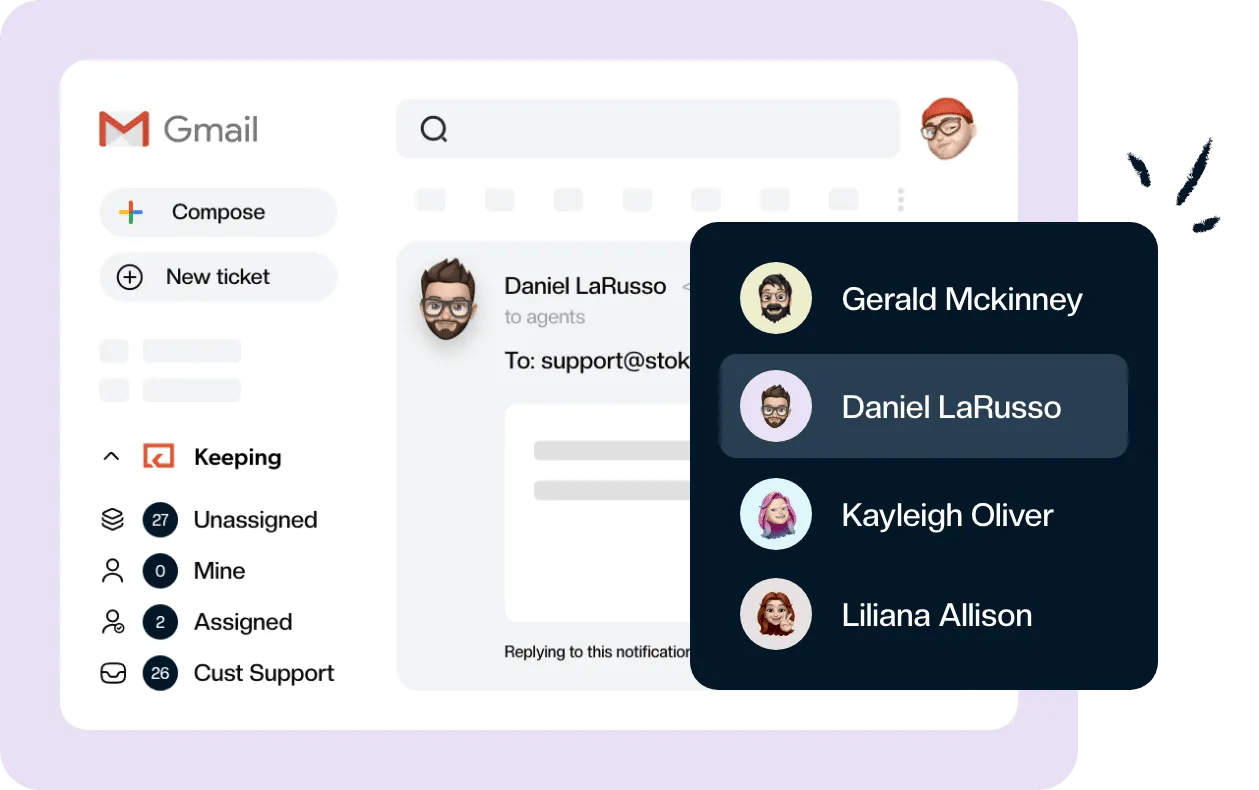
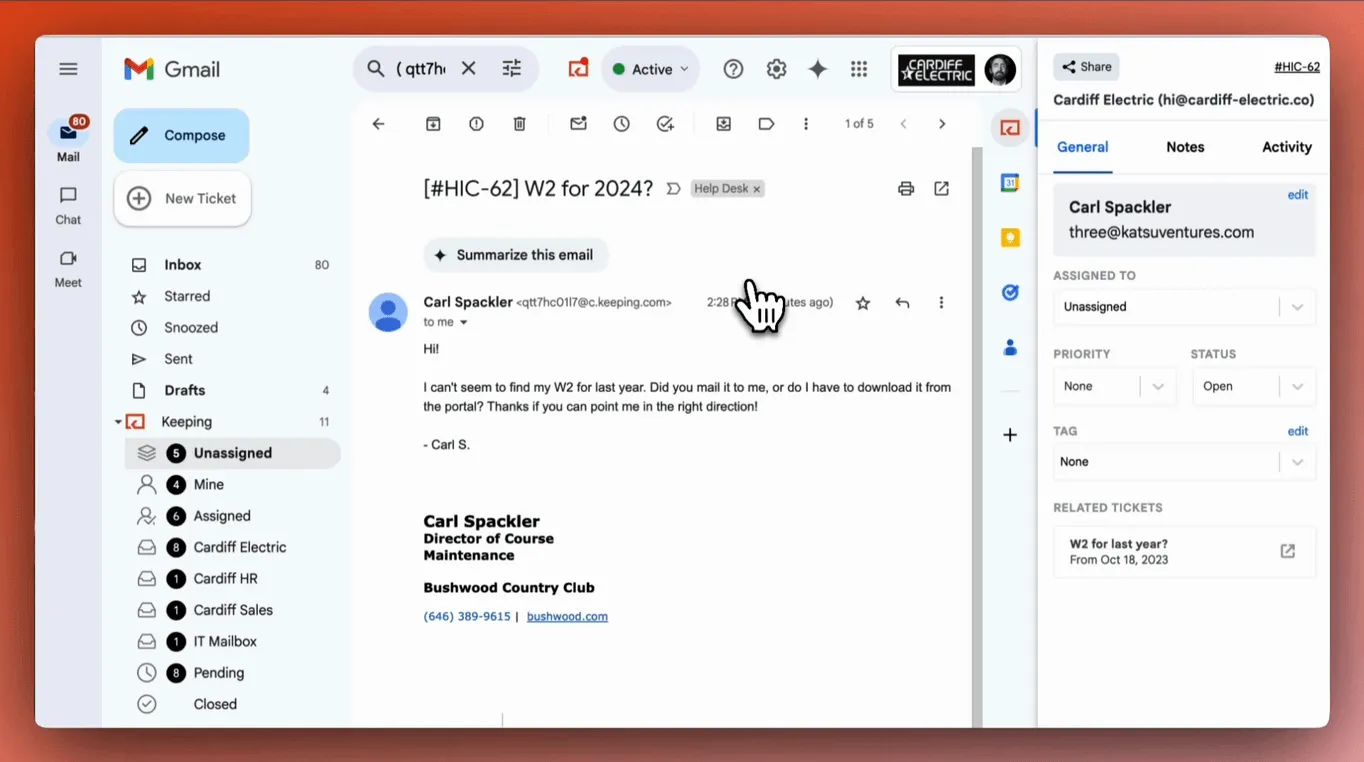
Keeping adds a shared help desk inside Gmail, so your team can assign customer emails, leave private notes, and see what still needs a reply.
Keeping is one of the extensions compared below, made for teams that have outgrown labels and forwards but want to keep answering customers from Gmail.
Ready to transform how you work in Gmail?
Teams love Keeping because you can collaborate on a shared inbox without ever leaving Gmail. It's not magic, but it feels magical.
In this guide:
- Can you use Gmail as a help desk?
- Why teams want Gmail as their help desk
- Does Google have a built-in help desk?
- Gmail help desk setups compared (October 2026)
- Which method is right for your team?
- Method 1: Shared Gmail + labels and filters
- Method 2: Gmail delegation
- Method 3: Google Groups collaborative inbox
- Method 4: Google Forms + Sheets + Apps Script
- Method 5: A help desk inside Gmail
- Setting up Gmail as your help desk
- Common mistakes
- Frequently asked questions
Can you use Gmail as a help desk?
Yes, but Gmail on its own is not a help desk, and Google Workspace has no built-in one. You can build a basic one from native features (labels and filters, Gmail delegation, or a Google Groups Collaborative Inbox), or add a help desk that runs inside Gmail, such as Keeping, Hiver, Gmelius or Drag. The native options are free, but none adds private notes, collision warnings or response-time reports, and Collaborative Inbox assignment happens at groups.google.com, not in Gmail. An extension adds those features to the inbox your team already uses.
If you already know you want the steps, jump to the setup comparison. It puts every option side by side, with who has to do the work.
Why teams want Gmail as their help desk
Most support teams don’t start with a help desk. They start with a Gmail account (support@company.com or help@company.com) and a few people sharing the password. It works because Gmail is fast, familiar, and free with Google Workspace.
Your team already works in Gmail, and your customers already email you there. Tools like Zendesk or Freshdesk feel like overkill at 30 emails a day, and paying per agent for a separate app is hard to justify when the inbox is already open.
For plain email handling, Gmail’s search, keyboard shortcuts and mobile apps are better than what most standalone help desks offer.
Trouble starts when volume grows. Two people reply to the same customer. Nobody knows which emails are still waiting for an answer. Your manager asks for the average response time, and nobody can say. A help desk fills that gap, and the methods below fill it in different ways, inside Gmail or right next to it.
If what you need is a team inbox in Gmail, every method below starts from the same thing: a shared inbox that more than one person answers.
Does Google have a built-in help desk?
Google Workspace, formerly G Suite and before that Google Apps, has no dedicated help desk. Google Groups Collaborative Inbox and the newer Admin-console shared inbox are the closest native options. They can provide shared access and basic ownership, but neither adds assignment rules, SLAs, collision detection, or support reporting.
What Google does offer is a set of tools you can stitch together into something like a help desk. Gmail handles the email. Google Groups can add shared ownership and basic assignment. Google Forms can create a submission portal. Google Sheets can track status. And Google Apps Script can glue them all together with automation.
The closest Google gets to a real help desk is Google Groups Collaborative Inbox, which lets you assign conversations, mark them resolved, and share a queue across multiple people.
The newer option is the Admin-console shared inbox: a Workspace admin goes to Users → Set up a shared email address and adds the people who need it. Google calls it an administrator feature that’s being released in phases, for Business Starter, Standard and Plus, so many admins won’t see it yet. Everyone added becomes a delegate, and sent mail shows the shared address with a “Sent by” line. It’s delegation with a tidier setup screen, not a ticketing product.
Delegation has its own ceiling. Per Google’s delegation help page, about 40 delegates can use one account at once, access can take up to 24 hours, and you can’t delegate an alias.
None of these has SLA rules, collision detection or support reporting. Compare the full Google Groups Collaborative Inbox and Gmail shared inbox workflows before choosing. If you went looking for a Google help desk for Gmail, there isn’t one product to switch on. Google help desk software comes down to a workflow you build yourself or a third-party extension.
Is there a help desk for Gmail?
Yes, from third parties. Gmail extensions add assignment, Open/Pending/Closed statuses, collision detection, internal notes, SLAs and response-time reporting inside Gmail, while teammates keep the inbox they know.
Gmail help desk setups compared (October 2026)
There are six ways to run support from Gmail. Four come free with Google Workspace: labels and filters, delegation, the Admin-console shared inbox and a Groups Collaborative Inbox. The fifth is a Forms and Apps Script build. The sixth is a help desk that runs inside Gmail, connected to support@ by Google sign-in or forwarding.
The table skips the Apps Script build, whose steps are whatever your developer writes (Method 4), and lists the four Gmail tools I’d shortlist.
| Setup | Where you work | Who sets it up | How support@ connects | Steps | Assignment / notes / collision / reports | Price (as of October 2026) |
|---|---|---|---|---|---|---|
| Labels and filters on a shared login | Gmail | Anyone with the password | Everyone signs in to the same account | About 4 | No / No / No / No | Included in Workspace |
| Gmail delegation | Gmail | The owner of the support@ account | Delegate access (not possible on an alias) | 3 | No / No / No / No | Included |
| Admin-console shared inbox | Gmail | A Workspace admin | Admin wizard, released in phases | About 4 | No / No / No / No | Included (Business editions) |
| Groups Collaborative Inbox | groups.google.com | Group owner, after an admin turns on Groups | The group address | 6 | Yes, in Groups / No / No / No | Included |
| Keeping | Gmail (extension), or online in the Keeping app | Keeping admin connects it, each agent installs | Google sign-in, Google Group forwarding or an alias filter | 3, under ten minutes | Yes / Yes / Yes / Yes | $14/user/month, annual |
| Hiver | Gmail (extension) | Hiver admin; every user installs and changes a setting | Google sign-in, or a Google Group or alias | 6, after each user’s extension setup | Yes / Yes / Yes / Yes (SLAs from Pro) | Growth $25/user/month, annual |
| Gmelius / Drag | Gmail (extension) | Whoever creates the inbox, then the team installs | Google Group, a Google account sign-in, or (Gmelius) an alias | 4 to 5 | Yes / Yes / Yes / Yes (SLAs: Gmelius Growth, Drag Pro) | Gmelius Growth $25, Drag Starter $12, per user/month, annual |
Competitor prices are from each vendor’s pricing page, checked October 24, 2026, per user per month on annual billing. Setup steps are from each vendor’s help pages on the same date. Keeping’s plans are on Keeping’s pricing page.
Two things the table can’t show. With delegation and the Admin-console inbox, everyone sees the same mail but nobody owns a message, so you still need a rule about who answers what. And Collaborative Inbox does have assignment, but your team has to go to groups.google.com to use it. If that’s the deal-breaker, a Google Groups alternative lets you keep the group address and do the assigning in Gmail.
The other route is a help desk outside Gmail, such as Front or Zendesk, which pulls support@ into its own app. Front’s Starter plan is $25 per seat per month on annual billing, checked the same day.
Which method is right for your team?
Free methods fit small, low-volume teams. Paid tools earn their cost once ownership, duplicate replies and reporting turn into daily problems. The setup table above shows what each option takes to switch on. This one shows the team size and volume at which you’ll outgrow it.
| Method | Team size | Daily volume | Assignment | Collision detection | SLAs | Analytics | Cost |
|---|---|---|---|---|---|---|---|
| Labels + filters | 1–2 | Under 20 | Manual labels | No | No | No | Free |
| Delegation | 2–5 | Under 30 | Manual labels | No | No | No | Free |
| Groups Collaborative Inbox | 3–8 | Under 50 | Basic | No | No | No | Free |
| Forms + Sheets + Script | 2–5 | Under 30 | Custom | No | Custom | Sheets | Free plus development time |
| Gmail extension | 2–50+ | Any | Manual and automatic | Yes | Yes | Yes | Paid |
The graduation moment
You need more than a free setup when duplicate replies become common, messages fall through the cracks, nobody can identify an owner, or a manager cannot answer how many conversations the team handled. A simple ticketing system adds that structure without requiring a large help desk rollout.
Method 1: Shared Gmail account with labels and filters
This is the simplest setup. Everyone signs in to the same Gmail account (or uses Gmail aliases) and you organize incoming email with labels and filters.
How it works
- Create a shared Gmail account (e.g., support@yourcompany.com)
- Share the login with your team, or set up email forwarding to individual accounts
- Create labels for status: “New,” “In Progress,” “Waiting on Customer,” “Resolved”
- Create labels for assignment: one per team member
- Set up Gmail filters to auto-label by keyword, sender, or subject line
- Use label sharing so everyone sees the same organization
It costs nothing beyond the Workspace seats you already pay for, and there is nothing to learn. If you can use Gmail, you can use this, and it works the same afternoon.
The trouble is that none of it is enforced. A label called “Maria” is a convention, and nothing stops two people replying to the same customer ten minutes apart. There is no record of how long anything waited or who answered it, so a question about response time gets a shrug. Sharing one password also fails most compliance frameworks, and it breaks the moment someone leaves. In practice this holds up for one or two people and perhaps twenty emails a day. If you are already past that, skip to Method 3 or Method 5.
What’s better than using Gmail labels for support?
Delegation is safer than sharing a password, and Google Groups adds basic ownership. Once several teammates need reliable assignment and reporting, a Gmail help desk extension is better than labels because statuses are enforced, ownership is visible, and two people can see when they are about to answer the same conversation.
Method 2: Gmail delegation
Gmail delegation lets you grant another person access to your inbox without sharing your password. The delegate can read, send, and delete emails on behalf of the account owner.
How it works
- Go to Gmail Settings → Accounts → Grant access to your account
- Add each team member’s email address as a delegate
- Delegates can now switch to the shared mailbox from their own Gmail
- Sent messages show “sent by [delegate] on behalf of [shared address]”
Delegation fixes the password problem. Everyone signs in as themselves, replies still come from support@, and every delegate sees the same inbox as it changes, at no extra cost.
It fixes nothing else. A message still has no owner, there is no way to tell who is handling what, no collision warning, and no automation or SLA. Google’s own limits: a Workspace account can have up to 1,000 delegates (10 on personal Gmail), but only around 40 can work in it at the same time, and a Workspace admin can switch delegation off by policy. For a team of two to five that mainly wants to stop sharing a password, it is the right first step, and if you already run multiple Gmail inboxes it stays tidier than forwarding. Just don’t expect it to solve a workflow problem.
Method 3: Google Groups collaborative inbox
Google Groups Collaborative Inbox is the closest thing Google offers to a built-in help desk. It turns a Google Group into a shared queue where conversations can be assigned to members, marked as resolved, and filtered by status.
Step-by-step setup
- Create a Google Group: Go to groups.google.com → Create Group. Name it something like “Support Team” with the email support@yourcompany.com
- Enable Collaborative Inbox: In Group settings, under Enable additional Google Groups features, select Collaborative Inbox. Conversation history has to be on as well (Google’s instructions)
- Add team members: Add each support agent as a group member with “Member” or “Manager” role
- Configure posting permissions: Under Posting Policies, allow “Anyone on the web” to post (so customers can email in)
- Set up forwarding: If you already have a support@ address in Gmail, forward incoming emails to the group address
- Train your team: Show them how to assign conversations, change status (“No action needed,” “Complete,” “Duplicate”), and filter the queue
What you get
- Assignment of each conversation to a group member
- Statuses: complete, duplicate or no action needed
- One queue that everyone sees
- Labels and categories to sort conversations by topic
- Full-text search across all conversations
What you don’t get
- Collision detection: two agents can reply to the same conversation at once without knowing
- Response-time targets or tracking
- Automation of any kind: no auto-assign, auto-tag or auto-respond
- Templates, so every reply is typed from scratch
- Reports on how the team is doing
- Gmail itself: agents leave Gmail and go to groups.google.com to manage the queue
There’s no mobile app either: on a phone you’re using the Groups site in a browser, which is a real bottleneck if your team answers support from their phones.
This suits teams of three to eight who need basic assignment and status tracking and don’t want to pay for a tool yet. It’s a real step up from shared labels, but you’ll outgrow it once volume picks up. For a deeper look, see our Google Groups Collaborative Inbox guide.
Method 4: Google Forms + Sheets + Apps Script
This is the do-it-yourself route: a ticketing system built from Google’s free tools and your own scripts.
How it works
- Google Form: Create a submission form with fields for name, email, subject, description, and category
- Google Sheet: Form responses feed into a Sheet that becomes your ticket tracker. Add columns for status, assignee, priority, and resolution date
- Apps Script: Write scripts to auto-assign tickets (round-robin), send confirmation emails, notify agents via Gmail or Chat, and escalate overdue tickets
- Gmail integration: Use Apps Script’s GmailApp class to parse incoming emails into Sheet rows, so customers don’t have to use a form
The appeal is total control at no licence cost. Every field, rule and notification is yours, and because the data lives in Sheets, reporting is a pivot table away. Teams with a developer on hand have built surprisingly complete systems this way.
The same developer has to keep it running. Apps Script stops a function after six minutes and has daily quotas, Sheets can lag when several people edit at once, and replies don’t attach themselves to the original ticket, so threading breaks. One careless script edit can take the whole thing down, and there is no collision detection, shared drafts or templates unless you build them. It suits internal IT requests or a simple intake form far better than customer support at volume. If you’re tempted by this route, look first at the Google-native ticketing options that need less custom code.
Method 5: A help desk inside Gmail (Keeping, Hiver, Gmelius, Drag)
Gmail extensions add what the methods above lack (assignment, ticketing, SLAs, collision detection, templates and analytics) while your team keeps answering from Gmail.
Some vendors call them help desk email plugins. Check that each one keeps the daily work inside Gmail rather than in its own app.
What extensions add
Most Gmail help desk extensions add these:
- One-click assignment, plus round-robin or load-balanced auto-assignment
- Open, Pending and Closed statuses, with custom ones if you need them
- Collision detection, which shows when a teammate is already viewing or replying to a conversation
- SLA targets for first response and resolution time, with a flag on any conversation that misses one
- Shared canned responses with merge tags
- Internal notes that customers never see, with @mentions
- Shared drafts, useful for training or a sensitive reply
- If/then rules: auto-assign by keyword, auto-tag by sender domain, auto-close after inactivity
- Reports covering response time tracking, agent workload, resolution rates and CSAT, in dashboards rather than spreadsheets
- AI features such as auto-categorization, suggested replies and sentiment analysis, which more tools now include (see our guide on using Gemini AI for Gmail customer support)
Extension model vs. standalone help desks
There are two types of help desk tools: extensions that live inside Gmail (like Keeping, Hiver, Gmelius, and Drag), and standalone platforms (like Zendesk, Freshdesk, or Help Scout) that replace Gmail entirely.
The standalone approach means leaving Gmail for a new interface, which makes sense for teams managing thousands of tickets across chat, phone and email. If your team runs on Gmail and email is the main channel, an extension makes more sense: nobody learns a new tool, setup takes minutes, and replies still come from your own address.
Keeping is a help desk that runs inside Gmail. It adds ticketing, assignment, collision detection, SLAs, templates, automation, and analytics without changing how customers email you. For broader comparisons, see email help desk software.
All four tools below follow one pattern: someone connects support@ once, then each person installs an extension. The differences are in that first step.
How to set up Keeping in Gmail
Keeping setup takes under ten minutes. A Keeping admin connects the shared address once, then each agent adds the extension to their own Gmail.
- Create the shared mailbox and connect support@. In Keeping’s settings, open Mailboxes, click Create a New Shared Mailbox, and enter a name (customers see it on replies) and the address they already write to. If support@ is a real Workspace account, click Sign in with Google and you’re done. For a Google Group, add Keeping’s forwarding address to the group as a member set to “Each email”, and set the people to “No email” so nobody gets two copies. For an alias, add a filter in the parent account that forwards the alias’s mail to Keeping.
- Install the extension. Each agent installs Keeping for Chrome or Safari, refreshes Gmail and logs in from the sidebar.
- Invite the team by their Gmail or Workspace address.
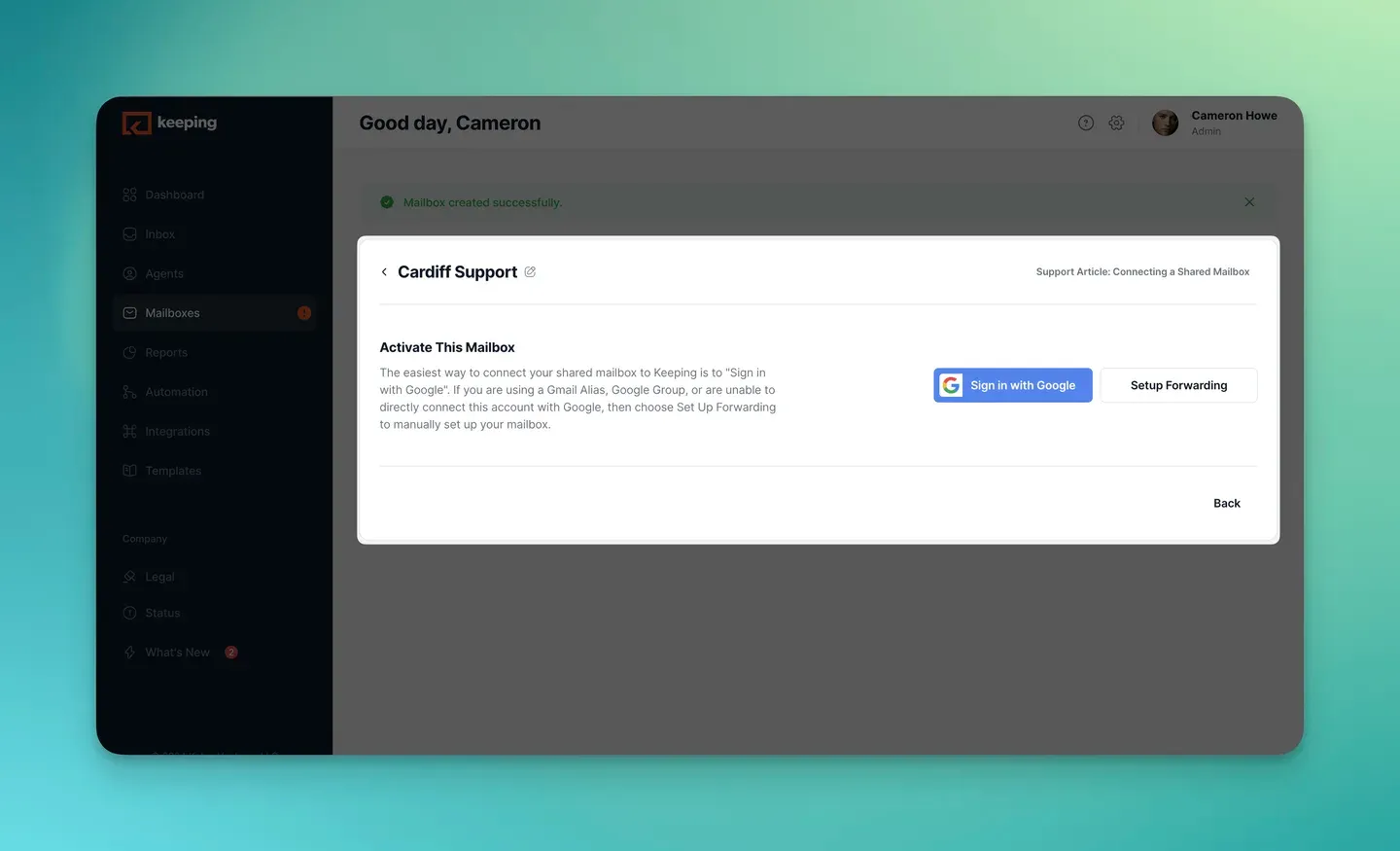
Keeping’s mailbox connection step. Screenshot from Keeping’s Connecting a mailbox help article, retrieved October 24, 2026.
Replies go out from support@ under the mailbox name, and the whole team sees them.
What it still lacks: Keeping is Gmail only, and it handles email, not chat or phone. If what you want is “just Gmail with assignment, statuses, analytics and a CSAT button,” note that CSAT, SLAs and round robin are on Advanced, not Essentials.
Essentials is $14 per user per month on annual billing, with a 14-day trial and no credit card; Keeping’s plans list the limits. For a shared inbox and help desk for your support@ team inside Gmail, start with a simpler alternative to a traditional help desk.
Hiver in Gmail
Hiver asks the most of each user: every teammate installs and authenticates its extension and changes a Gmail setting before an admin connects support@ by Google sign-in or as a Google Group or alias. On a Group or alias inbox, syncing depends on the one person who created the connection, so it can break if they leave the group, and only Workspace accounts bring over the last 100 emails.
Gmelius in Gmail
Gmelius sets up from its own workspace page rather than from inside Gmail. It connects a Google Group, an account you can sign in to or an alias, and it can convert an existing Google Group. The cheaper Meli plan has no shared inbox, so Growth is the real starting point.
Drag in Gmail
Drag shows shared email as cards on a board inside Gmail, which some support teams like and others find odd. It connects a Google Group you belong to or a Gmail account you sign in to, and Drag says setup takes under two minutes. Round robin and SLA rules are Pro only, and Starter keeps three months of reports.
Can you track resolution time using just Gmail data, not a full help desk?
Not on its own. Gmail records when each message arrived and when you replied, but it has no idea when an issue was resolved. An extension adds Open, Pending and Closed states, so it can measure the time from the first email to closing while the team keeps answering in Gmail.
Can you track Open, Pending, and Closed statuses without moving tools?
Yes. A Gmail extension gives each conversation in the shared mailbox one status that every teammate sees. Labels can imitate statuses, but people apply them inconsistently, and a label has no owner, no timer and nothing to report on.
Is there a Gmail add-on that turns tags into meaningful metrics?
Yes. Gmail help desk extensions report on tags alongside first response time, resolution time, assignee, volume and SLA results. You can see whether the billing or VIP queue is slowing down, or which teammate needs a hand, without anyone logging their work in a separate system.
Which help desk tools integrate best with Gmail?
The ones that run inside Gmail: Keeping, Hiver, Gmelius and Drag, compared side by side in the setup table. If you’re weighing plans and features rather than setup, our page on Gmail help desk software goes through that.
It suits teams of any size that want real help desk features without leaving Gmail, and it is the method most teams graduate to when labels, delegation or Groups stop working.
What about integrating Gmail with a help desk you already have?
A Gmail integration usually forwards or syncs email into a separate help desk, where your team assigns and answers it. That preserves the support system’s reporting and channel history, but agents leave Gmail for most daily work. A Gmail extension takes the opposite approach and adds the workflow to Gmail itself.
If your team already relies on Zendesk for chat, phone, or a large knowledge base, an integration may be the cleaner choice. Compare Zendesk alternatives and other email help desk software before replacing a working multichannel setup. If you are weighing a Zendesk Gmail integration, our comparison explains Keeping’s approach to support inside Gmail.
Setting up Gmail as your help desk
Whichever method you pick, these habits make it work.
1. Create a dedicated support email address
Don’t use a personal inbox. Create a dedicated address like support@, help@, or team@ through Google Workspace. If you don’t have one yet, here’s how to create a Gmail account for business. This becomes the single entry point for all customer requests. If you need multiple addresses, you can use Gmail aliases or set up forwarding from multiple addresses.
2. Create your label and status system
At minimum, you need labels for ticket status (Open, Pending, Closed) and assignment (one per agent). Color-code them for quick visual scanning. If you’re using a Gmail extension, these are built in.
3. Create templates for common replies
Identify your top 10 most common customer questions and create canned responses for each. Gmail’s built-in templates work for solo use, but for shared templates across a team, you’ll need a Gmail extension or shared Gmail signature and template setup.
4. Set up auto-replies for off-hours
Configure an auto-reply so customers know their email was received and when to expect a response. It cuts down on “did you get my email?” follow-ups and buys your team time when volume spikes.
5. Define response time expectations
Even without formal SLAs, establish team norms: “We respond to all emails within 4 business hours.” Write it down, communicate it to customers, and track whether you’re meeting it. If you’re using a Gmail extension with SLA features, configure violation alerts so missed targets are visible.
Common mistakes when using Gmail as a help desk
- Sharing the password. Password sharing breaks audit trails and violates compliance requirements such as SOC 2, HIPAA and GDPR. Use delegation or an extension instead.
- Going without collision detection. Duplicate replies follow, and customers notice. It’s the biggest single problem with Methods 1–4.
- Ignoring metrics. “We respond pretty fast” isn’t a number. Without response time tracking, you can’t find bottlenecks, justify headcount or show that things improved.
- Having no escalation path. An email that sits unassigned for hours should set off an alert or a reassignment, because nobody catches it by checking by hand.
- Overcomplicating the setup. You don’t need 30 labels and 50 filters on day one. Add them when a real need shows up.
- BCC-ing managers for visibility. It clutters their inboxes and gives you nothing to analyze.
Frequently asked questions
Can I use Gmail as a help desk?
Yes, but Gmail on its own is not a help desk and Google Workspace has no built-in one. You can build a basic one from labels and filters, delegation or a Google Groups Collaborative Inbox, or add a help desk that runs inside Gmail. The free options have no private notes, collision warnings or response-time reports.
What tools turn Gmail into a help desk?
Keeping, Hiver, Gmelius and Drag all run inside Gmail through a browser extension and connect your support@ address by Google sign-in or by forwarding from a Google Group or alias. Each adds assignment, statuses and internal notes. They differ on price, on which plan includes SLAs and on how setup works.
What helpdesk tools do people move to after Gmail becomes messy?
Most small teams go one of two ways. They add a help desk that runs inside Gmail, such as Keeping, Hiver, Gmelius or Drag, so nobody changes inboxes. Or they move support into a separate app such as Front, Zendesk or Help Scout, which makes more sense when chat and phone matter as much as email.
Is there a free Gmail help desk?
Not a complete one. The free setups are labels and filters on a shared account, Gmail delegation, Google’s Admin-console shared inbox and a Google Groups Collaborative Inbox, all included with Google Workspace. Only Collaborative Inbox adds assignment, and it lives at groups.google.com. The tools that run inside Gmail are paid, with free trials.
Can I run support in Gmail without a help desk?
Yes. Small teams can run support with Gmail labels, delegation, Google Groups, or a Forms-and-Sheets build. Those free methods work while volume is low and ownership stays obvious. Once duplicate replies, missed email, or reporting gaps appear, a Gmail extension adds assignment and status tracking without moving the team into a separate help desk.
Is there an official Google help desk?
No. Google Workspace has no dedicated help desk. Its closest native options are Google Groups Collaborative Inbox and an Admin-console shared inbox that Google describes as an administrator feature being released in phases. Neither provides the assignment rules, SLAs, collision detection, and reporting of a help desk.
Does Gmail have a ticketing system?
Gmail doesn’t have a built-in ticketing system. You can simulate one using labels and filters, but it lacks assignment, status tracking, SLAs, and reporting. Gmail extensions add a full email ticketing system directly inside Gmail’s interface.
How do I raise support tickets in Gmail?
With a Gmail extension like Keeping, every incoming email automatically becomes a support ticket. You can assign it, set priority, track status, and measure response time, all without leaving Gmail. Without an extension, you’d need to manually label emails or log them in an external spreadsheet.
Can you use Google Forms as a ticketing system?
Yes, within limits. Google Forms can capture ticket submissions, and Google Sheets can track them. But you lose email threading, real-time collaboration, and any automation beyond what you build in Apps Script. It works for internal IT requests or simple intake, not for high-volume customer support.
What is the best way to assign tickets in Gmail?
A Gmail help desk extension is the most reliable method. Extensions like Keeping offer one-click assignment, round-robin auto-assignment, and load-balanced distribution. Without an extension, your options are limited to manually applying labels (easy to forget) or using Google Groups Collaborative Inbox (basic but functional). For teams managing a group email, assignment has to be explicit, not assumed.
Can you track agent performance and SLAs in Gmail?
Not natively. Gmail provides no performance metrics or SLA tracking. Google Groups Collaborative Inbox doesn’t either. To track response times, resolution rates, and agent workload, you need a Gmail extension with built-in analytics or an external tool connected via API. Learn more about email response time tracking.
What are the limitations of using Gmail for support?
Gmail’s biggest limitations for support are: no collision detection (agents can reply to the same email simultaneously), no ticket assignment, no SLA tracking, no shared templates, no performance analytics, and no automation rules. Gmail was designed for personal email, not team collaboration.
What is a Gmail shared inbox?
A Gmail shared inbox (or shared mailbox) is a single email address that multiple team members access and respond from. It can be set up through password sharing (not recommended), delegation, Google Groups, or a Gmail extension. The term usually refers to any setup where a team shares responsibility for incoming email at a common address. Read our full guide on shared inboxes.
Do I need a ticketing system if my team uses Gmail?
If you have more than 2 people handling customer email, or you receive more than 20 support emails per day, yes. Without a ticketing system, you’ll eventually deal with duplicate replies, missed emails, and zero visibility into team performance. You don’t have to leave Gmail to get one. Gmail extensions add ticketing inside Gmail, so the team keeps the inbox it already knows. Explore your options in our guide to simple ticketing systems.
If the free methods are creating more work than they save, see a simpler alternative to a traditional help desk. Keeping gives small teams assignment, status, collision detection, and reporting inside Gmail without the overhead of a separate support app.