
In the Keeping app
One team inbox. Everyone knows what’s theirs.
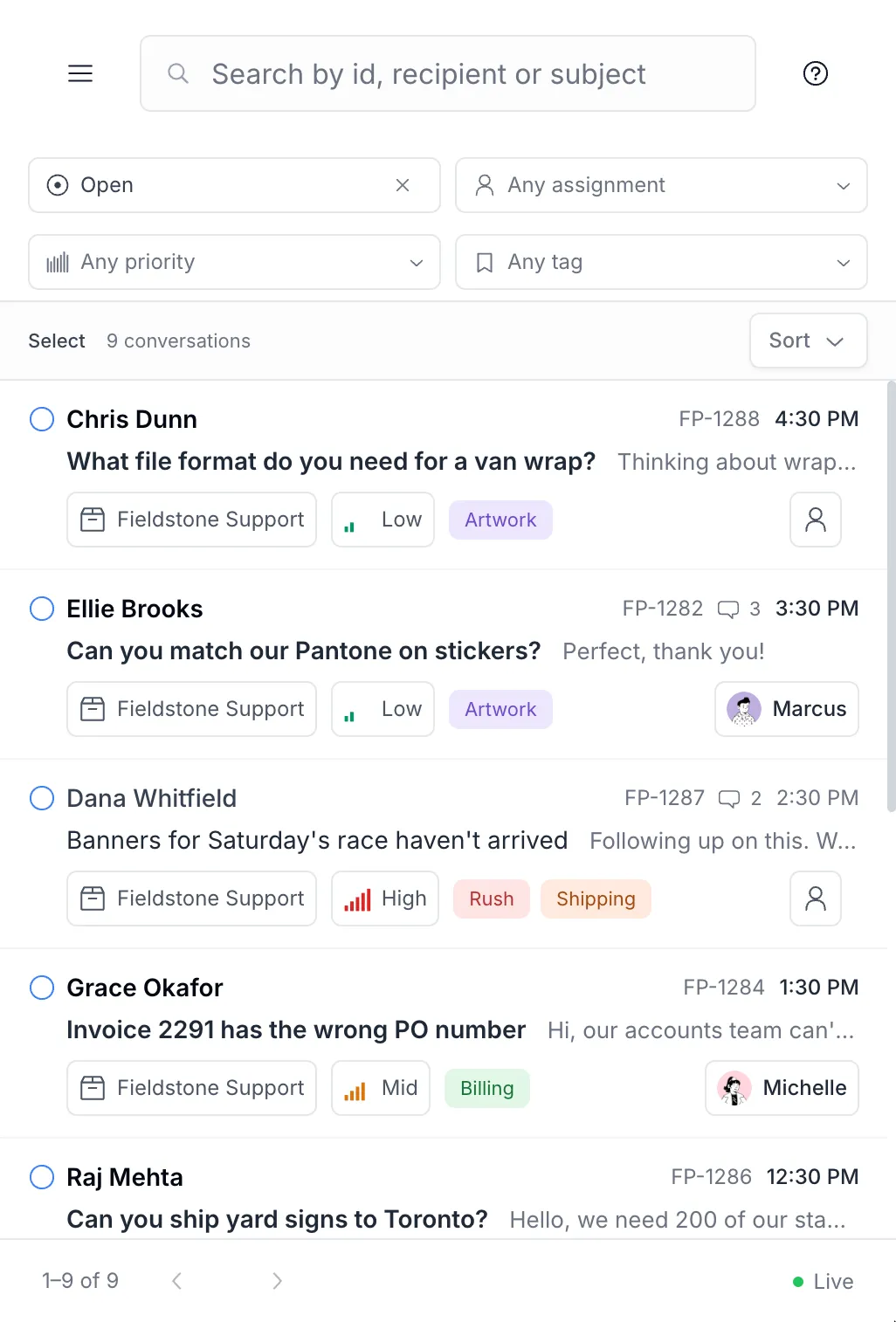
Every shared mailbox in one list, with a clear owner on every email. Open the Keeping app at your desk or on your phone and see what still needs a reply.


 Rated 4.5 /5 on G2
No Credit Card Required

A Tuesday in the Keeping app
Here’s how a four-person print shop runs three shared addresses through it
Fieldstone Print answers support@, info@ and billing@ with Sam, Michelle, Marcus and a part-time designer. Follow their Tuesday, then see what Sam checks on Friday.
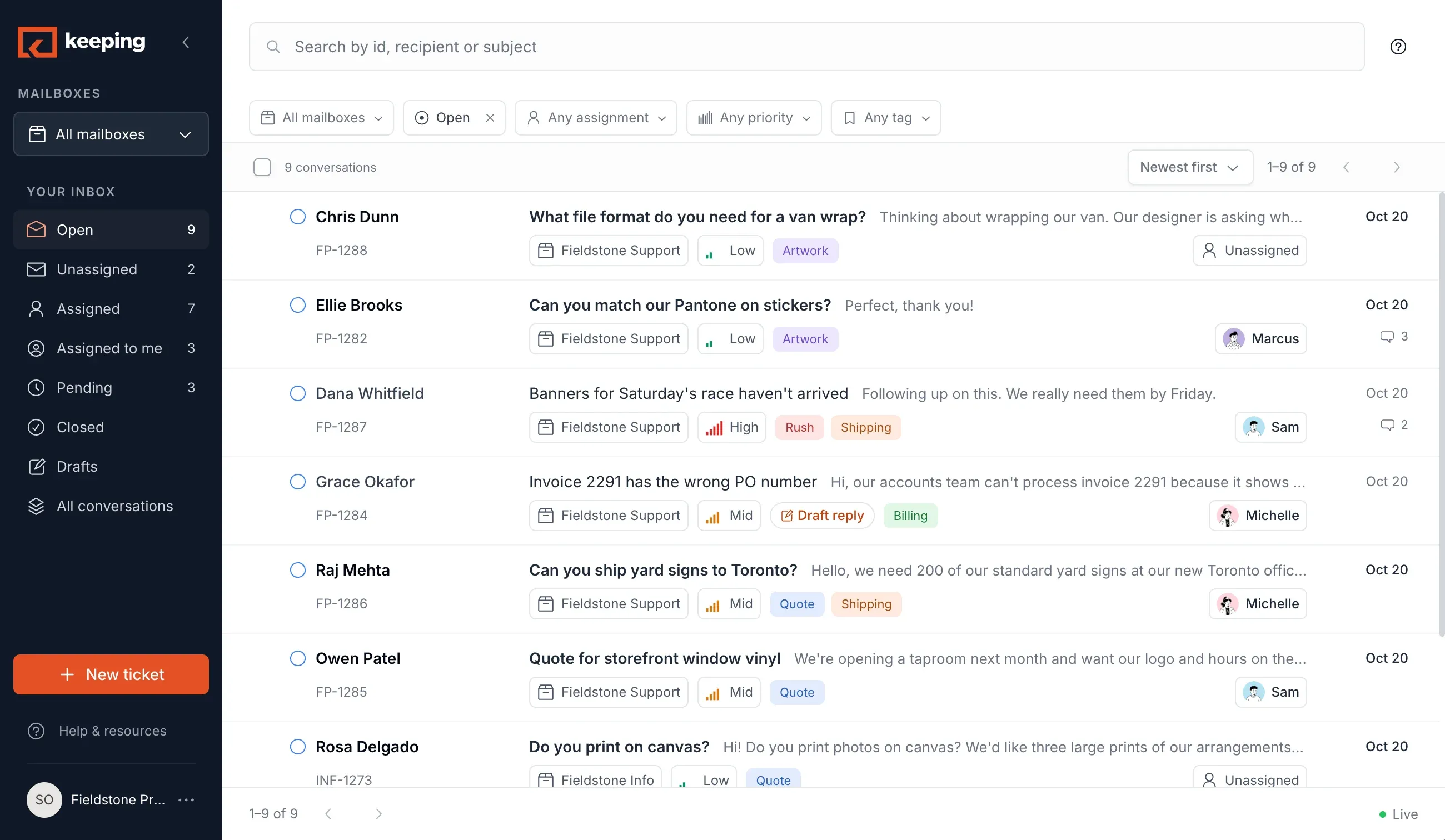
8:52 amSam opens the app
Start the day knowing what needs a reply
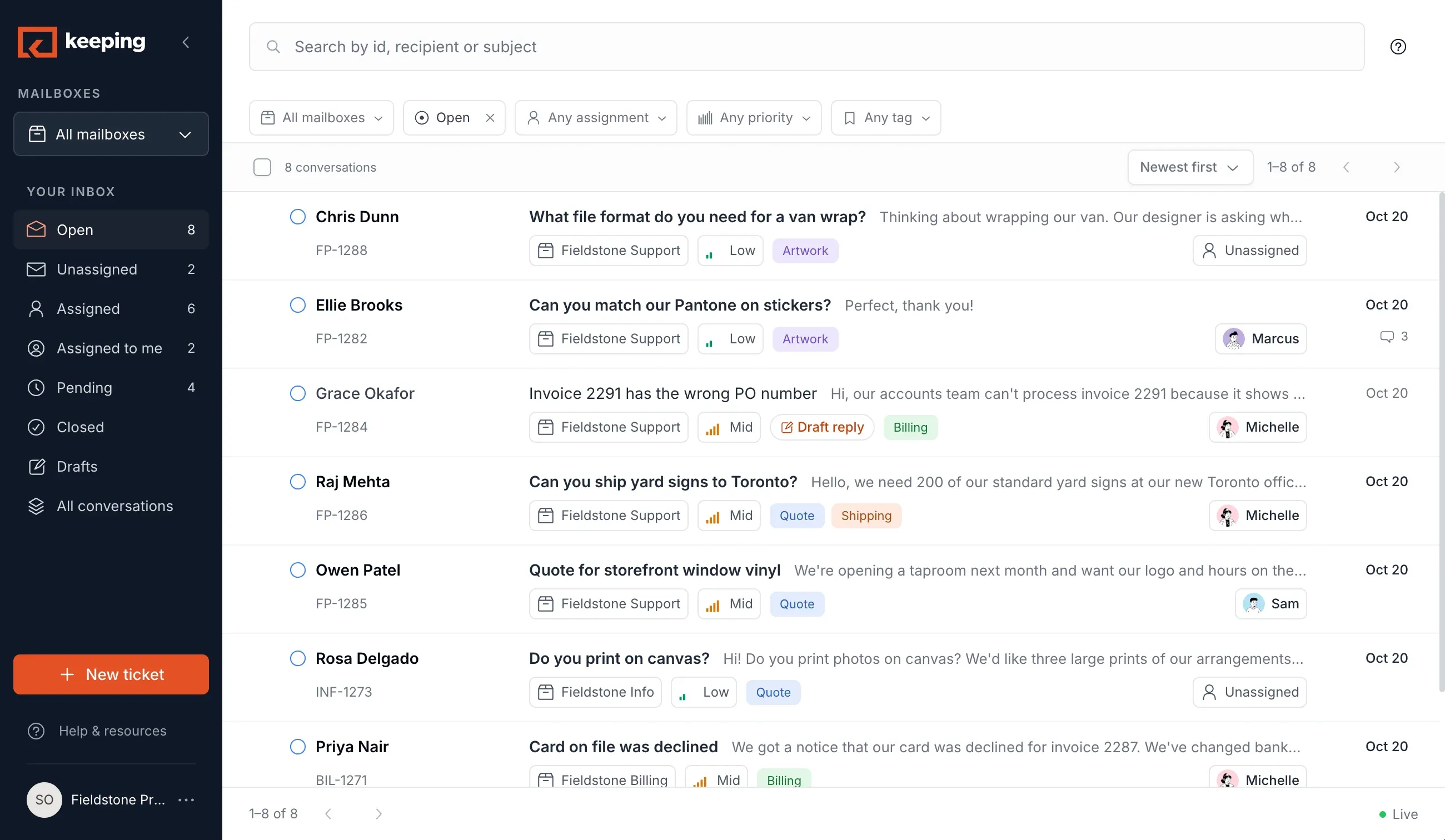
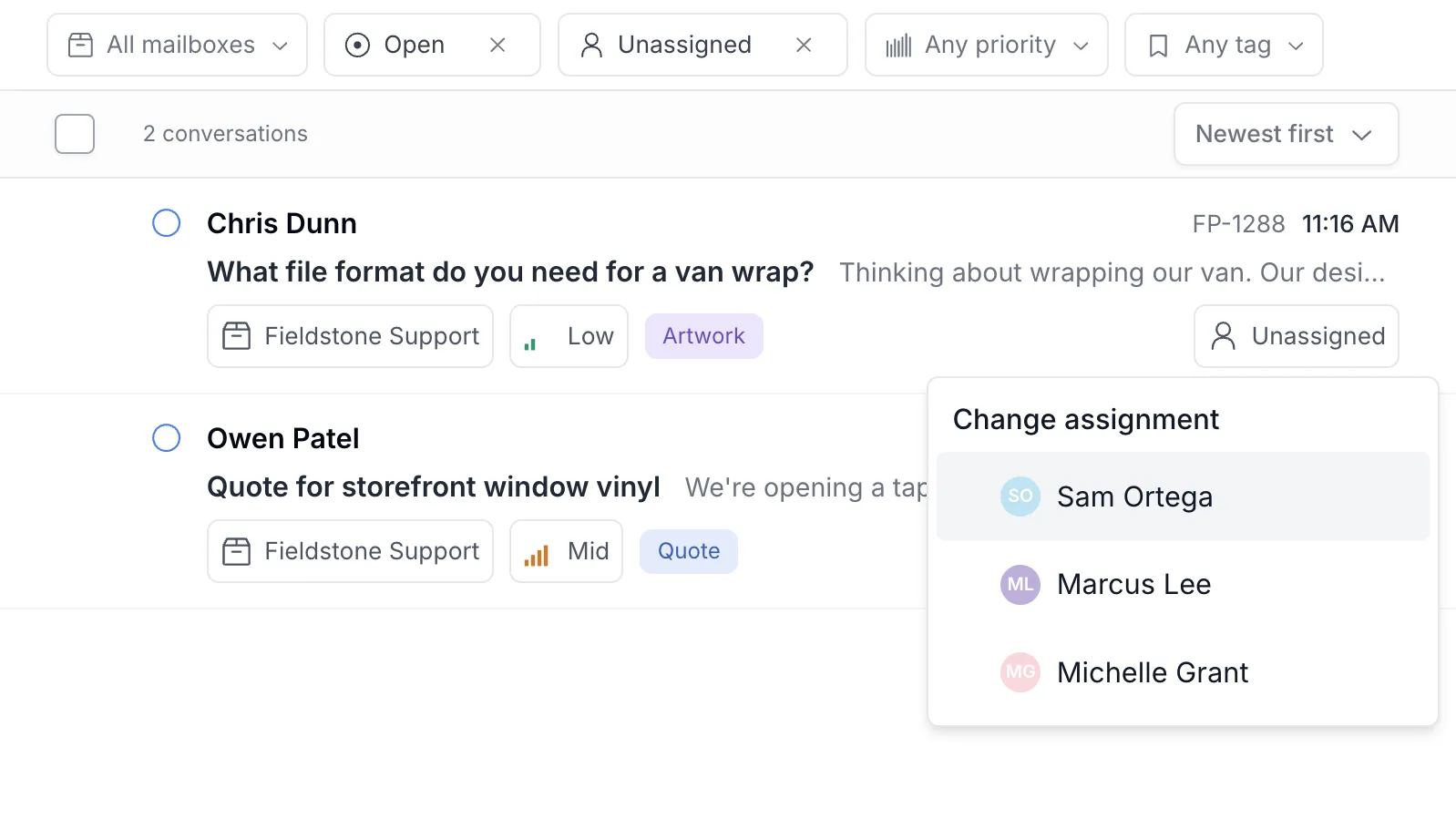
Support, info and billing in one list, and a count of the emails with no owner yet. Two this morning. Sam takes one and hands the other to Michelle before the coffee is poured.
Instead of a wall of bold unread emails, you see how many still need someone, and who has the rest. Everything has a clear owner.
9:05 amMichelle starts on hers
Everyone knows what’s on their plate
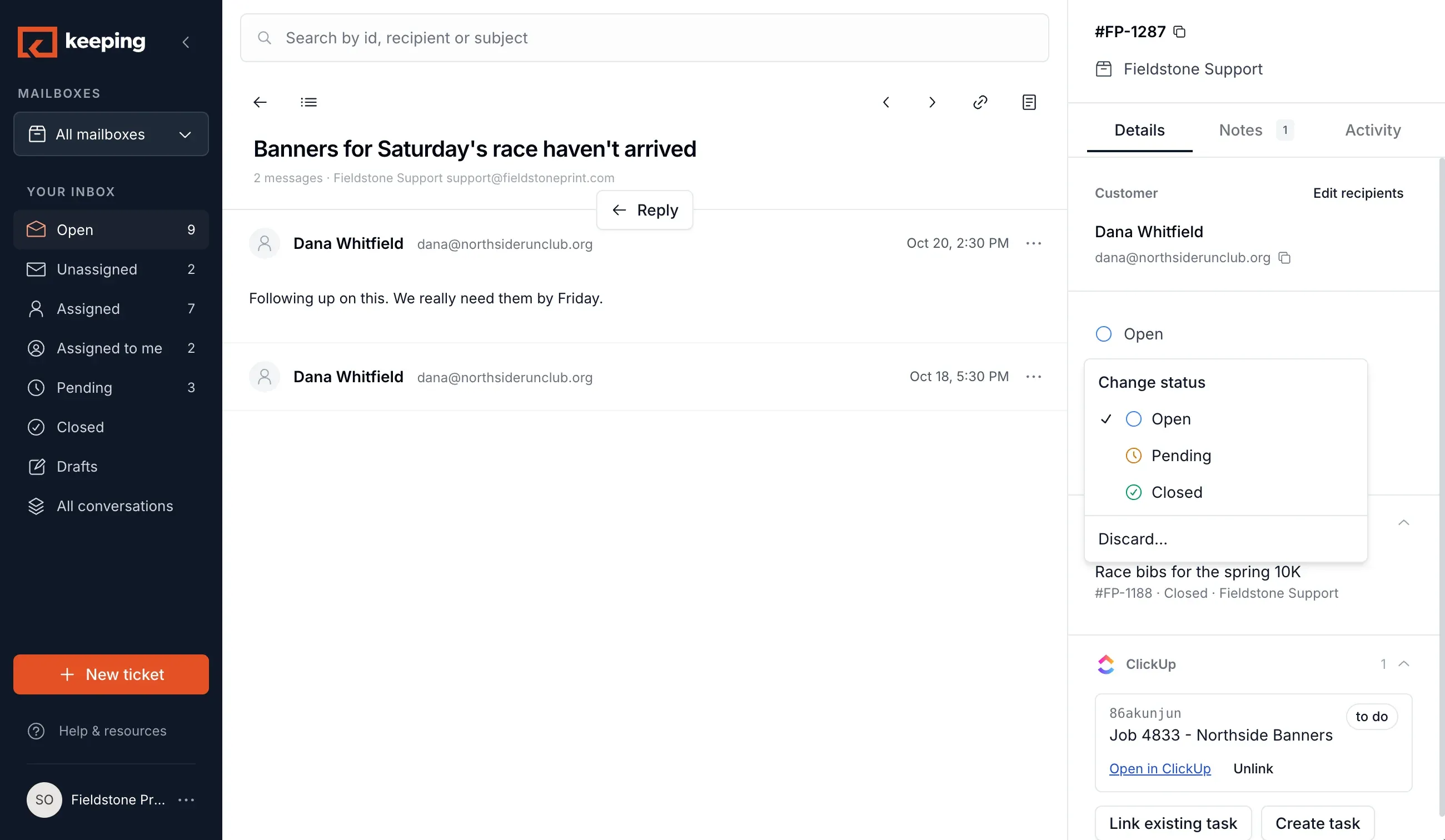
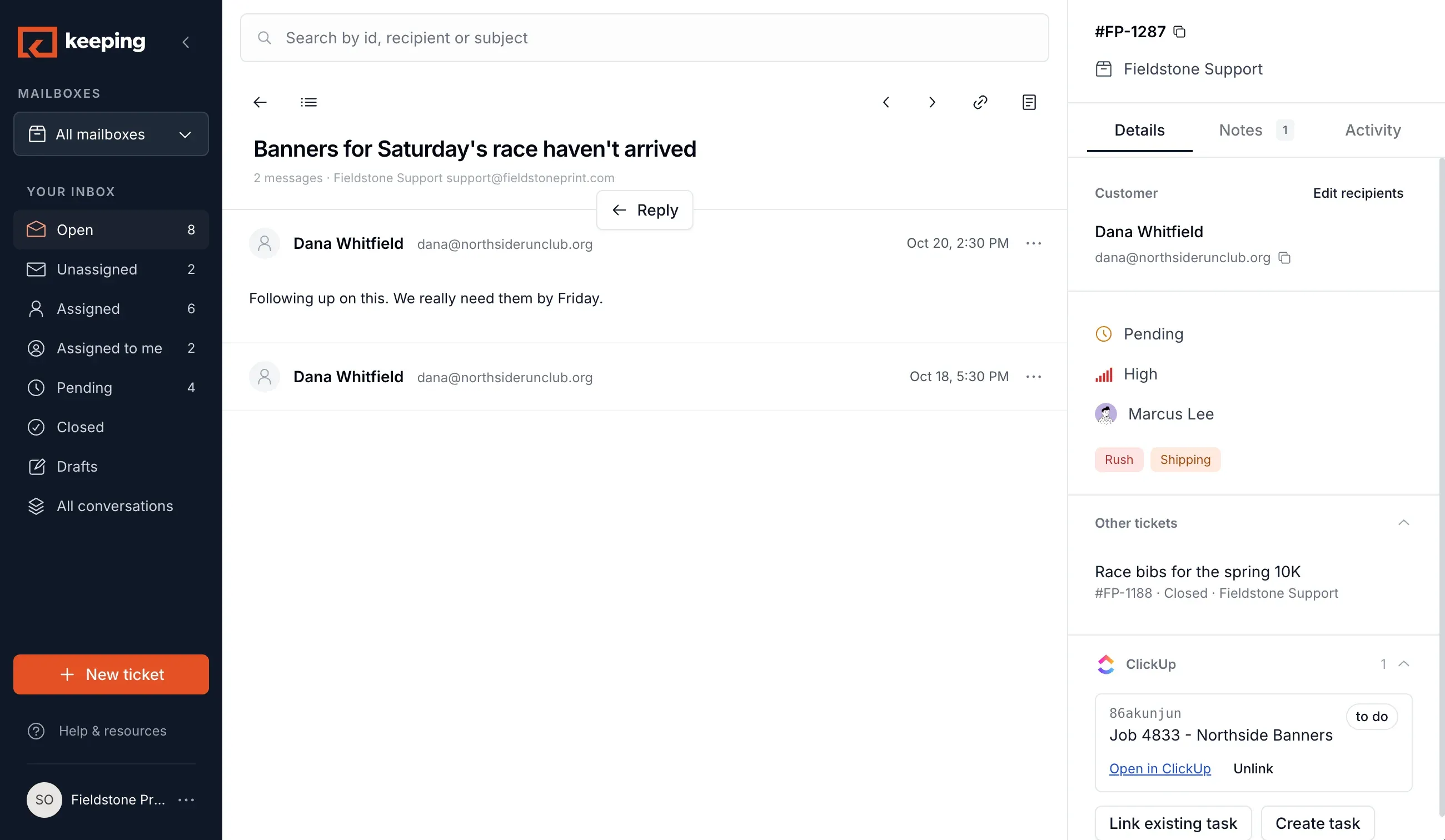
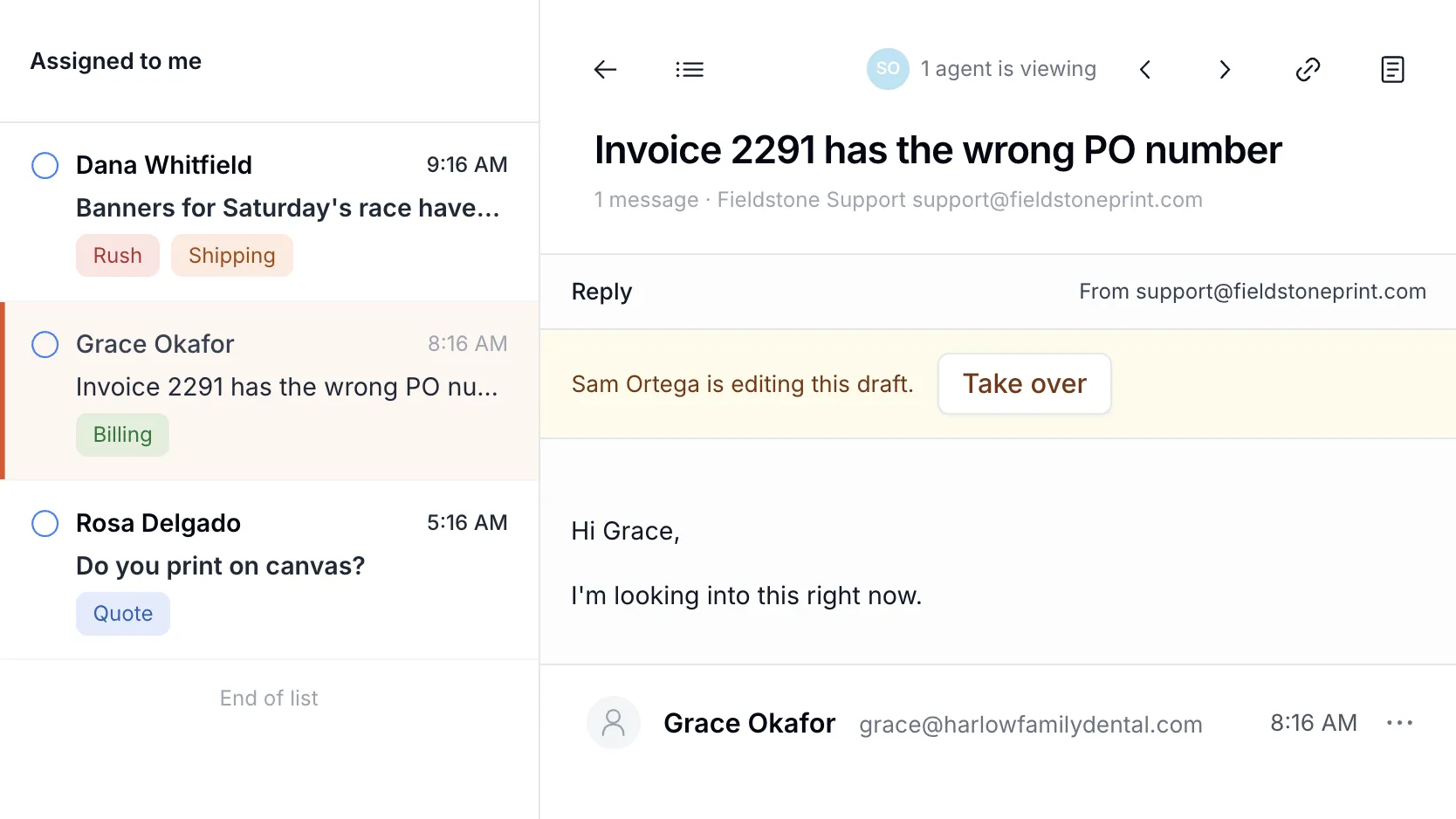
Michelle doesn’t read everyone’s email. Her list is the three that are hers, one after another. When she opens the invoice question, Sam is already writing the reply, so she leaves it with him and moves to the next. No more double replies.
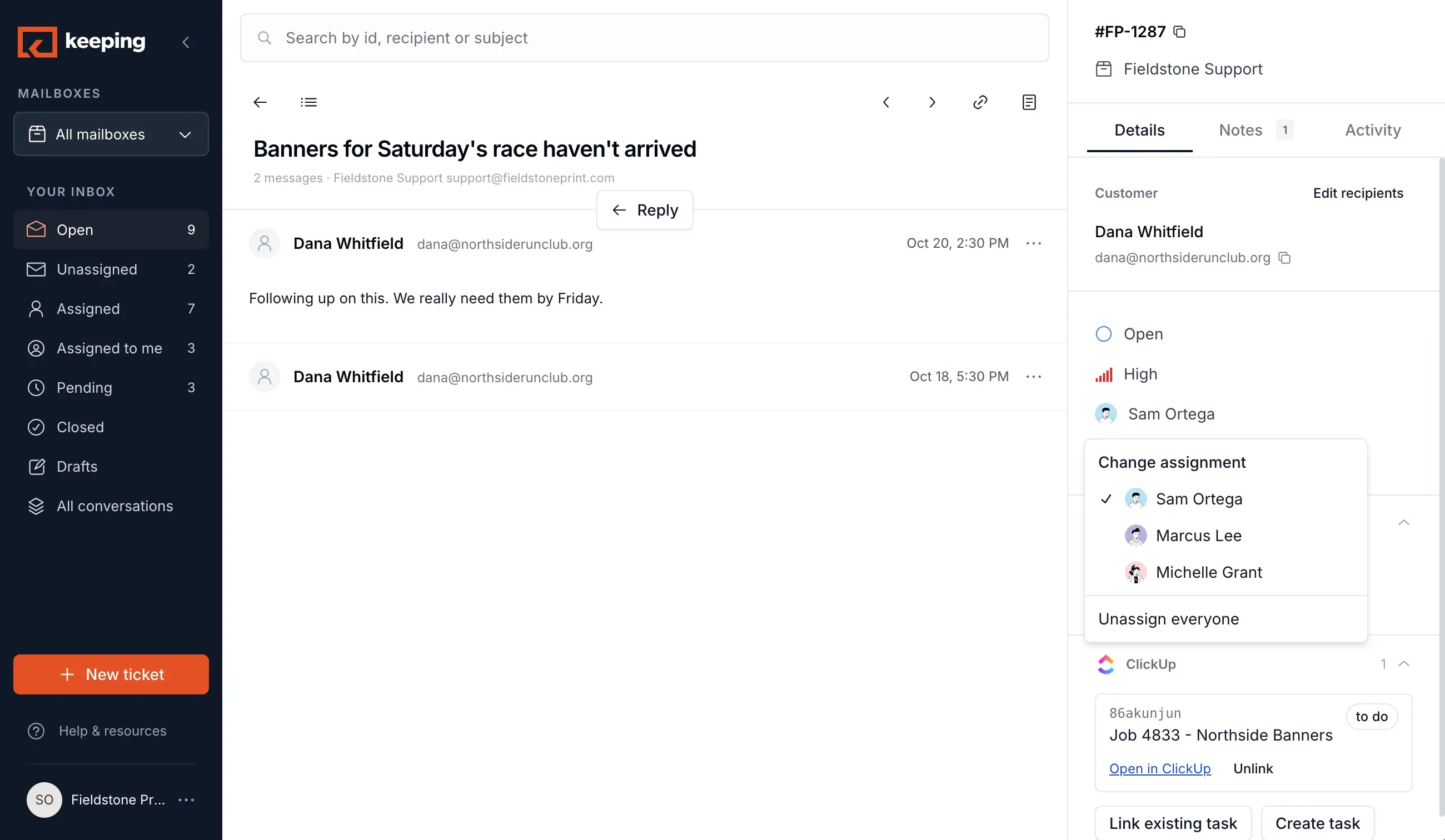
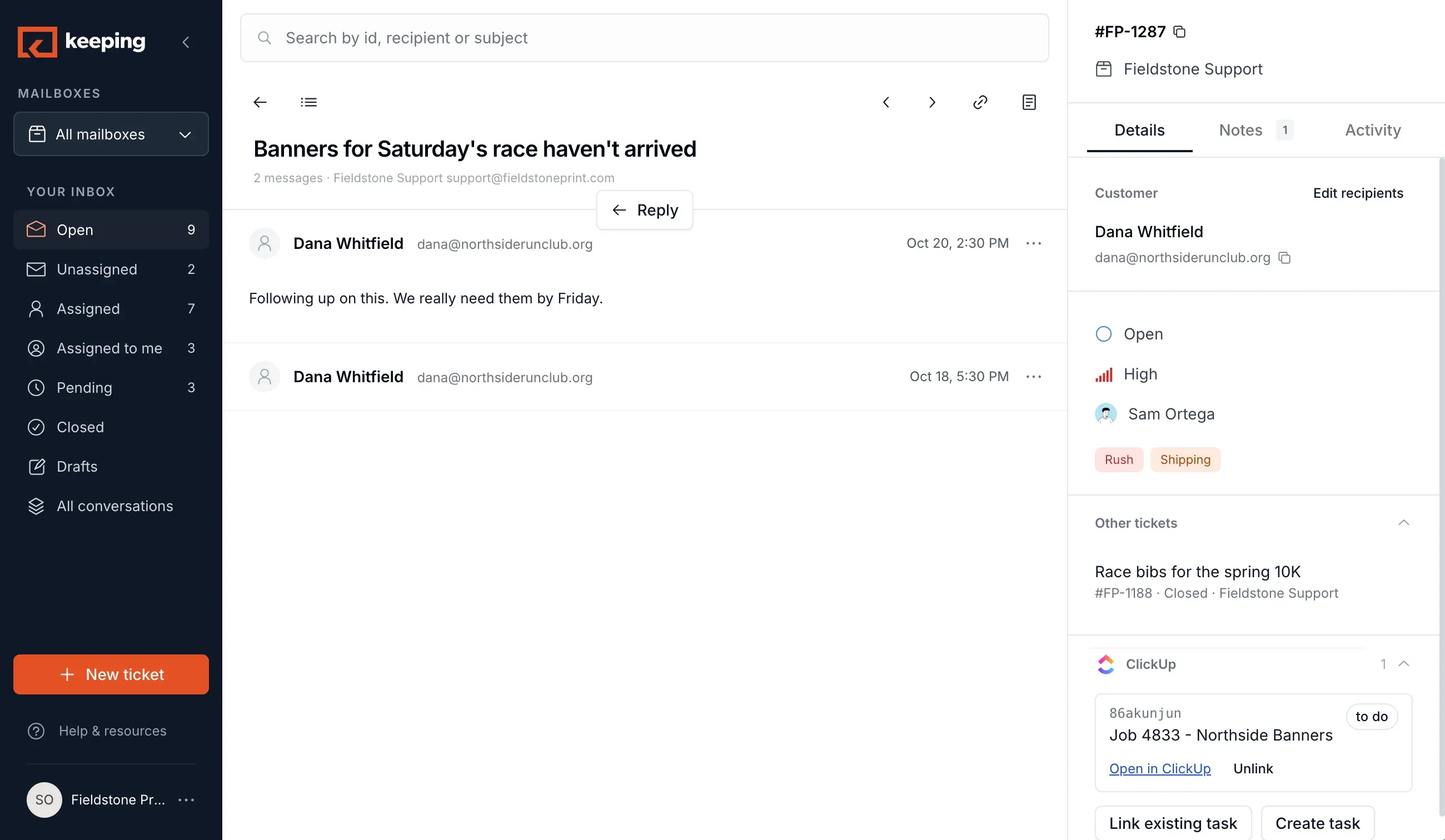
One list each, one shared inbox. Hand a ticket to someone else and it moves to their list, with the notes and history attached.
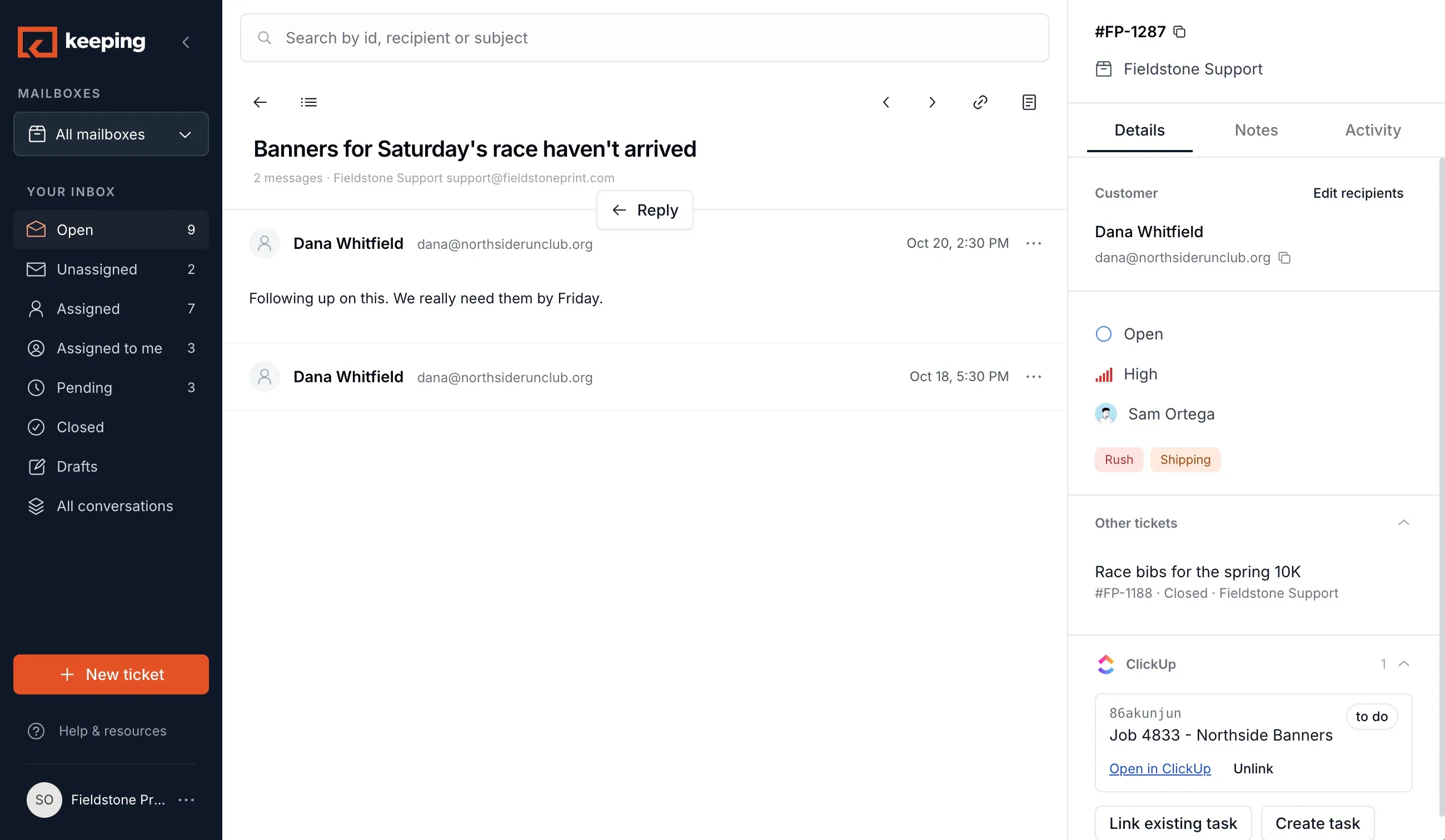
10:40 amA customer writes again
Get answers without forwarding the email around
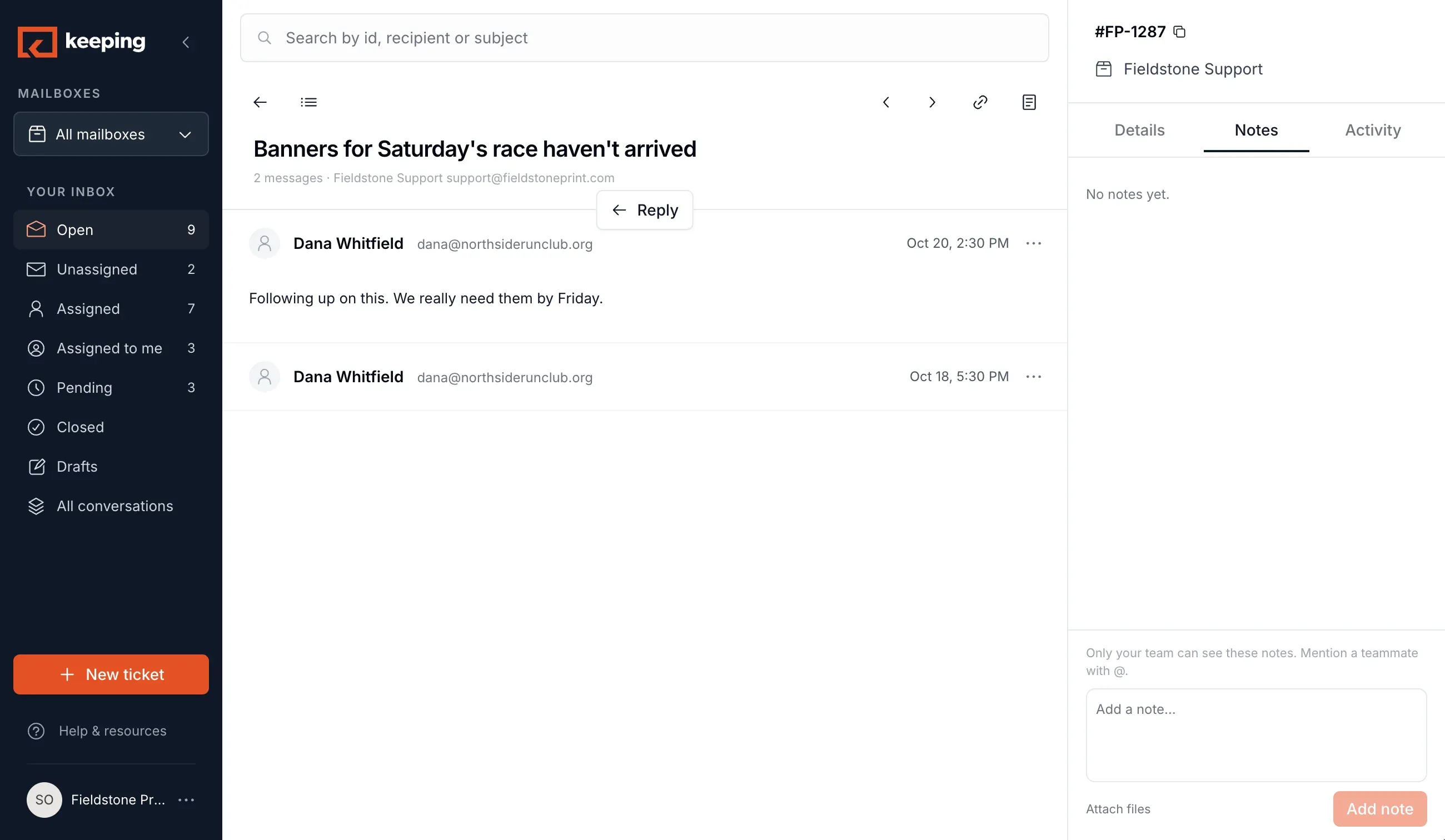
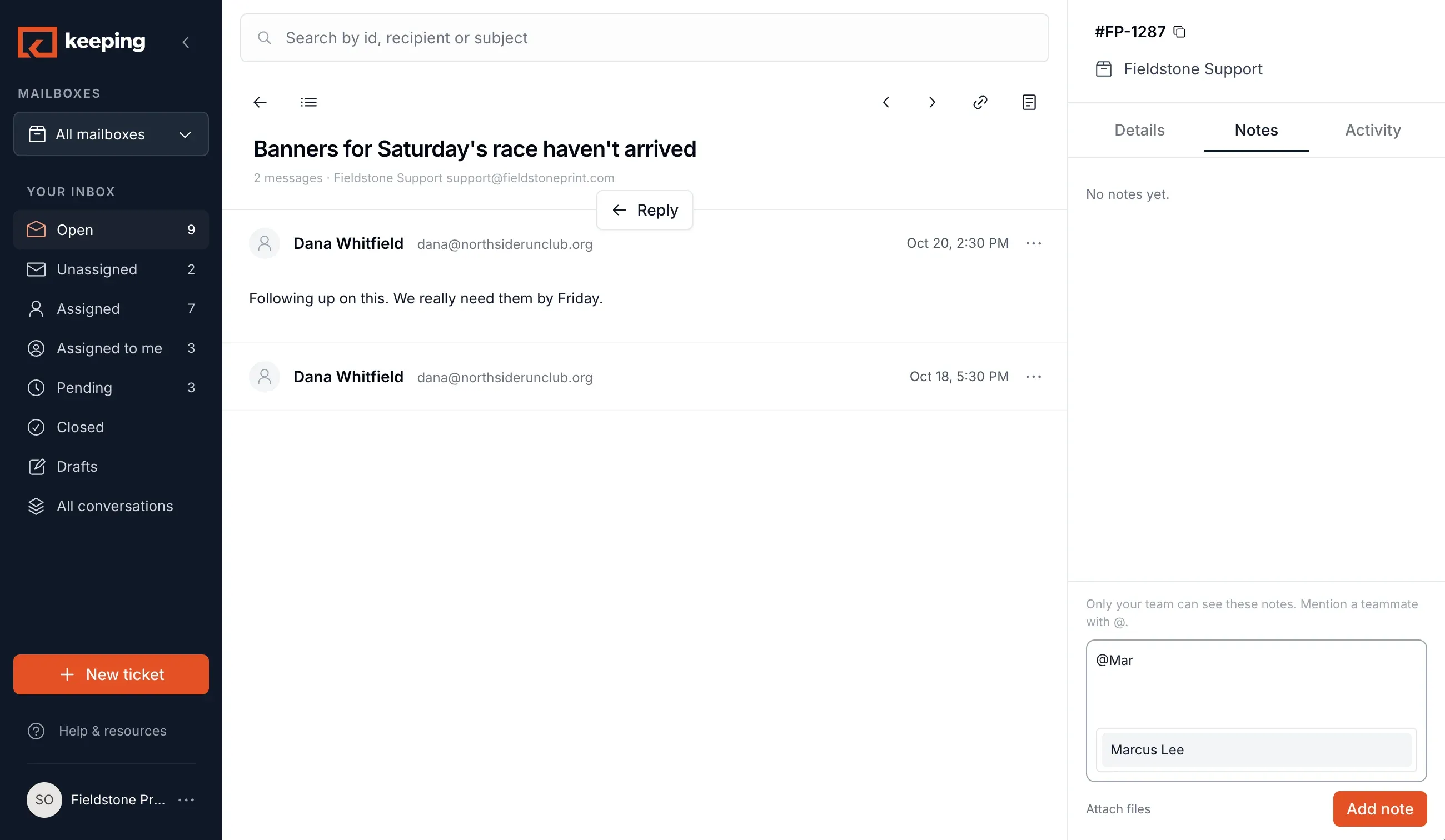
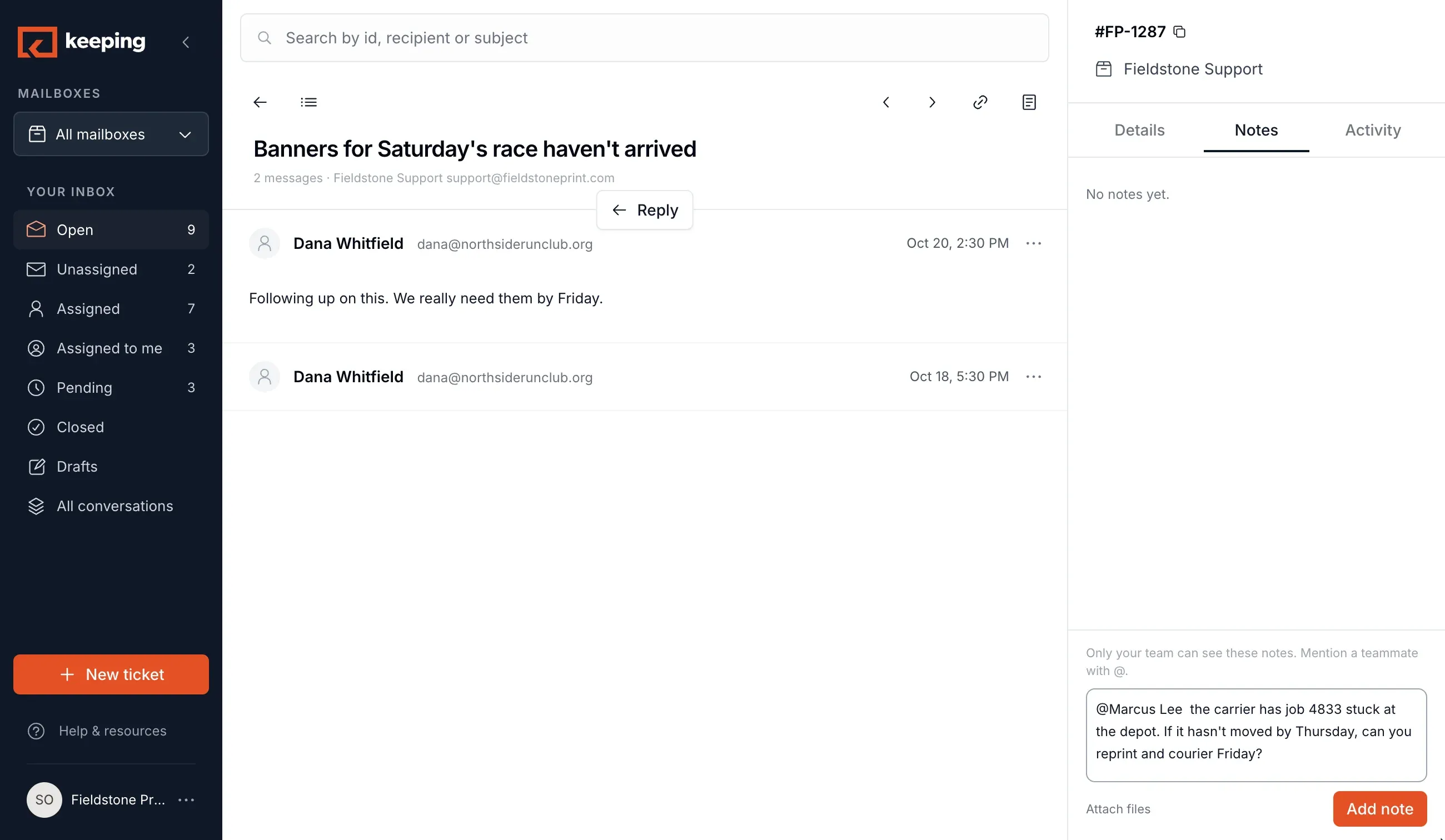
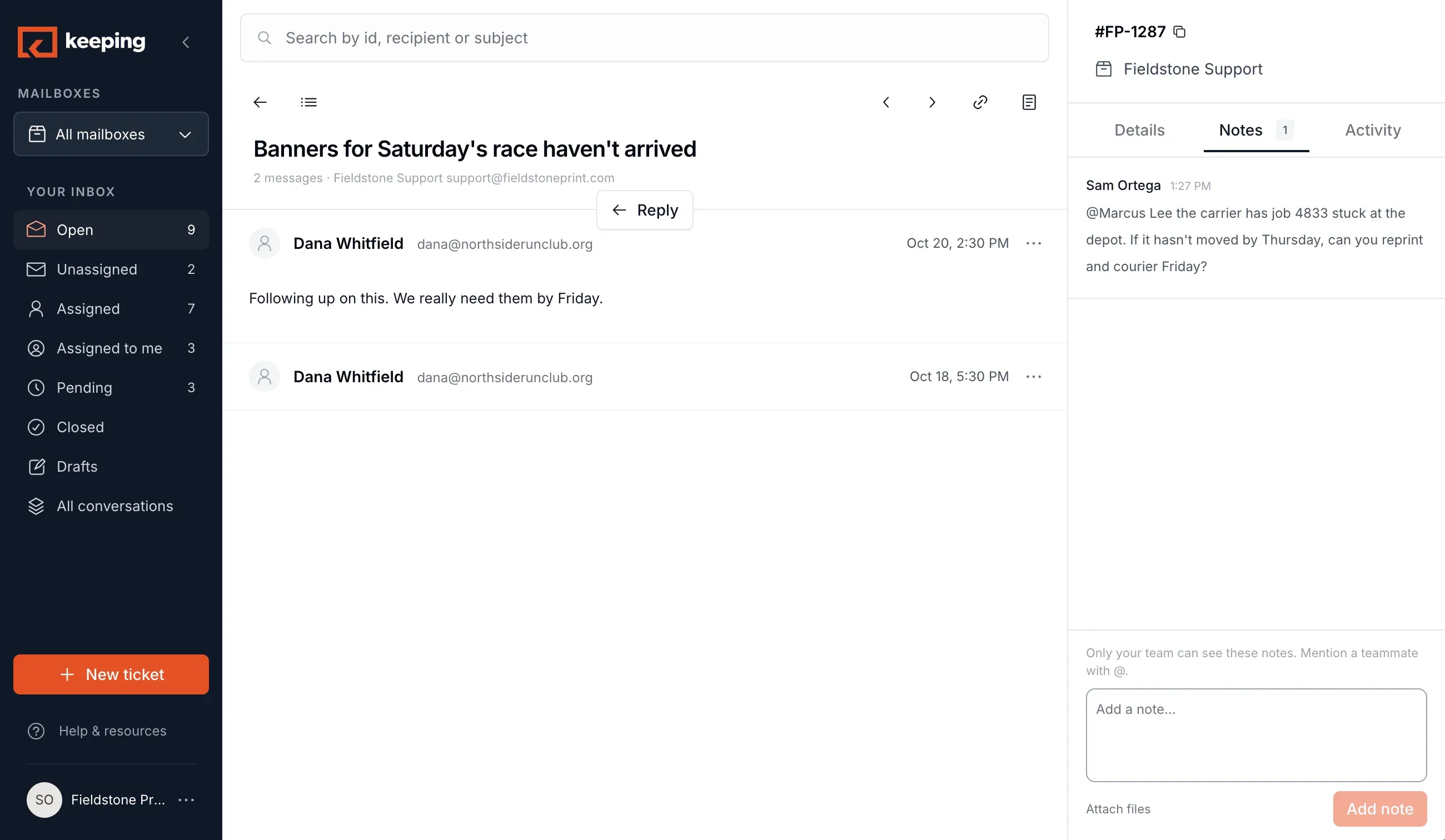
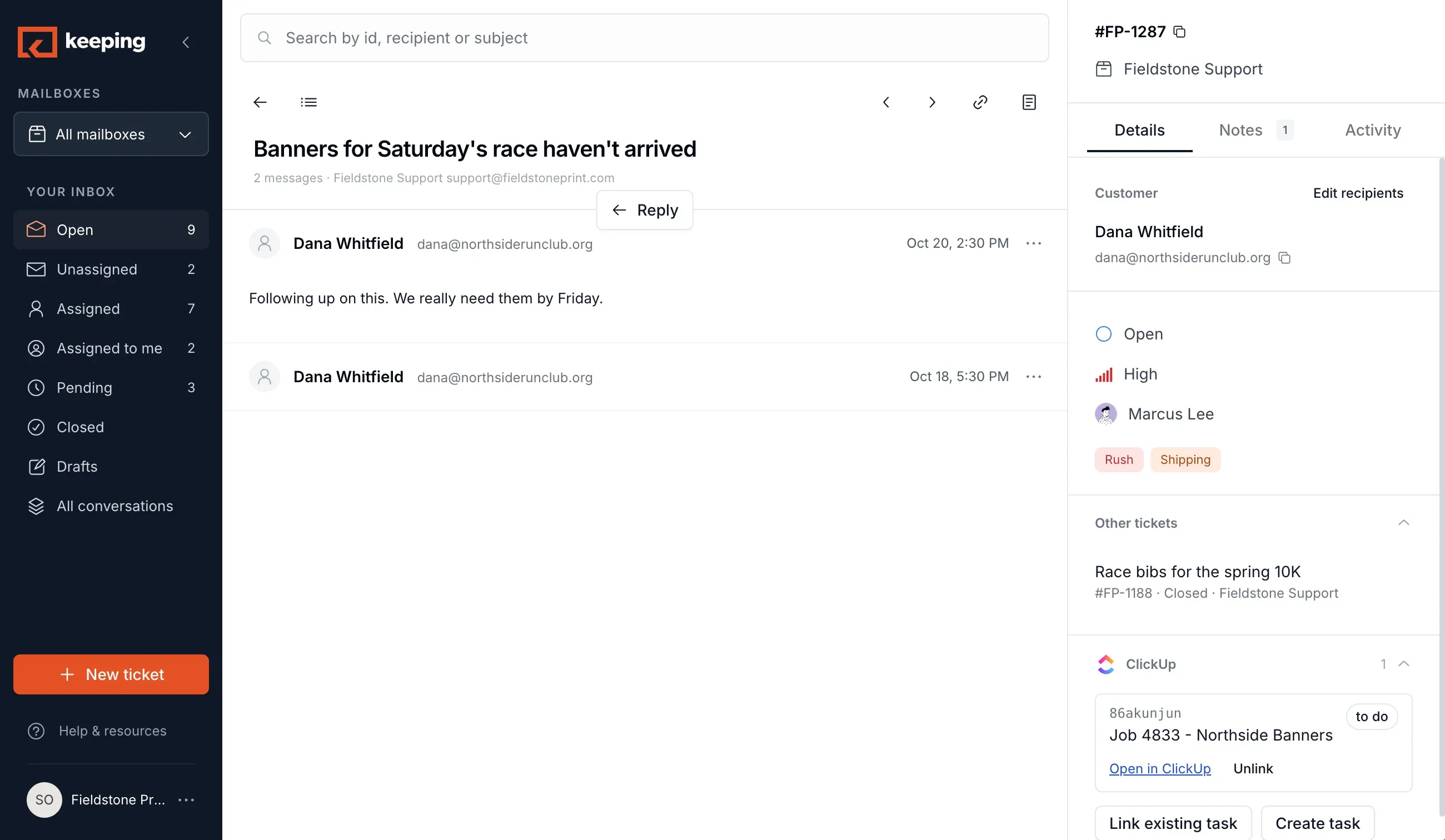
A customer writes again about her banners. Michelle doesn’t know what the carrier said, so she asks in a note on the ticket instead of forwarding the email. The answer lands there too, and the customer gets her reprint.
Notes are private and stay on the ticket, in Gmail and in the Keeping app. An @mention notifies the teammate. Customers never see them.
11:15 amJo joins for the afternoon
Decide who sees what, mailbox by mailbox
Jo designs for the shop two days a week. Before she starts, Sam sets what she sees in Support: only the tickets assigned to her, and none of it in her own Gmail. She can reply and add notes. Forwarding is off.
Bring the whole team into one inboxConnect a shared mailbox, invite your teammates, and choose what each one sees. No credit card required.
Sign Up With Google6:30 pmSam, on the go
It’s on your phone when the shop is closed
An email lands in support@ after hours. Sam sees it on his phone, hands it to Michelle for the morning, and gets on with his evening. The queue doesn’t depend on anyone being at a desk.
FridaySam checks the week
And at the end of the week, the numbers show it
Ninety-two closed, nothing left unassigned, and a first response under two hours. Marcus is slower than the others, and now that’s a conversation about his workload, not a guess.
Per-teammate reports are on every plan. SLAs, CSAT, and detailed reports also available.
See Reporting & SLAs →

“We went from guessing who had answered a customer to knowing in mere minutes.”
“Keeping seamlessly integrates into our workflow. Everyone sees the same thing.”
Frequently asked questions
Is there a mobile app?
There is no app to download. On your phone, open the Keeping app in your browser and add it to your home screen; it works like an app from there. Keeping doesn’t run inside the Gmail phone app.
Do I need Gmail to use Keeping?
Your shared mailbox connects to Google Workspace. Teammates who don’t use Gmail all day can use Keeping entirely online in the Keeping app.
Can some teammates use Gmail and others the app?
Yes. It is the same inbox: an owner, status or note set in Gmail shows in the Keeping app, and the other way round.
Can a teammate see only the tickets assigned to them?
Yes. For each mailbox, an admin chooses whether a teammate sees every ticket or only the ones assigned to them, whether that mailbox syncs to their own Gmail, and what they can do with a ticket. A contractor can handle their tickets in the Keeping app without any client mail landing in their personal inbox.
What do I need to connect our shared mailbox?
An address you already have. A Google Workspace or Gmail address connects with Sign in with Google; any other address, including a Google Group, connects by forwarding. Teammates log in with their own Google account once an admin invites them.
Keep exploring
Feature
In Gmail
Your shared inbox, next to your own.
Feature
Reporting & SLAs
Response times, resolution times and satisfaction, by teammate.
For your team
People Operations & HR
A shared inbox for HR, for teammates who aren’t in Gmail all day.
For your team
Finance & Operations
A shared inbox for finance, with an owner on every email.
Give the whole team one queue, starting today
Set up in minutes, assign emails, and see every mailbox online in the Keeping app.
Sign Up With GoogleNo Credit Card Required
Set Up in Minutes
Connect your mailbox, invite your team, and start assigning emails.
Play in the Sandbox
Use our test mailbox to explore Keeping without connecting your shared inbox.
Enterprise-Grade Security
Your data is protected with SOC 2 Type II compliance.