
A shared inbox MCP server connects Claude, ChatGPT, or Gemini to your team’s Gmail shared inbox, not just one person’s mailbox. Connect Keeping’s MCP server once and your assistant can show what’s waiting in support@, assign and tag conversations, add internal notes, check SLA violations and team reports, and draft replies. It never sends. Each draft is saved in Keeping, where a teammate reads it and sends it from Gmail or the Keeping app.
The Gmail connection built into your assistant sees your own mailbox, not support@, and nothing it does there tells your teammates who’s handling what. A shared inbox server gives the assistant the team’s queue, with the same owners, statuses and notes everyone else sees.
What a shared inbox MCP server does that an email MCP server doesn’t
An email MCP server is a bridge that lets an AI assistant like Claude or ChatGPT, or an agent you build, read, search, draft and sometimes send email by asking in plain language. MCP (Model Context Protocol) is the open standard underneath, so one server works in any assistant that supports it. The question is whose email the server reaches.
Search for “email MCP server” and you’ll find three kinds:
Ready to transform how you work in Gmail?
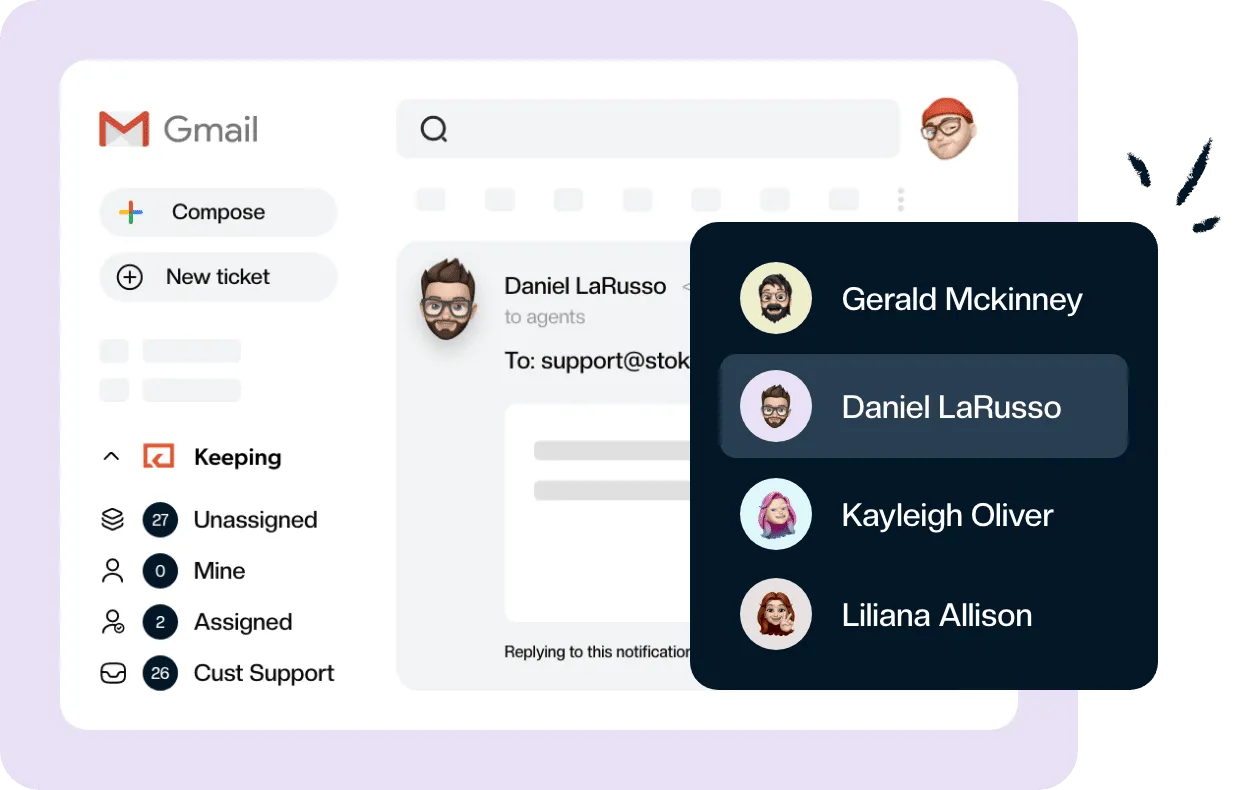
Teams love Keeping because you can collaborate on a shared inbox without ever leaving Gmail. It's not magic, but it feels magical.
- Personal mailbox servers and connectors. Google’s Gmail MCP server is a developer preview that needs a Google Cloud project and acts on the signed-in user’s mailbox. Claude’s own Gmail connector works the same way: it reaches the Google account you connected. Open-source IMAP and SMTP servers sit in this group too.
- Agent inboxes and sending services. Some servers give an agent its own address, and transactional email services publish servers for sending at volume. That’s a different job from answering customers.
- Shared inbox servers. These reach the team’s queue: every conversation in support@, who it’s assigned to, its status, the internal notes, and a sign-in for each person.
| Personal Gmail connector | Shared inbox MCP server | |
|---|---|---|
| Whose mail | The one account you connected | Every shared mailbox your login can see |
| Who sees the result | Only you | The whole team, in Gmail and the Keeping app |
| Assignment and status | None; labels at most | Assign, tag, change status, add notes |
| Sends email | Often, after you approve | Keeping’s saves drafts; a person sends |
If you’re on Google Groups Collaborative Inbox, there’s no MCP server built for it, so an assistant can’t see who owns a group conversation. That’s one more reason teams move from Groups or Gmail delegation and shared mailboxes to a proper shared inbox. Our guide to Google Groups Collaborative Inbox covers where Groups stops.
Pick based on the work. One person sorting their own mail needs a personal server. A team answering support@ together needs the shared one, or the assistant’s work stays invisible to everyone else.
What your AI assistant can do in Keeping
Once connected, your assistant can read your shared inbox, run reports on it, take actions in it, and, for admins, set it up. Keeping’s MCP server has more than 80 tools in four groups, and the ones your assistant sees depend on the access you choose when you connect. Write actions save drafts. They never send.
| Tool group | What you can ask for |
|---|---|
| Read | Find conversations, read messages and notes, count open and unassigned tickets, list SLA violations, look up templates, tags and teammates |
| Reports | Team, ticket, message, agent, tag and CSAT reports, plus a snapshot of your own performance |
| Write | Draft replies and new tickets, assign, tag, change status and priority, add internal notes, move a ticket to another mailbox, set custom fields |
| Admin | Invite agents, create mailboxes, tags and templates, and set up workflows, SLAs and CSAT settings |
The admin tools are for company admins who connect with the Manage Settings permission. Deleting something, and many changes to existing settings, ask for confirmation before anything happens.
Keeping’s MCP server comes with every plan: limited MCP access on Essentials, full on Advanced and HIPAA. See pricing for the rest of each plan. The full list of tools, with what each one does, is in Keeping’s MCP tool reference.
Five prompts for a support@ morning
Here’s what running the inbox from your assistant looks like on an ordinary morning. Each prompt is plain language, and the assistant picks the tools.
“What’s waiting in support@ that nobody has picked up?”
The assistant counts open conversations and lists the unassigned ones with who wrote in, the subject and how long each has waited. Nothing changes in Keeping.
“Draft a reply to the refund request using our refund template”
Your saved template is the starting point: the assistant finds the conversation, pulls the template and writes a draft that fits this customer. The draft appears on the conversation in Keeping and in Gmail, ready to edit. If your reply templates are good, the drafts start out good.
“Assign the shipping questions to Michelle and tag them Shipping”
The assistant searches for shipping conversations, assigns each one to Michelle and adds the tag. Michelle sees them in her queue, and anyone else who opens support@ sees she owns them. No one has to ask in chat who’s taking what.
“Add a note on the Dana ticket: customer prefers a phone call”
The note lands on the conversation as an internal note. The customer never sees it; the next person to open the ticket does.
“Which tickets breached our SLA this week, and what was our first-response time?”
You get the conversations that missed their SLA and the team report for the same week, so the misses and the average arrive in one answer. Then you can ask a follow-up like “who owned the late ones?”
If your assistant is also connected to your store or your CRM, a draft can come back with the order status or the account details in it. The assistant reads both systems and does the joining. Keeping doesn’t pass that data along.
Drafts, not sends: a person reviews every reply
Can an AI assistant send emails from your shared inbox through Keeping? No. Keeping’s write tools create drafts and stop there. Every reply is saved on the conversation, where a teammate reads it, edits it if needed and sends it from Gmail or the Keeping app. The assistant can sort, assign and write; a person decides what reaches the customer.
Stopping at drafts is deliberate. An assistant can get the tone wrong, promise a refund you don’t give, or state an order date it guessed. A draft is cheap to fix, and a sent email isn’t. Some shared inbox MCP servers can send on request. Keeping’s can’t.
The rest of the team stays in the loop too. A draft sits on the conversation where anyone can open it, and collision detection still warns a teammate who starts replying to the same email. Each assistant also adds its own check: Claude asks before it uses a tool unless you turn that off, ChatGPT may ask you to approve a change, and Gemini asks you to confirm any action that makes one.
How to connect Keeping to Claude, ChatGPT, or Gemini
You can connect Keeping in a minute or two from any of the three assistants. Each person signs in with the Google account they use for Keeping and chooses how much access to give. The steps below follow Keeping’s MCP connection guide.
Claude: add Keeping from the connectors directory
Keeping is listed in Claude’s connectors directory, so there’s no server URL to type. One connection works on the web, in the desktop and mobile apps, and in Claude Code.
- In Claude, go to Customize → Connectors. In the desktop app, click Customize in the sidebar, then Connectors.
- Click Discover and search for Keeping.
- Click Connect on the Keeping connector (listed as “by Keeping”).
- Sign in with the Google account you use for Keeping, choose how much access to give Claude, and click Allow.
- Keeping now shows as Connected under Yours. Start a chat and ask something like “Show me my open tickets.”
On Claude Team and Enterprise, an Owner adds Keeping under Organization settings → Connectors first. If you see Request instead of Connect, click it to ask your Owner. If you can’t use the directory, add it as a custom connector: Customize → Connectors → Add custom connector, with https://mcp.keeping.com/ as the server URL.
ChatGPT: add Keeping as a plugin
Keeping works in ChatGPT on every plan, including Free. ChatGPT calls these connections plugins (they used to be connectors). You set it up on chatgpt.com in a browser, because ChatGPT doesn’t let you add one from its mobile apps.
- In ChatGPT on the web, click Plugins in the sidebar.
- Click the + button, then Add custom MCP server.
- Enter a name, such as Keeping, and an optional description.
- Under Connection, enter
https://mcp.keeping.com/. - Under authentication, choose OAuth. You don’t need a client ID or secret.
- Read the risk warning, select I understand and want to continue, and click Create as a plugin.
- Sign in with the Google account you use for Keeping, choose how much access to give ChatGPT, and click Allow.
To use it, type @ in a conversation and choose Keeping. On ChatGPT Business, only workspace admins and owners can add a custom MCP server, and on Enterprise and Edu an admin has to grant your role permission first.
Gemini: add Keeping as a connected app
Gemini lets you add Keeping as a custom app under Connected Apps. You set it up in a browser on your computer, and it then works in the Gemini mobile app too.
Google’s requirements for custom apps:
- Sign in to Gemini with a personal Google Account. Work and school accounts aren’t supported for custom apps yet.
- Be 18 or older and in the United States.
- Have Keep Activity turned on in Gemini.
- Use Gemini in English.
To connect Keeping:
- Go to gemini.google.com in a browser on your computer.
- At the bottom, click Settings, then Connected Apps. If you don’t see Connected Apps, click Personal Intelligence first.
- Under Custom apps, enter
https://mcp.keeping.com/in the Add a custom app link to get started field. If you already have a custom app, click Add a custom app instead. - Click Next and follow the on-screen instructions. Sign in with the Google account you use for Keeping, review the permissions, and click Allow.
That Keeping sign-in can be your work account, even though Gemini itself runs on your personal one. You don’t need anything under Advanced features. To use it, type @ and choose Keeping. This is the Gemini app connected to Keeping, which is separate from Gemini inside Gmail.
Using Cursor, Gemini CLI, Antigravity or another MCP client? Add https://mcp.keeping.com/ as a remote server and sign in when prompted.
Want to try it on your own queue? Start a free Keeping trial, connect your support@ address, and you can be running your shared inbox from Claude, ChatGPT, or Gemini the same afternoon.
Permissions and security for a team inbox
Each teammate connects with their own Keeping sign-in, and the assistant can only reach the mailboxes and data that person can already see in Keeping. Existing team permissions carry over, and every action shows up under the name of the person who asked for it.
When you connect, you choose one of three levels:
- Read only: look up tickets and run reports. Write tools are hidden.
- Read and Write: also draft replies, assign, tag and add notes.
- Read, Write, and Manage Settings: also the admin tools. Only company admins see this option.
Sign-in uses OAuth 2.1, so there’s no password or API key to share. Access tokens expire after an hour and refresh on their own. To change your level later, disconnect and reconnect.
A Billing Admin can turn MCP access off for the whole company, and back on, under Organization Settings.
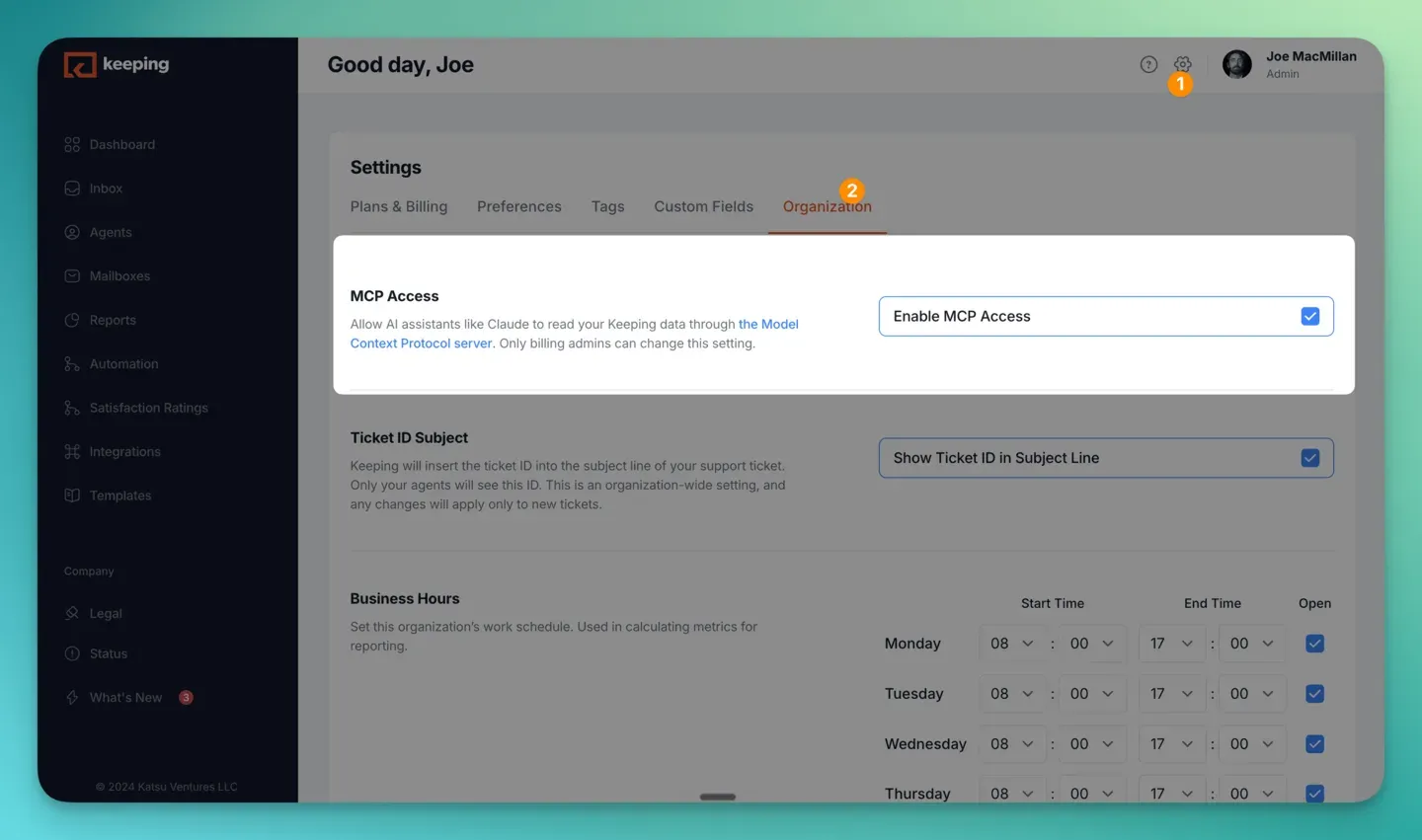
Source: Keeping’s Connecting to Keeping’s MCP server help guide.
Frequently asked questions about shared inbox MCP
What data can Claude access through connectors?
Only what each connector exposes and your account allows. With Keeping connected, Claude sees the mailboxes, conversations, notes and reports your Keeping login can already see. Choose Read only to keep it to looking things up, or Read and Write to let it draft, assign, tag and add notes.
Can an MCP server send emails from a shared inbox?
Some can, if the vendor builds a send tool. Keeping’s can’t, on purpose. Its write tools assign, tag, change status, add notes and create drafts, and a teammate sends each reply from Gmail or the Keeping app. That keeps a person between the assistant and your customer.
Is there a Google Groups or Collaborative Inbox MCP server?
No. There’s no MCP server built for Google Groups Collaborative Inbox. Google’s Gmail MCP server works on one signed-in user’s mailbox, so it can’t see a group’s shared queue or who owns a conversation. For assignment and status, you need a shared inbox tool with its own server.
Claude connectors vs MCP: what is the difference?
MCP is the open standard; a connector is Claude’s name for a connection built on it. Keeping’s directory listing is its MCP server, so connecting there or as a custom connector at https://mcp.keeping.com/ gives you the same tools. ChatGPT calls this a plugin, and Gemini a custom app.
How to add connectors in Claude?
Go to Customize, then Connectors, click Discover and search for the tool by name. Click Connect, sign in, choose the access you want to give, and click Allow. If the tool isn’t in the directory, click Add custom connector and enter its MCP server URL instead.
Do my teammates need to connect it too?
Yes, if they want to use Keeping from their own assistant. Each person connects with their own Keeping sign-in, so the assistant sees only the mailboxes that person can see, and every change is recorded under their name. Teammates who don’t connect still see all of it in Keeping.