
Link Gmail tickets to ClickUp tasks
Keeping’s ClickUp integration puts ClickUp in the Gmail sidebar. Link a support ticket to the task that tracks it, or create a new task from the email, and see its status before you reply.

What the ClickUp integration does
Some emails need more than a reply. A billing fix goes to finance, a bug goes to the product team, a request goes to operations. Keeping turns your shared Gmail inbox into a help desk, and the ClickUp integration connects each of those tickets to the ClickUp task where the work actually happens.
From any ticket in Gmail you can look up a ClickUp task by its ID and link it, or create a new task in any list you can reach. Keeping shows the task’s name and status on the ticket, and comments on the task in ClickUp with a link back to the conversation. Support stays in Gmail, the work stays in ClickUp, and each side can find the other in one click.
Unite support and project work
Link each customer email to the ClickUp task that tracks the work. Support can see where the task stands, and whoever owns it can open the conversation from ClickUp, so nobody has to ask for an update.
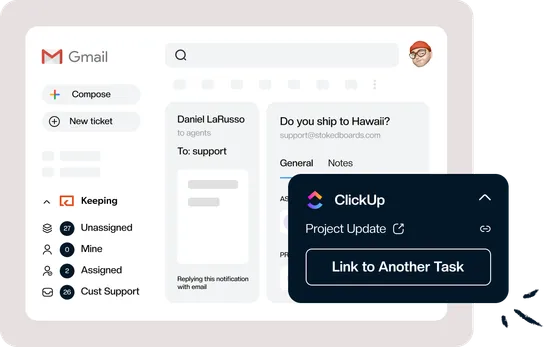
Attach tasks without leaving your inbox
Paste a ClickUp task ID into the Keeping sidebar and attach the task to the ticket in two clicks. No switching tabs, no copying links between apps.
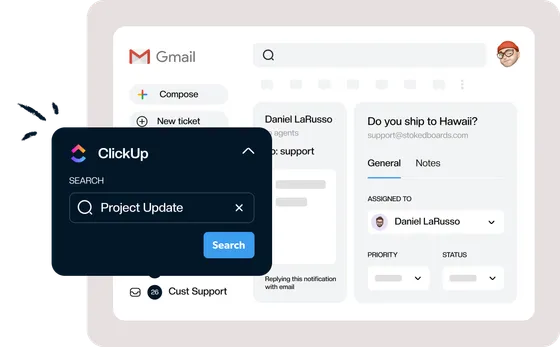
Turn tickets into tasks
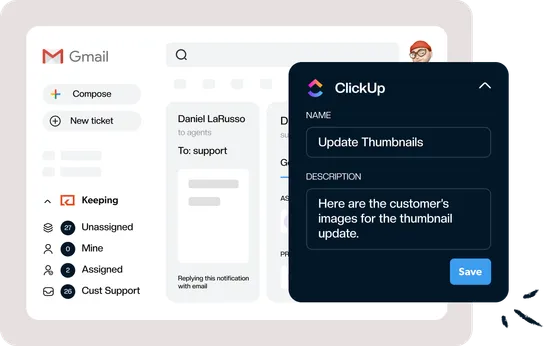
When a request needs work from another team, create the ClickUp task from the ticket, in the list where that team already works. The task is linked to the email the moment you save it.
Close the loop from ClickUp
Keeping comments on every linked task with a link back to the ticket, so whoever picks up the work can read the customer’s own words instead of a summary.
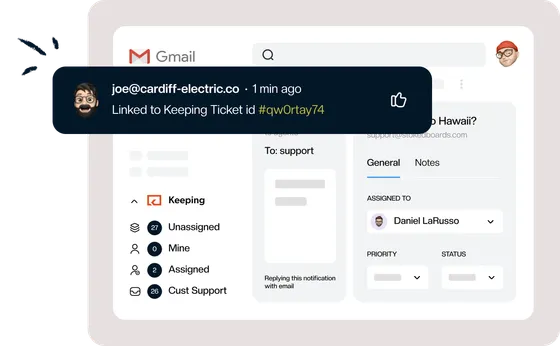
See it in Gmail
What the integration looks like in the Keeping sidebar and in ClickUp, in screenshots from the product.
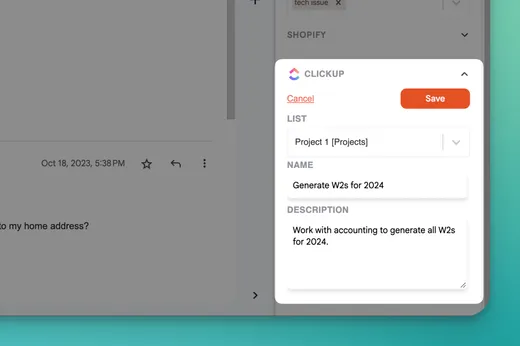
Turn an email into a ClickUp task
Open the ClickUp section in the Keeping sidebar, choose Add New, pick the list, give the task a name and a description, and save. Keeping links the new task to the ticket straight away.
- Choose from every list in your spaces and folders
- Set the assignee, due date and priority in ClickUp
- The email itself stays in Keeping; the task gets what you write
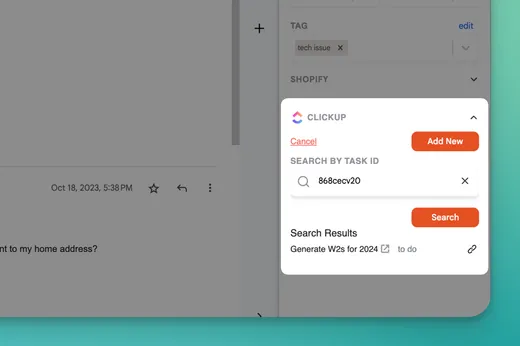
Link a ticket to a task that already exists
Copy the task ID from ClickUp, paste it into the sidebar’s search, and click the link icon next to the result.
- Link more than one task to a ticket
- Link one task to every ticket about the same issue
- Find the task ID at the top of any task in ClickUp
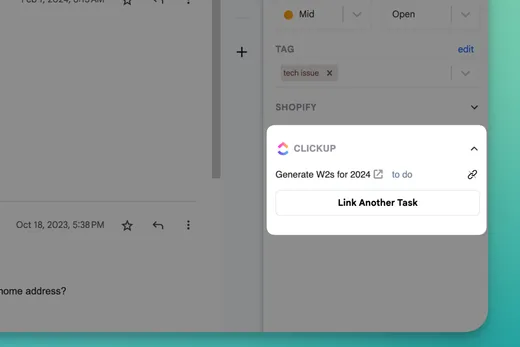
See the task’s status before you reply
Every linked task shows on the ticket with its name, its current status and a link that opens it in ClickUp. Keeping reads it from ClickUp rather than keeping its own copy.
- The ClickUp section opens by itself on tickets with linked tasks
- Answer “any update?” emails without chasing a teammate
- Unlink a task in one click; nothing changes in ClickUp
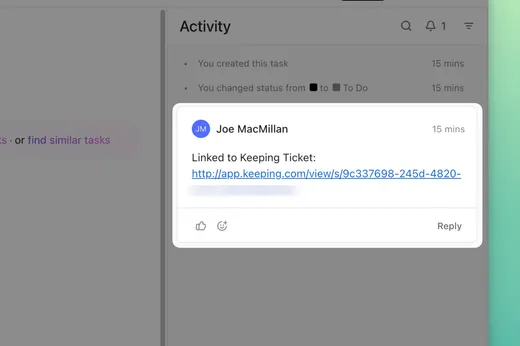
A link back to the conversation
When you link or create a task, Keeping comments on it, “Linked to Keeping Ticket”, with a link to a read-only view of the ticket.
- Added for tasks you link and tasks you create
- Email replies, notes and attachments stay in Keeping
- Closing the task in ClickUp doesn’t close the ticket
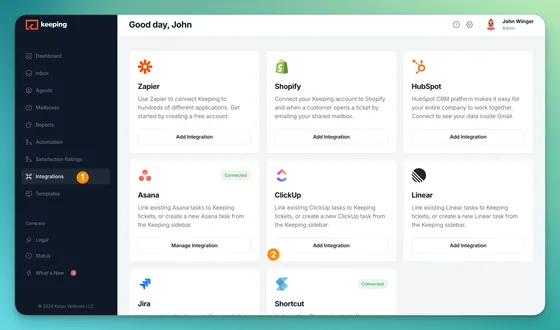
How to connect ClickUp to Keeping
Setup takes about a minute. Each teammate connects their own ClickUp account, so Keeping only ever sees the lists and tasks that person can already open in ClickUp.
- Step 1: Open Integrations. In the Keeping web app, choose Integrations from the left-hand menu.
- Step 2: Add ClickUp. Click Add Integration on the ClickUp card, sign in to ClickUp and allow Keeping access.
- Step 3: Open a ticket in Gmail. A ClickUp section appears in the Keeping sidebar on every ticket, for each teammate who has connected.
- Step 4: Link or create a task. Click Link To Task, then paste a task ID or choose Add New.
Ways teams use Keeping with ClickUp
The integration does one job, connecting a ticket to a task, and it fits any team that answers email and runs its work in ClickUp.
Hand requests to the team that does the work
A customer asks for something support can’t do alone. Create a task in that team’s list and check its status on the ticket before you reply.
Customer support in GmailTrack back-office work from the inbox
A payroll question or a supplier issue needs finance or operations. Log it in their list and keep the email and the task tied together until it’s done.
Finance and operations in GmailGroup duplicate reports under one task
When several customers write in about the same problem, link every ticket to the one ClickUp task. The team fixing it sees how many people are affected, and support knows who to update.
Collaborate in GmailTrack IT requests that take more than a reply
A broken laptop or an access request needs hands-on work. Log it as a task in the IT list, and keep the employee’s email tied to it until it’s resolved.
IT help desk in Gmail
ClickUp integration FAQ
Which Keeping plans include the ClickUp integration?
Integrations, ClickUp included, are part of the Advanced and HIPAA plans. The Essentials plan doesn’t include integrations. Compare what each plan includes on our pricing page.
Does every teammate need to connect ClickUp?
Yes. Each agent connects their own ClickUp account from the Integrations page, and the ClickUp section only appears in the sidebar for agents who have connected. Any agent can connect; it doesn’t need an admin.
How do I find a ClickUp task to link?
By its task ID. Copy the ID from the task in ClickUp, paste it into the search in the Keeping sidebar, and link the result. Searching by keyword isn’t supported for ClickUp.
Which list does a new task go into?
The one you pick. The list menu shows every list your ClickUp account can reach, labelled with its folder or space, and the task gets the name and description you enter.
Can I link one ClickUp task to several tickets?
Yes. Link the same task to every ticket about the same issue, and link more than one task to a single ticket when an email needs work from two teams.
Do changes in ClickUp update the ticket?
No. The ticket shows the task’s current name and status whenever you open it, but closing or editing a task in ClickUp doesn’t close, reopen or change the ticket.
What happens when I unlink a task?
Keeping removes the link from the ticket after you confirm. Nothing is deleted in ClickUp; the task and the comment Keeping added stay where they are.
Join the thousands of users that are sharing inboxes with Keeping!
Every day, 2,000+ customers trust Keeping to sync and share their mailboxes. Setup takes minutes, and there's no credit card to get started.
Our customers love us for a reason
Don’t just take our word for it, see what our customers are saying about us.


Rated 4.5 /5 on G2

“Our HR department uses Keeping, and it works amazingly well for us to keep organized. It's a simple but robust ticketing system.”
Lisa P. - HR Manager “I like that we can use it right inside our Gmail. I also like that we can assign and prioritize incoming requests.”
Jennifer B. - Human Resource Director “Keeping makes it simple to stay on top of our work orders, and I love that it is integrated with Gmail.”
Lee D. - Technology Coordinator "Tried them all - Keeping is perfect for our startup. Exactly the features we needed, like Gmail integration and collision detection."
Fred D. - COO “Keeping helps our customer service team stay on top of inquiries & recognize when an issue has been handled.”
Jordan P. - Marketing Director “It's a great tool to track and share support emails with other colleagues. I love how Keeping email has its own inbox inside Gmail.”
Natasha H. - Director, IT “Keeping seamlessly integrates with Gmail, so we don't have to work with another tool. It allows everyone to see responses from the team.”
Ravi R. - Chief Product Officer “Seeing our shared mailbox right in GSuite, the automatic setup, and the ability to keep track of issues are my favorite features.”
Matthew D. - IT Manager “At our university, Keeping gives us control over the responses of all our agents, as well as ensuring that all emails are being responded to.”
Marcelo G. - Director, University