Yes. Google Workspace now has a native shared mailbox, which Google calls a shared inbox, documented on its Admin Help page (last updated October 9, 2026). If you’ve read that Google has no shared mailbox, that answer is out of date.
To set up a shared mailbox in Google Workspace for a team, an admin opens the Admin console and, under Users, clicks Set up a shared email address. They enter the address (for example, support@yourcompany.com), add the teammates who need access as delegates, and click Done. Delegates open the mailbox from their own Gmail and can read, send and delete its mail. Replies show who sent them. The option covers Business Starter, Standard and Plus and is still rolling out, so if it’s missing, create a user account and delegate it. The shared address takes one paid seat like any other user.
The catch is what’s underneath. A Google Workspace shared inbox is a Gmail account with delegates, not a new kind of mailbox. Everyone gets access, but nobody gets ownership. If you’re on personal Gmail rather than Workspace, our Gmail shared mailbox guide covers the options that work for you.
Does Google Workspace have shared mailboxes?
Yes. As of October 2026, Google Workspace has a native shared mailbox for Business Starter, Business Standard and Business Plus. Admins create it in the Admin console under Users. Google describes it as “an administrator feature that’s being released in phases,” so the option may not be in every console yet.
Ready to transform how you work in Gmail?
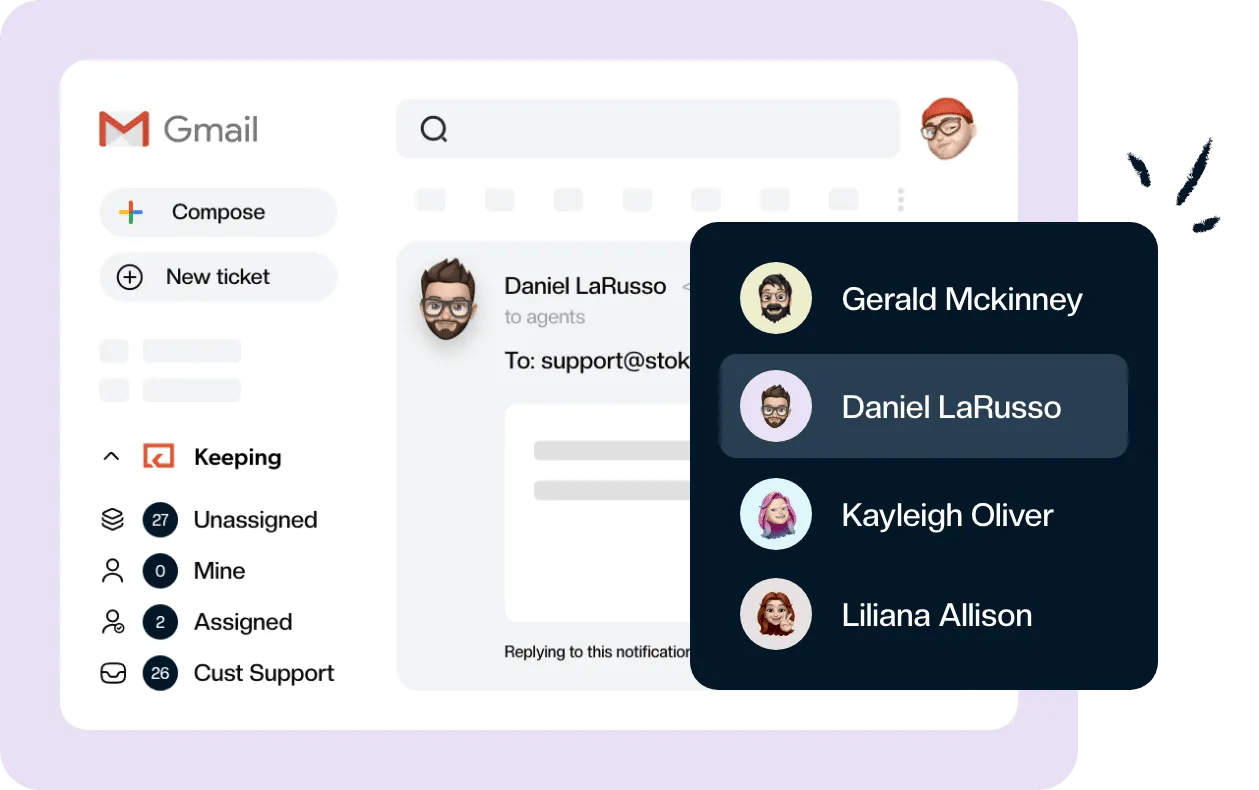
Teams love Keeping because you can collaborate on a shared inbox without ever leaving Gmail. It's not magic, but it feels magical.
Admins first reported the option in October 2025, in a GAM community thread and on Reddit. We couldn’t find a launch post for it on Google’s Workspace Updates blog, which helps explain why so many answers still say it doesn’t exist. Google Search’s AI Overview on this question, and several vendor guides, still say Workspace has no native shared mailbox. Google’s own help page says otherwise.
Google’s page lists only the three Business editions. It doesn’t say whether Enterprise, Education or Frontline editions get the feature, so check your own console rather than assuming either way. If you’re not sure what a shared mailbox is in the first place, start there.
How to create a shared mailbox in Google Workspace
You create a Google Workspace shared mailbox from the Admin console home page, under Users, with Set up a shared email address. The wizard either creates a new account or converts an existing one, then asks who gets access. Here are the steps for a new address, from Google’s setup page:
- Sign in to the Google Admin console with an administrator account.
- On the Home page, in the Users section, click Set up a shared email address.
- Enter the address the team will share, such as sales@yourcompany.com.
- Add the users who need access, with their details. You can add a secondary email for each.
- Click Continue. Google sends sign-in instructions to each user’s primary email. You can also send them to secondary addresses.
- Click Next, review the list of users, and click Next again.
- Click Done.
Before you pick the address, decide whether you need a mailbox at all. If one person just needs a second address, a Google Workspace email alias is simpler and doesn’t need its own account.
Convert an existing user to a shared mailbox
You can also turn an account you already have into a shared mailbox. This suits a departing employee’s inbox that customers still write to, or an old info@ account that one person has been checking alone.
- In the Admin console, click Set up a shared email address under Users.
- Enter the existing address, for example alex@yourcompany.com.
- Optionally, click Edit to change the display name.
- Click Next, then search for and select the people who should be delegates.
- Review the list, click Next, then Done.
If you don’t see Set up a shared email address
The option hasn’t reached your organization yet, or your edition isn’t one of the three Google lists. Google’s advice is to use Gmail delegation in the meantime: create a regular user account for the address and grant your teammates delegate access. Once the shared inbox option appears, Google says you can convert those delegated accounts.
Delegation also has to be switched on for your organization. An admin turns it on under Apps > Google Workspace > Gmail > User settings > Mail delegation, per Google’s delegation settings page.
Does a Google Workspace shared mailbox need a license?
Yes. A Google Workspace shared inbox takes a license of its own. The shared address is a regular Workspace user account with delegates, not a separate mailbox type, so it counts as one user on your edition and is billed at the same per-user rate as everyone else. Google’s setup page doesn’t spell this out, but we’ve confirmed it, and it matches what admins who set one up early have reported: one admin in the GAM community wrote in October 2025 that it “costs a license of Google Workspace Business/Enterprise” and is “a common user account with delegated accesses.”
So budget one seat per shared address. As of October 13, 2026, Google Workspace pricing on Google’s pricing page is $7 per user per month for Business Starter, $14 for Standard and $22 for Plus, with the annual-commitment toggle on (its default). Google says the annual plan saves 16%, so month-to-month flexible billing costs more. Introductory discounts for new customers are shown separately, so budget on the regular price.
That’s the biggest practical difference from Microsoft. A Microsoft 365 shared mailbox stores up to 50 GB without a license of its own. If you’re moving from Exchange, don’t carry that assumption over.
Google Workspace vs Microsoft 365 shared mailboxes
Both give a team one address that several people can answer from, but Microsoft’s is a separate mailbox type and Google’s is a user account with delegates. That changes the license, how many people can work in it, and how replies are signed. Here’s how they compare, from each vendor’s documentation as of October 2026:
| Google Workspace shared inbox | Microsoft 365 shared mailbox | |
|---|---|---|
| What it is | A Gmail account with delegates | A dedicated mailbox type in Exchange |
| License for the shared address | One paid user seat | None needed up to 50 GB |
| People who can use it | Up to 1,000 delegates; about 40 at once with typical use | Maximum of 25 users |
| How replies are signed | Shared address in From, delegate in “Sent by” (can be hidden) | Send As or Send on Behalf permissions |
| Outside users | Same organization only | People outside your business can’t be given access |
| Where people work | Their own Gmail | Outlook and Outlook on the web |
Sources: Google’s shared inbox page and Gmail delegation help; Microsoft Learn’s About shared mailboxes (dated March 13, 2026) and Send As vs Send on Behalf.
If you’re an admin moving from Microsoft 365, the two habits to change are licensing and sign-in. Microsoft tells you to block sign-in to a shared mailbox, and it needs no license below 50 GB. Google’s version sits on a regular Workspace user account, so decide who, if anyone, manages that account’s sign-in, and budget for the seat. For the wider suite comparison, see Google Workspace vs Microsoft 365.
Shared inbox vs Collaborative Inbox in Google Workspace
Google offers two different things with “inbox” in the name. The shared inbox gives delegates access to one Gmail account. Collaborative Inbox is a Google Groups feature where members can take, assign and resolve conversations, but they do it in the Groups interface rather than in Gmail.
| Shared inbox | Collaborative Inbox | |
|---|---|---|
| Where you work | Gmail | Google Groups (groups.google.com) |
| Assignment | No | Yes: take, assign, mark complete, duplicate or no action needed |
| Sending address | The shared address, with “Sent by” | The group address |
| What it costs | A seat, per admin reports | Included with Groups for Business |
Collaborative Inbox needs conversation history turned on and the right permissions for members. Google’s own Collaborative Inbox page points teams that need more to delegation: “For advanced collaboration, set up delegated accounts in Gmail, where you can share inboxes among 40—1,000 users.” Our Google Groups Collaborative Inbox guide walks through setup.
A plain Google Group without Collaborative Inbox is closer to a distribution list: it copies mail to each member’s inbox. If that’s the choice you’re weighing, read shared mailbox vs distribution list.
Where Google’s shared mailbox stops
Google’s shared mailbox solves access. It doesn’t solve coordination. These limits come from what Google’s own pages document, and what they leave out:
- No owner for each email. There’s no assignment field, so “who’s handling this?” still happens in chat or in someone’s head.
- No internal notes. Context for the next person has to live in a forwarded email or another tool.
- No warning when a teammate is replying. Two delegates can answer the same customer at the same time.
- No status or reporting. You can’t see what’s open, what’s waiting, or how long customers waited.
- Delegated view is limited. Delegates can’t use Chat, Meet or Gemini in the shared account, or change its Google Account settings or password, per Gmail Help.
- Anyone can delete for everyone. Delegates can read, send and delete, and a deletion removes the message for the whole team.
- Access isn’t instant. It can take up to 24 hours before a new delegate can use the account.
- Mobile is still arriving. Google announced delegated accounts in the Gmail Android and iOS apps in June 2026, paused the rollout, and resumed it on August 21, 2026.
- Hiding “Sent by” is an admin choice. Admins can set the default to show only the account owner under Mail delegation, and decide whether users can change it.
For one or two people answering a low-volume address, none of this matters much. Once several people share the work, these are the gaps that cause missed and duplicate replies. Our guide on how to run a team Gmail inbox covers the habits that help.
If those gaps are starting to cost you, Keeping adds shared mailbox management right inside Gmail: assign emails, leave notes, and see who’s replying. See how it works as a shared inbox for Google Workspace, free for 14 days with no credit card.
Adding shared mailbox management on top
Add a tool when more than one person answers the address, or when customers are waiting on replies. Keeping works inside Gmail through Chrome and Safari extensions and adds assignment, internal notes with @mentions, collision detection, statuses and reporting to the address your team already uses.
How you connect the address depends on what it is. These are the documented paths:
- A Google Group. Add Keeping’s forwarding address as a member of the group, as described on our Google Group page.
- A dedicated account you can sign in to. Use Sign in with Google, signed in as the shared address itself. That can include an account Google’s wizard created, if you have its sign-in. A delegate signing in with their own account can’t connect it.
- Anything else. Use email forwarding to Keeping.
Essentials is $14 per user per month billed annually, or $19 month to month, with a two-user minimum. It includes two shared mailboxes, up to 10 agents, collision detection and shared notes. Advanced adds unlimited mailboxes, round robin assignment and SLAs. Check Keeping pricing against your team size.
Frequently asked questions about Google Workspace shared mailboxes
How do shared mailboxes work in Google Workspace?
An admin creates or converts an email account in the Admin console and picks the teammates who can open it as delegates. Each delegate opens the mailbox from their own Gmail, and every reply goes out from the shared address with the sender shown in Sent by.
What are the disadvantages of a shared mailbox?
Everyone sees the same messages, but nobody owns them. There is no assignment, no internal notes and no warning when a teammate is already replying, and anyone with access can delete mail for everyone.
How do I access a shared inbox?
Sign in to your own Gmail, open the profile menu at the top right, and pick the shared address from the list of delegated accounts. New access can take up to 24 hours to appear.
Does Google Workspace have shared mailboxes?
Yes. Google Workspace has a native shared inbox for Business Starter, Business Standard and Business Plus, which admins set up in the Admin console. Google is releasing it in phases, so some consoles do not show the option yet.
What does a Google Workspace shared mailbox license cost?
Yes, it needs its own seat. The shared address is a regular Workspace user account, so it takes one license on your edition: $7 per user per month for Business Starter on an annual plan, $14 for Standard and $22 for Plus.
Can you create a shared mailbox in Google Workspace?
Yes, if you’re an admin on a Business edition and the option has reached your console. If it hasn’t, create a regular user account and delegate it, then convert it once the shared inbox option appears.