
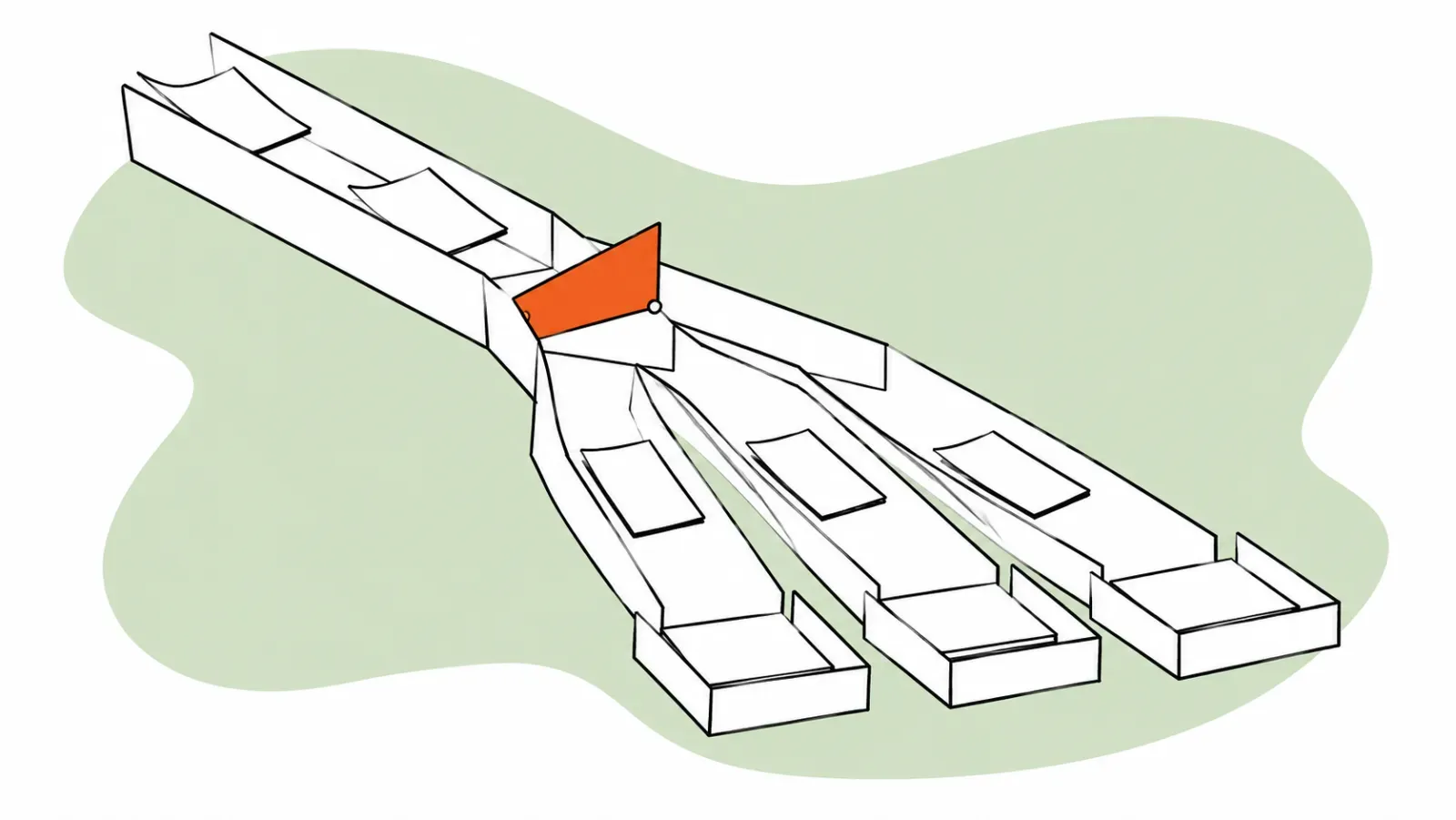
Ticket routing is how your team decides who answers each incoming email. Without it, two people reply to the same customer while another email sits untouched for a day, because everyone assumed someone else had it.
There are four common ways to route tickets: manual assignment, rule-based routing, round robin and skills-based routing. This guide explains how each one works, where it breaks, and which fits a small team that wants to assign emails to teammates without leaving Gmail.
What is ticket routing?
Ticket routing is the process of directing each incoming support request to the right agent, team or queue, either by hand or automatically. The router looks at what the request says about itself, such as its topic, sender, language or priority, and at who is available, then gives the request one owner.
Routing is the first step in team inbox management: until an email has an owner, nobody is accountable for answering it. Good routing gets requests to the right person faster, cuts the back-and-forth of reassigning work, and spreads the load so one teammate isn’t buried while others are idle.
A complete help desk, inside Gmail?
Keeping turns your Gmail into a fully featured help desk. It's not magic, but it feels magical.
Ticket routing methods compared
Every help desk mixes the same handful of methods. A small email team will mostly use the first three. Skills-based routing usually comes with a top-tier plan, and the last two are found in larger help desks and contact-center platforms.
| Method | How it decides | Best for | Breaks when | Needs |
|---|---|---|---|---|
| Manual assignment | A person reads each new email and picks an owner | One or two people, low volume | The triager is out or becomes a bottleneck | Someone on triage duty |
| Rule-based routing | Conditions on the address, subject or sender | Predictable topics or separate addresses | Emails don’t match any rule, or rules overlap | A tool that can assign, not just label |
| Round robin | New emails rotate through the team in a fixed order | Generalists who can all answer anything | Some emails need a specialist | A rotation feature and an up-to-date team list |
| Skills-based routing | Matches request needs to agents tagged with skills | Many languages or products, with specialists | Skill profiles go stale or one specialist gets everything | Agent skill profiles, usually a top-tier plan |
| Load or capacity-based | Sends work to whoever has the fewest open tickets | High volume with uneven ticket lengths | Ticket counts don’t reflect real effort | Capacity tracking in a larger help desk |
| AI routing | A model classifies the topic, then a rule assigns it | Large volumes with many categories | The classifier guesses wrong and nobody checks | AI features in a larger help desk |
If you are still choosing a tool, our email ticketing system comparison covers which help desks offer which of these.
Manual assignment
Manual ticket assignment means one person, a team lead or whoever is on triage that day, reads each new email and assigns it to a teammate. It needs no setup and it is the right starting point. Zendesk’s own guide to routing options says manual triage “works best for small teams with low-volume ticket queues.”
It breaks in two predictable ways. When the triager is on holiday, nothing gets assigned. And as volume grows, the triager spends their day dispatching work instead of answering it.
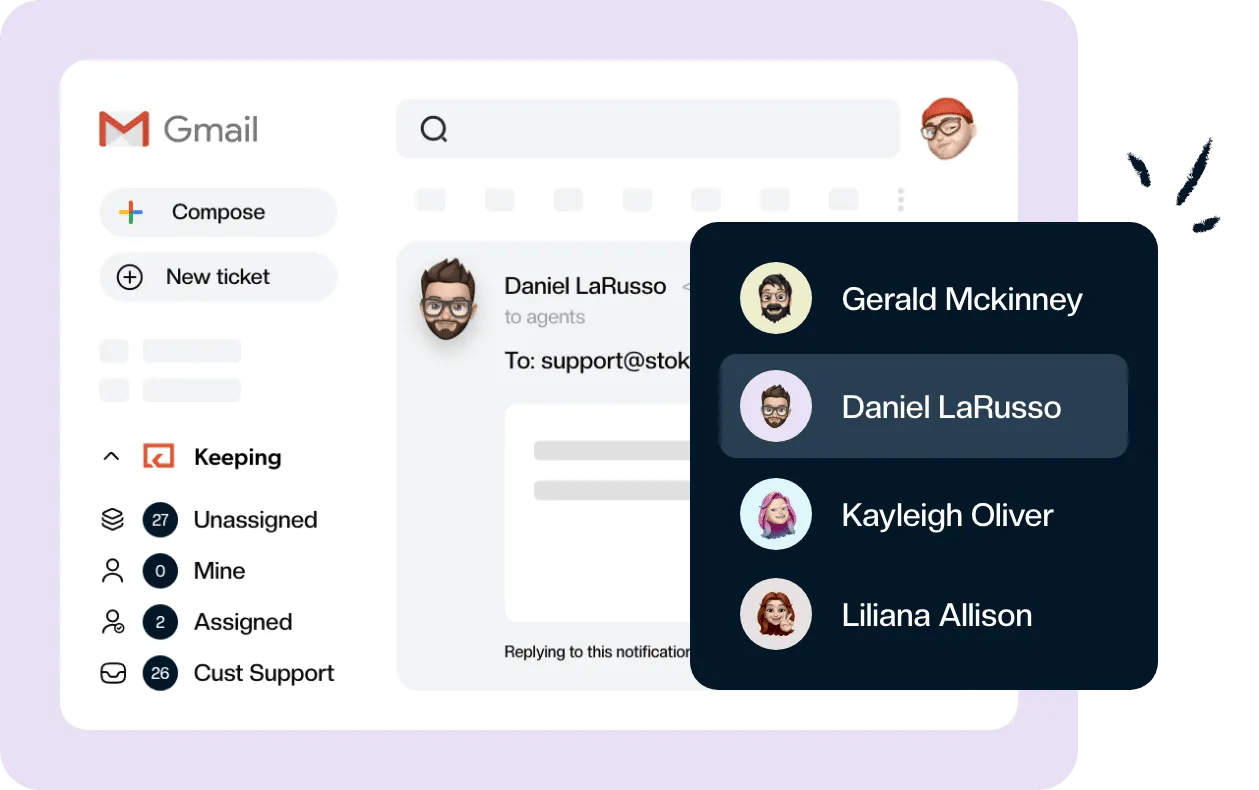
In Keeping, you assign emails inside Gmail from a dropdown in the sidebar, or from the web portal. You can add more than one assignee, select several emails and assign them in bulk, and by default Keeping assigns a ticket to the agent who replies, so answering an unassigned email claims it. You can turn that default off in the mailbox settings.
Rule-based routing
Rule-based routing assigns an email from what it says about itself: the address it was sent to, words in the subject line, or who sent it. A rule reads “if this email matches, assign it to this person.” Email to billing@ goes to Jo, subjects containing “refund” go to Sam, and anything from your largest customer’s domain goes to their account manager.
Automated ticket routing with rules
Automated ticket routing uses rules to assign each new email the moment it arrives, so no one has to triage it first. A typical rule checks a condition, such as “subject contains billing” or “sent to returns@”, and assigns the matching email to a named agent. Rules are predictable and easy to audit, which is why most small teams start here.
Plain Gmail can’t do this. Gmail filters can label, forward, star or archive a message, but they can’t give it an owner that the rest of the team can see. Forwarding a copy to Jo doesn’t tell Sam that Jo has it.
Keeping does this with Workflows. You pick the conditions, such as the mailbox address, conversation subject, customer email address, attachments or time of arrival, combined with AND and OR blocks. Then you add the Assign to Agent action. Use it twice to add two owners. Essentials includes 2 workflows; Advanced has unlimited workflows.
Rules are one step in a wider process. If you are designing the whole path from arrival to close, see our guide to email workflow management.
Round robin assignment
Round robin assignment gives each new email to the next teammate in a fixed rotation, then starts again at the top. Everyone gets an equal share of incoming work and nobody has to act as dispatcher. Its weakness is that it ignores expertise and current workload: the next person in line gets the email, whether or not they are the best fit.
That trade-off suits a team of generalists. If anyone can answer a shipping question or a password reset, a rotation is fairer and faster than a person handing out work. It suits a team of specialists badly, because a tax question can land with someone who has never handled one.
Round robin ticket assignment in Keeping
Keeping offers round robin assignment in Gmail as a workflow action on the Advanced and HIPAA plans. According to the docs page on how to set up round robin assignment in Keeping:
- It runs only on unassigned tickets. It won’t reassign a ticket or add a second owner.
- The rotation is ordered by how long each agent has been in your organization, oldest first.
- Agents listed in the All agents except field are skipped, and new teammates join the rotation automatically unless you exclude them.
- Agents marked unavailable are skipped too, according to Keeping’s agent availability docs.
Round robin is often described as rotating “regardless of expertise.” In practice you can narrow it. A Keeping workflow runs only on the mailboxes you choose, and you set the conditions under which the round robin action fires. Run the rotation only on support@, while billing@ follows its own rule, and you get fair distribution for general questions without sending invoices to the wrong person.
Essentials doesn’t include round robin. Plan details are on Keeping’s pricing page.
Skills-based routing
Skills-based routing sends each request to the agent best qualified to handle it, based on skills such as language, product knowledge or technical depth. It began in call centers as an upgrade to the automatic call distributor: instead of the next free agent, the call goes to the most suitable one. Help desks copy the idea for tickets by defining skills, tagging agents and matching each ticket’s needs.
Skills-based vs queue-based routing
Queue-based routing puts every request in one line and gives it to the next available agent. Skills-based routing filters that line first, offering each request only to agents with the right skill. Queues are simpler to run; skills reduce transfers when your team has real specialists.
As of October 13, 2026, skills-based routing usually sits on top-tier plans: HubSpot requires Service Hub Enterprise, Hiver lists it on Elite ($85 per user a month billed annually, $95 monthly), and Zendesk’s omnichannel routing can use skills on Professional and Enterprise.
Keeping doesn’t have agent skill profiles. For a small team, a few rules get you most of the way. If Ana handles everything in Spanish and Jo handles invoices, a rule assigning email to ventas@ to Ana and one assigning billing@ to Jo routes by the same skills, without maintaining a profile for each person.
Which routing method fits your team?
Pick a method by how your work arrives, not by headcount alone:
- One or two people answering: manual assignment. Whoever replies owns it.
- Clear topics or separate addresses: rule-based routing. Each address or topic has a named owner.
- Everyone handles everything, and volume is steady: round robin, with the specialists excluded.
- Many languages or products, each with its own specialists: skills-based routing, usually in a larger help desk.
Load-based routing, which sends work to whoever has the fewest open tickets, also belongs to the larger platforms. Many email teams combine methods: rules for the predictable work, round robin for the rest, and manual assignment for anything that slips through.
Plan for absences, too. If you mark a teammate unavailable in Keeping, round robin and other assignment workflows skip them, you can still assign them by hand, and a customer reply to one of their tickets un-assigns them automatically so it goes back to the team. Routing also affects your response targets, because the first-response clock runs while an email has no owner. Our guide to SLA metrics covers how to set them.
How to assign emails to teammates automatically in Gmail
Here is a setup that works for most small teams sharing an address in Gmail:
- Connect your shared mailbox. Add support@, billing@ or whichever address your team answers from to Keeping, so every email becomes a conversation with an owner and a status. Our guide to the shared inbox covers the options.
- Create one rule per fixed topic or address. A workflow on billing@ with Assign to Agent set to your billing lead, for example.
- Create one round robin workflow for the general address. Scope it to support@ only, and exclude anyone who shouldn’t be in the rotation.
- Mark people unavailable when they’re out, so automatic assignment skips them.
- Check the unassigned view once a day for anything no rule caught.
Keep your rules from overlapping, so each email can match only one assignment workflow. Then the order in which workflows run never matters.
Essentials includes 2 workflows, enough for two topic rules; round robin and unlimited workflows come with Advanced. If you want to assign emails to teammates automatically, inside Gmail, start a 14-day free trial with no credit card, or see how Keeping handles round robin assignment in Gmail.
Frequently asked questions about ticket routing
What is ticket routing?
Ticket routing is how a support team decides who owns each incoming request. A person can assign every email by hand, or the help desk can assign it automatically using rules, a rotation, or agent skills. The goal is one clear owner per email, so nothing waits and nobody duplicates a reply.
What are the key differences between queue-based routing and skill-based routing?
Queue-based routing sends a request to the next available agent in a shared queue, so anyone can pick it up. Skill-based routing first works out what the request needs, such as a language or product, and only offers it to agents tagged with that skill. Queues are simpler; skills cut transfers.
What is round robin assignment?
Round robin assignment hands each new ticket to the next teammate in a fixed rotation, then starts again at the top of the list. Everyone gets an equal share of new work and nobody has to act as dispatcher. It does not look at expertise or how busy each person already is.
How do I set up round robin scheduling for automated email assignment in a team?
Connect your shared address to a help desk that supports round robin, then create a workflow that runs on new emails with a round robin assign action. In Keeping, that is a workflow on the Advanced plan, scoped to the mailboxes you choose, with any agents you want left out added to the exclusion field.
What is an example of skills-based routing?
A software company tags Marie with French and billing, and Tom with French only. An email in French about an invoice goes to Marie, the one agent with both skills, instead of whoever is next in line. In a small Gmail team, a rule that sends billing@ email to your billing specialist gets most of the same result.