

A Google Workspace email alias is an extra address that delivers mail to one user’s existing inbox. It costs nothing extra, supports up to 30 aliases per user, and has no separate sign-in. An admin creates it, and the user configures Gmail separately to send from it.
Use an alias when one person handles info@ or billing@. When several people need to answer support@, choose a group or shared mailbox based on how you’ll coordinate replies. This guide covers company-domain addresses. Personal Gmail aliases work differently.
What is a Google Workspace email alias?
A Google Workspace alias gives one account another email address without creating another mailbox. If Mary owns mary@example.com, an admin can add info@example.com to her account. Both addresses deliver to Mary’s inbox, using the same account and storage rather than a second paid seat.
That works well when Mary handles every general inquiry herself. She can put info@ on the website while keeping her named address for direct conversations. She still signs in as mary@example.com, and the alias doesn’t become a separate Google Account for Drive or other services.
Ready to transform how you work in Gmail?
Teams love Keeping because you can collaborate on a shared inbox without ever leaving Gmail. It's not magic, but it feels magical.
Google’s alias documentation also warns that aliases aren’t private: searches can reveal the connection between addresses. Think of an alias as another way to reach the same person, not a separate identity or a shared team workspace.
How to add an email alias in Google Workspace
- Open the Google Admin console with an administrator account.
- Go to Directory → Users and select the user.
- Under their name, click Add Alternate Emails.
- Enter the alias name and select the domain if needed.
- Click Save and allow up to 24 hours for the change.
You need the User management privilege to see the relevant controls. Enter info for info@example.com. Don’t create a second user just to give Mary another address. Google won’t let an alias reuse an existing Google Account’s address.
These are the current Google setup instructions, checked September 28, 2026. Delivery often starts sooner, but allow the full 24 hours. Send a test message from another account before publishing the address on your contact page.
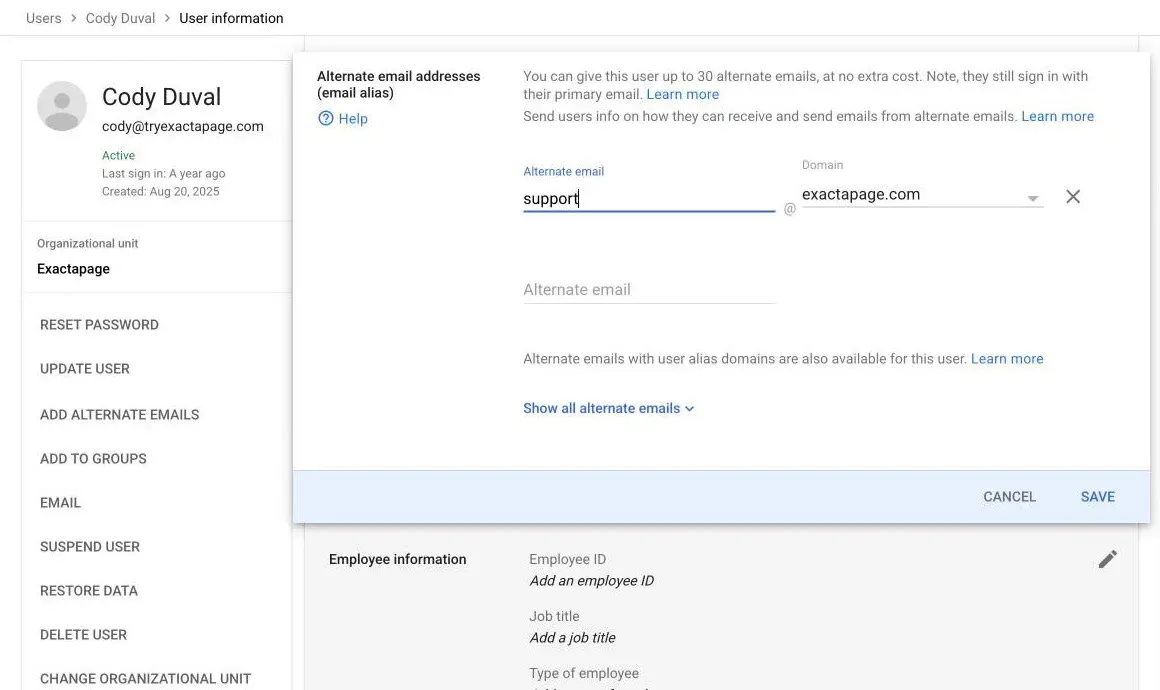
The Add Alternate Emails panel in the Google Admin console, with an alias entered and not yet saved. Captured September 28, 2026.
How to remove or find a user’s aliases
Return to the same user’s Add Alternate Emails panel. Choose Show all alternate emails to inspect the list, or Remove beside an address and then Save to delete it. Removal can also take up to 24 hours.
Before changing a public address, decide where future messages should go. Removing an alias doesn’t hand its old conversations to another teammate.
Google Workspace alias domain vs alias
A user alias adds one alternate address to one account. A user alias domain gives users corresponding addresses on another domain, such as mary@example.net alongside mary@example.com. If an alias came from a domain alias, you can’t remove it for just one user through the normal alias controls.
How to send email from a Google Workspace alias in Gmail
Add the alias under Gmail’s Send mail as settings, then select it in the message’s From field. Creating the receiving address in the Admin console and choosing an outgoing identity in Gmail are separate tasks. Google’s Send mail as instructions cover the sending setup.
- Sign in to the user’s primary Gmail account.
- Open Settings → See all settings → Accounts and import (sometimes Accounts).
- Under Send mail as, choose Add another email address.
- Enter the display name and alias address. Leave Treat as an alias checked for your own Workspace alias.
- Select Next Step and complete any confirmation Gmail requests.
- Compose a test message and select the alias in From.
Treat as an alias is checked by default. Google’s checkbox guide describes checked behavior as “Messages sent to the other address appear in this Gmail inbox.” Unchecked is intended for sending on behalf of a separate account whose mail you read elsewhere. It doesn’t create a new receiving mailbox.
Test a reply as well as a new message: check the visible From address and where the response arrives. You can also choose a separate signature for the alias in Settings → General → Signature, as Google’s signature instructions explain.
Starting January 2027, Gmail will stop supporting Send as for third-party email addresses. Google says that change does not affect Google Workspace aliases. For a personal account, see Send Mail As in personal Gmail.
Can multiple users share a Google Workspace email alias?
No: a user alias delivers incoming mail to one user’s account. For a team address, Google’s guidance points to a group or Gmail delegation. Those options let multiple people receive messages or access a mailbox without sharing the original user’s password.
Google’s alias documentation says multiple users can configure a custom From address to send from an alias. That does not give them a shared receiving inbox, a shared conversation history, or a record of who has taken responsibility for answering.
A group alias is different: it’s an additional address for a Google Group, rather than for Mary. You can add up to 30 through Directory → Groups → select group → Group information → Aliases → Edit. See Google’s group-alias instructions.
Google Workspace alias limits and delegation limits
Limits checked September 28, 2026:
| Setting | Limit |
|---|---|
| Aliases per user | 30, at no extra cost |
| Aliases per group | 30 |
| User or group alias changes | Allow up to 24 hours |
| Delegates per Gmail account | Up to 1,000 unique delegates; typically 40 accessing concurrently |
The delegation figures cover access to one Gmail account. A user alias still delivers to a single inbox.
Alias vs group vs shared mailbox for info@ and support@
Choose based on who receives messages, who replies, and where the team records ownership. An alias keeps delivery with one person. A Google Group distributes messages. Collaborative Inbox adds assignment in Google Groups, while delegation lets people work in the same Gmail account.
Capabilities and costs checked September 28, 2026. “No extra license” below refers to the address itself within an existing Workspace organization.
| Address type | Who receives mail? | Extra license cost | Can several people reply as the address? | Assignment and status | History when someone leaves | Where it’s set up |
|---|---|---|---|---|---|---|
| User alias | One user’s inbox | None | Others can send from it with a custom From address, but mail still arrives in one inbox | None from the alias | Remains in that user’s account; plan the handover | Admin console, Users |
| Google Group | Members according to subscription settings | None for the group | Yes, with sending permissions and setup | None until Collaborative Inbox is turned on | Group archive, if history is enabled and retained | Admin console, Groups |
| Group with Collaborative Inbox | Group members and the Groups conversation view | None for the group | Yes, with permissions | Assign and mark complete, duplicate, or no action needed | Group conversation history, subject to retention | Google Groups settings |
| Delegated account or Google’s shared inbox | One mailbox accessed by delegates | A dedicated user account needs a paid seat. Google doesn’t say how the shared-address wizard is billed | Yes, delegates send from the mailbox | Shared access; no ticket assignment workflow by itself | Stays with the mailbox if the account is retained | Gmail delegation or Admin console shared-address wizard |
| Shared inbox tool in Gmail, such as Keeping | Agents given mailbox access | Tool subscription, plus whatever the underlying address costs | Yes. For a mailbox connected through an alias, send a test reply and check the From address | Assignment and ticket status | Stays with the shared mailbox. Reassign the departing agent’s open tickets | Keeping mailbox settings and Gmail extension |
Google’s setup FAQ confirms that user aliases and group addresses don’t count toward user licenses. Follow our guides to set up a Google Group email address or use a Collaborative Inbox. Google’s Collaborative Inbox documentation confirms that it requires conversation history and supports assignment in the Groups interface.
Google also documents Home → Users → Set up a shared email address, rolling out in phases for Business Starter, Standard, and Plus. Its shared inbox instructions describe delegate access but don’t say whether the mailbox needs a paid license. See our shared mailbox in Gmail guide for the available approaches.
Which address should info@, support@ and sales@ be?
- One person answers everything: use an alias.
- Several people need copies, without replying as the address: use a group.
- Several people answer: choose Collaborative Inbox, delegation, or a shared inbox tool according to the coordination you need.
- The address must outlive an employee: use a group or dedicated account with an explicit retention and access plan.
For example, a solo founder can run info@ as an alias while inquiries are occasional. Once a colleague covers Fridays, the decision changes: both need access to the relevant history, and someone needs to know whether an inquiry is waiting or finished. A second sending identity doesn’t solve that.
If your sales team just needs notifications, a group may be enough. For support, set up support@ as a Google Group when the Groups assignment workflow fits. Choose delegation when shared mailbox access is enough and you’ll coordinate ownership separately.
Budget for the address and the workflow separately. As of September 28, 2026, a dedicated Business Starter user costs $8.40 USD per month on Google’s Flexible Plan, or $7 per month with an Annual/Fixed-Term commitment ($84 per year). These are standard rates, excluding introductory offers.
An alias or group needs no extra license, but that doesn’t make every support workflow free. Compare Google Workspace pricing with any tool subscription, then decide how you’ll run a team Gmail inbox. Keep the underlying account active until routing and access changes have been tested.
When an alias or group stops working for support@
An alias can’t show who is handling each support@ email: incoming messages land in one person’s inbox. For assignment and status, use Google Groups with Collaborative Inbox or a shared inbox tool inside Gmail. Delegation provides shared access but needs a separate ownership process. See how to set up a shared mailbox in Gmail.
The warning signs are practical: two people start the same reply, someone forwards a thread with “can you take this?”, or nobody knows whether the last message needs action. If your team uses Collaborative Inbox but ignores its Groups view, the assignment features won’t help your daily Gmail workflow.
Keeping adds assignment, internal notes, collision detection, and ticket status inside Gmail.
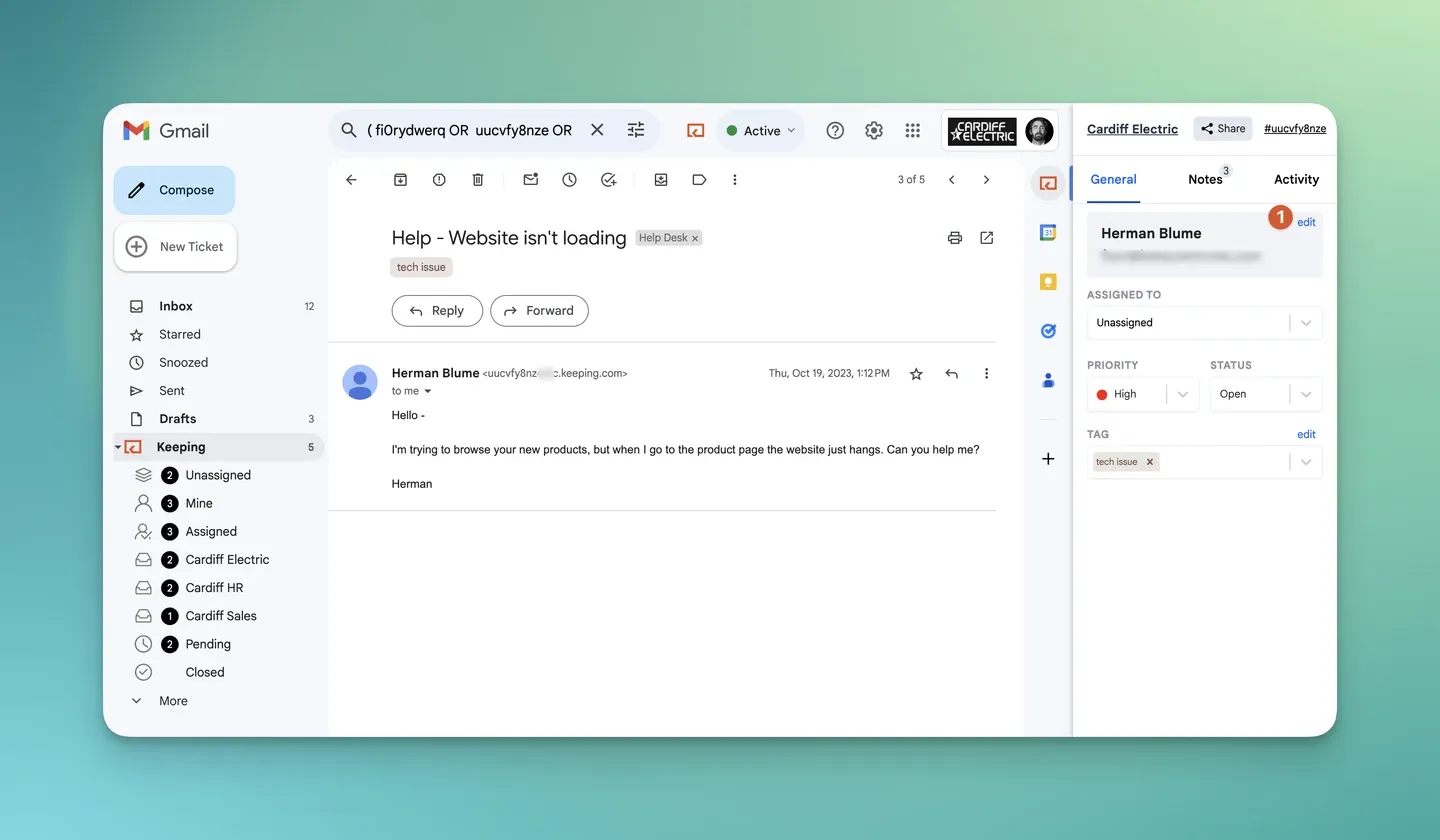
Screenshot from the Using Keeping in Gmail help guide. The Assigned to dropdown is where agents choose an owner.
To connect an alias, Keeping’s alias connection guide uses a filter in the parent account to forward alias mail to Keeping and skip the inbox. For a group, its Google Group guide adds Keeping’s forwarding address as a group member.
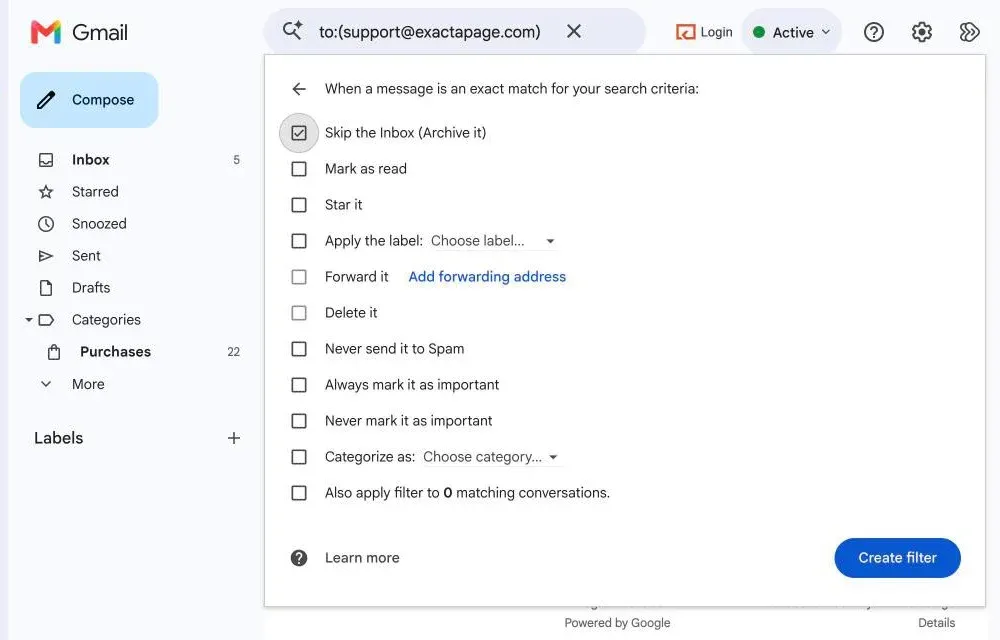
The Gmail filter options that step uses, shown for mail sent to the alias with Skip the Inbox checked. Forward it becomes available once a forwarding address is added and verified. Captured September 28, 2026.
As of September 28, 2026, Keeping Essentials costs $19 per user/month billed monthly or $14 per user/month billed annually, with a two-user minimum. It includes two mailboxes and up to 10 agents.
If support@ needs ownership and status where your team already works, explore a shared inbox for Gmail. Test it with your actual alias or group, including an incoming message and a customer reply, before changing the team’s process.
Frequently asked questions about Google Workspace aliases
What are the disadvantages of email aliases?
A user alias keeps incoming mail in one person’s account and adds no assignment or ticket status. It also has no separate login. Teams need a plan for coverage, conversation history, and access when that person leaves.
Can two people have the same email alias?
Two people cannot share a user alias as independent receiving accounts. Multiple users can configure a custom From address, but shared sending doesn’t create shared history. Use a group or delegated mailbox for team access.
How many aliases can a Google Workspace user have?
Google Workspace allows up to 30 email aliases per user at no additional cost. A Google Group can also have up to 30 aliases. Neither limit changes how many people receive a particular user alias’s mail.
What is the difference between an alias and a user email address?
A user email address belongs to an account with its own sign-in and mailbox. An alias is another address delivering into that account. Adding an alias doesn’t create another account, separate storage, or another user license.
How do you send email from an alias in Google Workspace?
Add your Workspace alias under Gmail’s Send mail as settings, leaving Treat as an alias checked for your own address. Complete any required confirmation, then select the alias in the From field when composing a message.