To connect Claude to Gmail, open Customize → Connectors in Claude, choose Gmail, click Connect and sign in with your Google account. The Claude Gmail connector then lets Claude search and read your email, draft replies, and send, reply or forward, asking for your approval before each one by default.
The connector works as you, on the one Google account you connected. If the mail that matters lives in a shared address like support@, Claude for Gmail won’t show your team who’s handling what. That needs a different connection, covered further down.
How to connect Claude to Gmail
Connecting Claude to Gmail takes about a minute on the web or in Claude Desktop:
- In Claude, go to Customize → Connectors. In the desktop app, click Customize in the sidebar, then Connectors.
- Find Gmail in the list. If it isn’t there, click + next to Connectors to browse the directory.
- Click Connect.
- Sign in with the Google account you want Claude to use and approve the permissions. Google’s screen mentions sending email; that’s expected, because the connector can send once you approve it.
- Back in Claude, the Gmail connector now shows Disconnect instead of Connect. That means you’re connected.
To use it in a conversation, click + at the lower left of the chat box (or type /), hover over Connectors and turn Gmail on. Then ask something your inbox knows, like “What emails from this week still need a reply from me?”
Ready to transform how you work in Gmail?
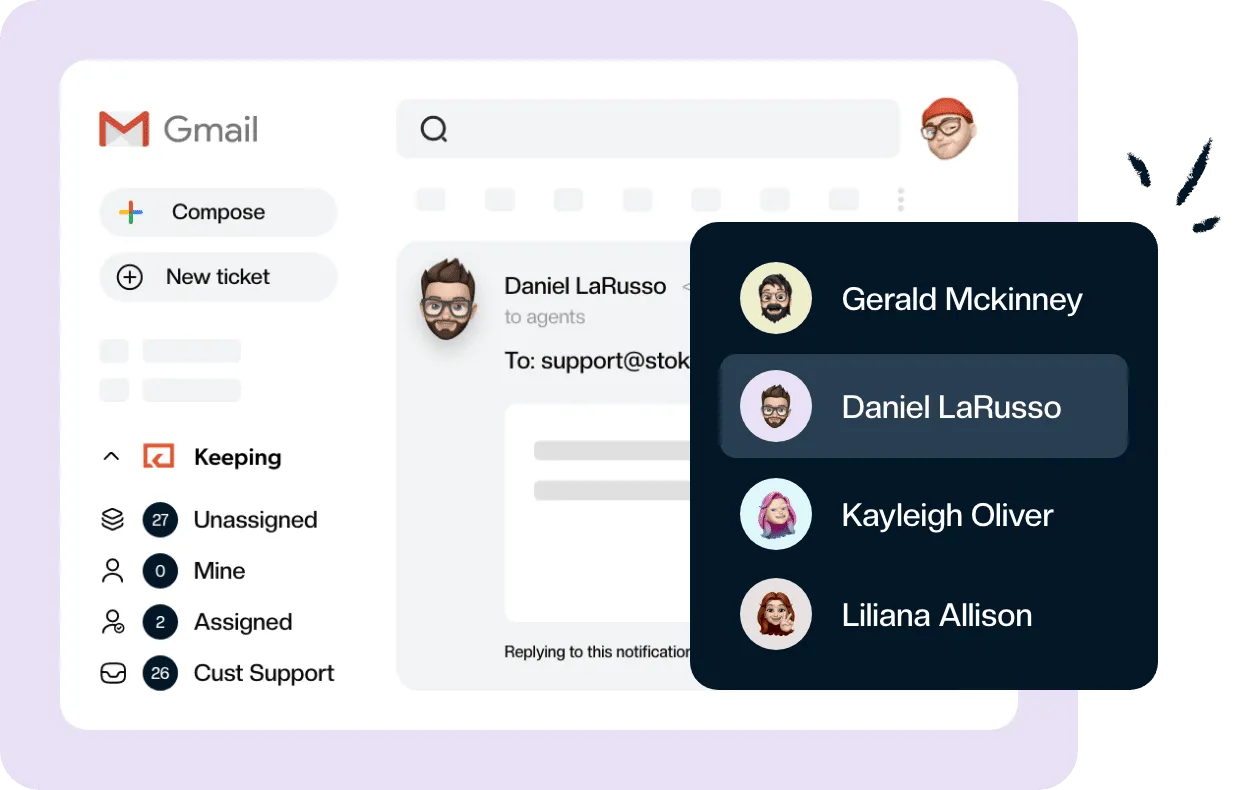
Teams love Keeping because you can collaborate on a shared inbox without ever leaving Gmail. It's not magic, but it feels magical.
On a work account there may be two extra steps. On Claude Team and Enterprise plans, an Owner has to add the Google Workspace connectors for the organization first, under Organization settings → Connectors. And if your company’s Google Workspace blocks third-party apps, your Google admin may need to mark Claude as trusted (the exact steps are in the troubleshooting section).
The same connection works in Claude Desktop and Claude Code, and connectors are available in Claude Cowork too, so you only set it up once.
What the Claude Gmail connector can do
The Claude Gmail integration lets Claude search, read, draft and send in the Gmail account you connected, using plain language instead of search operators. By default it asks before it sends anything, and it only acts when you ask. It can’t open attachments, watch for new mail, or see a shared team inbox as a team.
| Claude can | Claude can’t |
|---|---|
| Search and read your email in plain language | Read what’s inside attachments (it sees names and details only) |
| Summarize long threads, with citations to the messages it used | Reach a second Google account through the same connection |
| Draft replies and new emails | Act on its own when new mail arrives |
| Send, reply and forward, asking your approval first by default | Show teammates who owns a conversation, or its status |
| Add and remove labels, and list your saved drafts | Reach mail your Google account can’t already see |
Everything here comes from Anthropic’s Google Workspace connectors guide, which also covers Calendar and Drive.
If you came here looking for a “Claude Gmail MCP” setup for Claude Code or another developer tool, Google also runs its own server, with a Cloud project and OAuth client to set up yourself. Our guide to Google’s Gmail MCP server covers what it does and where it stops.
Can Claude send emails?
Yes. Claude can send, reply to and forward email from the Gmail account you connected. By default it shows you the message and asks for your approval before each one goes out, so nothing leaves your account without a click from you. Some older guides and AI answers still say Claude can only draft; that’s out of date.
You decide how much it asks. Go to Customize → Connectors, open Gmail and look at Tool permissions. Tools are grouped by type, and each group or tool can be set to Always allow, Needs approval or Blocked. Keep sending, replying and forwarding on Needs approval. Reading and searching are the ones worth allowing without a prompt.
On Claude Team and Enterprise, owners decide whether members are allowed to let these actions run without asking, and they can restrict what any connector does across the organization.
Is it safe to connect Claude to Gmail?
It can be, if you keep approvals on and connect only the account you need. The connection is official, uses Google’s own sign-in, and gives Claude the same access you already have, nothing more. These are the things worth knowing before you click Connect:
- No password changes hands. You sign in with Google, and you can revoke access from Claude or from your Google Account at any time.
- One account, your permissions. Claude only reaches the Google account you connected, and only mail that account can already see.
- It reads when you ask. Claude looks at your email when a request needs it and retrieves the minimum it needs. It doesn’t scan your inbox in the background.
- Training. Anthropic says it doesn’t train its models on Gmail connector data. On personal Claude plans with model training turned on, text you paste from an email into a chat, or Claude replies that quote it, can be used.
- Prompt injection. Incoming email can carry hidden instructions aimed at AI assistants. Google warns about this for its own Gmail tools. Treat any email that tells an assistant to forward, delete or send something as a red flag, and keep approval on for sending and deleting.
- Easy to undo. Disconnect Gmail under Customize → Connectors, or remove Claude from your Google Account’s connected apps.
Can I connect multiple Gmail accounts to Claude?
Claude’s Gmail connector works with the one Google account you signed in with, and Anthropic describes it that way. To use a different account, disconnect Gmail under Customize → Connectors and connect again with the other Google account.
If the second account you’re thinking of is a team address like support@ or sales@, you probably don’t want it in Claude’s Gmail connector at all.
Can Claude work on a shared team inbox?
Not as a team, through the Gmail connector. It works on the one Google account you connected. If that’s your own account, Claude sees the copies of group or forwarded mail that land in your inbox, not the team’s queue. If you connect the support@ account itself, Claude acts as support@ for whoever is chatting. Either way there’s no shared state: no owner, no status, no internal notes, and nothing Claude does tells your teammates who’s handling what.
That’s the job of a shared inbox, and the answer is to connect Claude to the shared inbox itself. Keeping runs your team’s shared inbox inside Gmail, and its MCP server gives Claude the team’s conversations, with assignments, tags and notes that everyone can see. It’s the same reason teams move off a shared mailbox in Gmail or Google Groups Collaborative Inbox in the first place.
Connect Keeping to Claude
Keeping is listed in Claude’s connectors directory, so there’s no server URL to type:
- In Claude, go to Customize → Connectors. In the desktop app, click Customize in the sidebar, then Connectors.
- Click + next to Connectors and search for Keeping.
- Click Connect on the Keeping connector (listed as “by Keeping”).
- Sign in with the Google account you use for Keeping, choose how much access to give Claude, and click Allow.
- Keeping now shows as Connected under Yours. Start a chat and ask something like “Show me my open tickets.”
On Claude Team and Enterprise, an Owner adds Keeping under Organization settings → Connectors first; if you see Request instead of Connect, click it to ask. You choose Read only or Read and Write when you connect, and Claude only sees the mailboxes your Keeping login can see. Keeping’s MCP connection guide has the custom connector and Claude Code options.
What changes for your team
Claude now works on the team’s conversations in every shared mailbox you can see in Keeping. Ask “What’s waiting in support@ that nobody has picked up?” and you get the unassigned conversations. Ask “Draft a reply to the refund request using our refund template” and the draft lands on the conversation in Keeping and in Gmail.
Claude can assign, tag and add internal notes, and those changes show up on the conversation for the whole team, under your name. It never sends: each draft waits in Keeping until a person reads it and sends it from Gmail or the Keeping app, and with shared drafts turned on for the mailbox, any teammate can pick it up. That’s how ShipTop has Claude draft and a person send client replies.
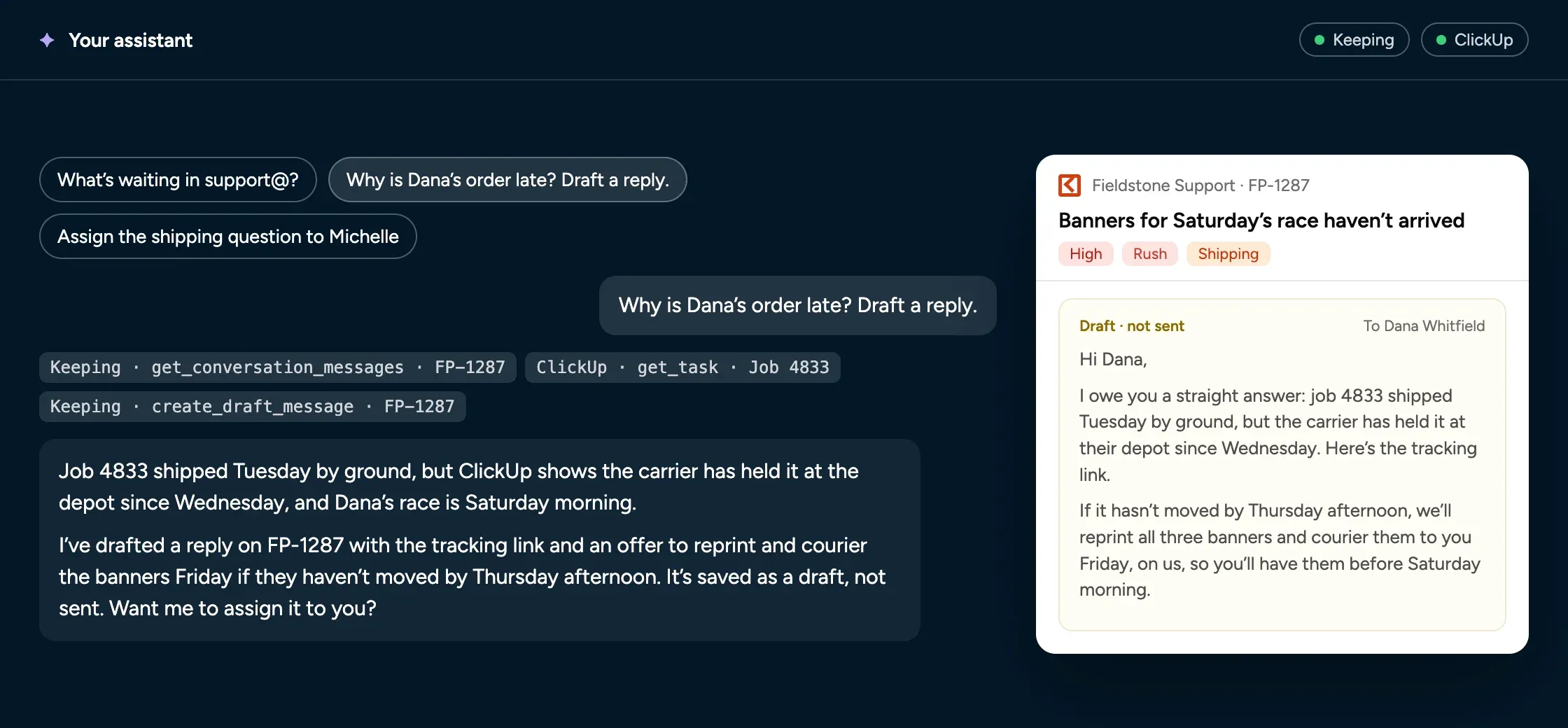
MCP access comes with every Keeping plan, limited on Essentials and full on Advanced and HIPAA (pricing). For more prompts, permissions and the ChatGPT and Gemini setup, see how to run your Gmail shared inbox from Claude, ChatGPT, or Gemini.
Want Claude on your team’s queue, not just your own mail? Start a free Keeping trial, connect support@, and you can run your shared inbox from Claude the same afternoon.
Claude Gmail connector not working?
Most connection problems come down to one of three things:
- Gmail isn’t in your connector list. On Claude Team and Enterprise, an Owner hasn’t added it for your organization yet. Click Request on the connector if you see it, or ask your Owner.
- “Access blocked: your institution’s admin needs to review…” Your Google Workspace blocks third-party apps. A Google admin goes to admin.google.com, then Security → Access and data control → API controls → Manage third-party app access, clicks Add app, chooses OAuth App Name, searches for Claude and sets it to Trusted. It takes about 15 minutes to apply.
- It worked before and now fails. Disconnect Gmail under Customize → Connectors, then use it in a chat again to reconnect. If that doesn’t help, remove Claude from your Google Account’s connections and connect again.
Also check that Gmail is switched on for the conversation you’re in: +, then Connectors.
Frequently asked questions about the Claude Gmail connector
Can Claude send emails without my approval?
Not by default. Claude asks before every send, reply or forward. You can change that per connector under Customize, then Connectors, then Tool permissions, and on Team and Enterprise plans an owner decides whether members may turn approval off. For a work inbox, keep it on.
Can Claude read my emails?
Yes, once you connect Gmail, but only when you ask for something that needs your email. Claude searches and reads messages in the Google account you connected, with the same access you have. It doesn’t read your mail in the background or when new email arrives.
Does Claude read my attachments?
No. Through the Gmail connector, Claude sees an attachment’s details, such as its name, but not its contents. To have Claude work with a PDF or spreadsheet from an email, download it and add it to the chat, or use the Google Drive connector if the file is in Drive.
How do I remove Claude’s access to Gmail?
In Claude, go to Customize, then Connectors, open Gmail and click Disconnect. To revoke it on Google’s side too, open your Google Account’s third-party connections page, find Claude and delete its connections. Deleting a chat also deletes the email data Claude retrieved in that chat.
Does Claude integrate with Gmail?
Yes. Gmail is one of Claude’s built-in Google Workspace connectors, alongside Calendar and Drive, and you turn it on from Customize, then Connectors. The same connection works on the web, in Claude Desktop and in Claude Code, and connectors are available in Claude Cowork too.