
A customer email gets forwarded with “any idea?”, the answer lands in a separate thread, and the internal note that should have held it never existed. When another teammate picks up the customer’s next reply, they start from scratch. The answer was there; it just wasn’t where they needed it.
You can avoid that split by keeping the team’s discussion beside the customer conversation. Below, you’ll see when to use a note instead of a reply, forward, or CC, what to write, and how to add one in Gmail without sending your question to the customer.
What is an internal note?
An internal note is a comment saved on a customer email or ticket for teammates with access to that conversation. It holds questions, context, and decisions separately from the customer-facing reply. The team can read it when handling the request, while the customer cannot see it.
You’ll find notes in help desks, shared inbox tools, and CRMs. Their value comes from staying beside the work: an agent opening the conversation can see the decision as well as the customer’s original request.
A complete help desk, inside Gmail?
Keeping turns your Gmail into a fully featured help desk. It's not magic, but it feels magical.
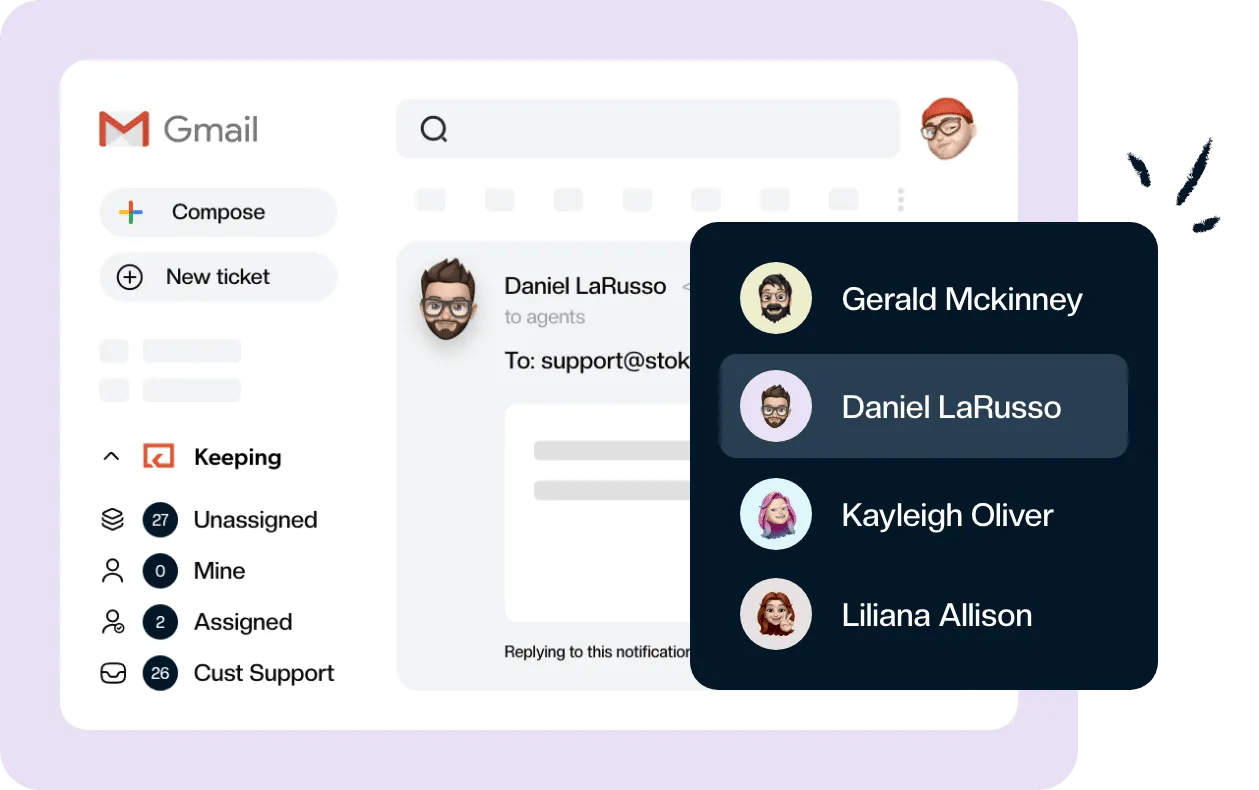
Use them for team communication, such as asking who can approve a replacement. Record progress so a colleague doesn’t repeat troubleshooting you’ve already tried. Keep internal coordination out of the customer exchange, and leave a record of the decision for the next person who handles the ticket. Write for that person, even if they weren’t involved today.
Internal note vs public reply vs forward vs CC
Use an internal note when the team needs to discuss the email; use a public reply when the customer needs an answer. Forwarding creates another exchange to track, while CC includes colleagues in the customer-facing conversation. Neither reliably leaves a separate team discussion beside the original request.
| Question | Internal note | Public reply | Forward | CC |
|---|---|---|---|---|
| Who sees it? | Teammates with conversation access | Customer and reply recipients | People you forward it to | Everyone on that email |
| Where does discussion live? | Beside the original conversation | In the customer exchange | In a separate exchange | In the customer exchange |
| Could it reach the customer? | No, notes aren’t sent to customers | Yes, intentionally | If you include them or someone forwards it onward | Yes, if they’re a recipient |
| Can the next teammate find it? | Yes, with conversation access | With access to the reply history | Only if they can find the forwarded exchange | With access to that exchange |
In help desks such as Zendesk, you select Internal note before adding a private comment. Some, including Gorgias, show internal notes on a yellow background as a visual cue. Check the mode before posting: an internal remark typed into the public reply box can reach the customer.
There’s still a place for forwarding emails in Gmail, especially when the recipient needs their own copy. For a quick question to a teammate, a note keeps the answer easier to find.
When to use an internal note
Use a note whenever the next person needs context that doesn’t belong in the customer reply. These five situations are good starting points:
- Ask a specialist. @mention the teammate who can explain a billing discrepancy or confirm a technical detail. State the question instead of asking them to “take a look.”
- Hand off before time off. Record what the customer expects, what is still pending, and when someone needs to follow up.
- Record what you already tried. List the relevant troubleshooting steps and results so the next agent doesn’t ask the customer to repeat them.
- Flag useful context. Note an outage, an approved refund, or a service commitment that changes how the request should be handled.
- Record an approval or decision. Say who approved the action and what was agreed, so the answer doesn’t stay buried in someone’s chat history.
If two people might reply at once, collision detection covers that separate coordination problem.
How to write internal notes your team will use
Write an internal note around four things: what happened, what you need, who should act, and by when. Give enough context for that person to make the next decision without rereading the whole thread. A specific question with a named owner is more useful than a running commentary.
Copy this template and replace the brackets:
What happened: [Short summary and what I already checked]
What I need: [One question, decision, or next action]
From whom: [@Teammate]
By when: [Time, date, and time zone if needed]
A weak note: “Customer is unhappy. Can someone look at this?”
That leaves the reader to work out the problem, decide whether they’re responsible, and guess how urgently to respond.
A useful note: “Order 4821 arrived with one item missing. I checked the packing record: only two of three items shipped. @Sam, can you approve sending the missing item at no charge by 2 p.m. Eastern today? I promised the customer an update this afternoon.”
The second version gives Sam a decision to make and explains the deadline. It also helps anyone covering the mailbox understand what the customer has been promised.
Keep three habits consistent:
- Summarize, don’t paste. Pull out the detail that changes the next action instead of duplicating the email history.
- Make one ask per note. Several unrelated requests make it harder to tell which ones are finished.
- Close the loop. Add a final note such as “Done: replacement approved and customer updated” so the next teammate doesn’t reopen a settled question.
How to add internal notes to emails in Gmail
Gmail has no built-in way to attach a note to an email thread that teammates can see together. Keep and Tasks offer nearby places for reminders, but they don’t create a shared discussion on the customer conversation. For that, use a shared inbox tool with team notes inside Gmail.
What can you do with Gmail’s side panel?
For a personal note, Google’s side-panel instructions direct you to Keep, then Take a note. You can share a Keep note separately with collaborators, but sharing it doesn’t attach that discussion to the email for everyone handling the mailbox.
For a personal follow-up, open an email on desktop and click Add to Tasks. You can also drag the email into the Tasks side panel. That’s useful when you need a reminder, rather than an answer from a colleague on the thread.
A draft can hold your thoughts; forwarding or Chat can reach a teammate. Each requires extra care: a draft sits near the send button, and a separate exchange leaves someone responsible for carrying the answer back.
Add a note with Keeping
With Keeping set up for your shared mailbox in Gmail, its private notes let you collaborate in Gmail beside the conversation:
- Open the customer conversation in Gmail.
- Click Notes in the Keeping sidebar on the right.
- Type your note. Type @ and choose a teammate who has access to the conversation.
- Press Enter to save the note.
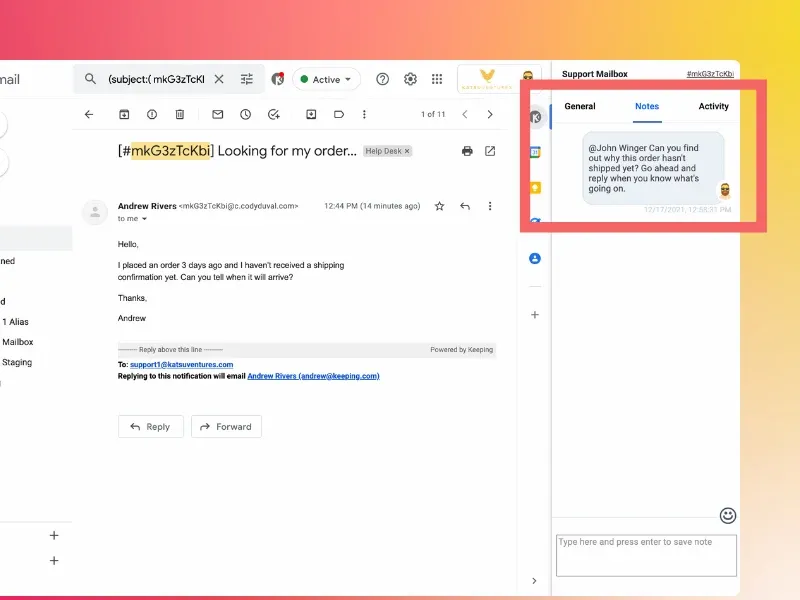
Source: Keeping’s Notes help guide.
Only your team sees the note. The mentioned teammate receives a notification, and the note stays linked to the conversation for whoever picks it up next. Build that habit into your team inbox management process so handoffs include the latest decision.
Keeping includes shared notes with @mentions on every plan; see Keeping pricing for plan details. To collaborate on customer email without leaving Gmail, try Keeping free for 14 days, with no credit card required.
Common internal note mistakes
Posting a note as a reply. Check the Notes tab or internal-note label before you submit. Don’t rely on the message’s wording to make it private.
Using notes as endless chat. If a discussion needs a long back-and-forth, have a call and put the decision back on the conversation. The next agent needs the outcome, not a transcript of every possibility.
Leaving an ask nobody notices. @mention the teammate who needs to act, instead of assuming they’ll spot your note. For a record-only update, make the outcome clear enough that someone reading it tomorrow knows whether anything remains to do.
Frequently asked questions about internal notes
How do I create notes in Gmail?
For a personal reminder, open Keep in the Gmail side panel or open an email and choose Add to Tasks. Neither puts a note where teammates can see it on the thread. For a team note, open Keeping’s Notes tab, type your message, choose a teammate with @, and press Enter.
Can customers see internal notes?
Customers cannot see internal notes saved in the team’s notes area. Those notes are separate from customer replies and are not sent to customers as email notifications. Teammates with access to the conversation can read them, so keep the language professional and check that you are using Notes before you save.
How do I loop in colleagues privately?
Write a note on the conversation and @mention a teammate who has access to it. Include the context, your specific question, and a deadline so they can respond without asking you to explain the thread again. In Keeping, the mention sends a notification while the discussion stays with the customer email.
Which tools let a team add private notes to an email without forwarding it?
Shared inbox and help desk tools can keep team comments beside a customer conversation. Keeping provides that workflow inside Gmail with notes and @mentions. When comparing email collaboration tools, check where notes appear, who has access, and how mentions notify colleagues so the next person handling the email can find the discussion.
Put notes to work in your mailbox
Need ownership and status tracking alongside your team’s notes? Explore Keeping’s Gmail collaboration features, including assignment, statuses, collision detection, and shared drafts on Advanced.