

The shared mailbox vs distribution list difference is where your team works: a shared mailbox gives everyone access to one inbox, while a distribution list sends copies to members’ separate inboxes. Choose the mailbox when colleagues need to answer together, and the list when they only need the information.
These terms usually refer to Microsoft 365 and Exchange. If your team uses Gmail, jump to the Google Workspace comparison: Google Groups, delegation and Google’s native shared inbox cover different parts of the same job.
Think about what happens after an email arrives. An office-closure notice needs to reach everyone. A customer asking about an overdue invoice needs one person to answer, with enough history for a colleague to take over tomorrow. Both can use a department address, but the work behind that address is different.
What is the difference between a shared mailbox and a distribution list?
A shared mailbox stores messages in one place that authorized teammates can open and answer from. A distribution list sends a separate copy to each member’s inbox. Shared mailbox replies can use the common address; list members normally reply as themselves, unless an administrator grants permission to use the group address.
Ready to transform how you work in Gmail?
Teams love Keeping because you can collaborate on a shared inbox without ever leaving Gmail. It's not magic, but it feels magical.

Microsoft 365 comparison, checked October 7, 2026:
| Question | Shared mailbox | Distribution list |
|---|---|---|
| How does it work? | Several users access one mailbox | One address distributes email to its members |
| Where does mail live? | In the shared mailbox | In each recipient’s mailbox |
| Who can see it? | Users granted mailbox access | Each member sees their delivered copy |
| Who replies? | Authorized users, as or on behalf of the shared address | Members, normally from their own addresses; group sending permissions are possible |
| Is there shared history? | Common received messages; configure shared Sent Items for replies | No mailbox or common Sent folder of its own |
| What else is shared? | Calendar and contacts | No shared calendar or contacts store |
| Can outsiders email it? | Depends on your organization’s mail-flow settings | Blocked by default; the administrator can allow it |
| Does it need a separate license? | Normally none up to 50 GB; users need Exchange Online licenses | No separate mailbox license for the list |
| Best for | A team answering one address | Announcements and notifications |
Microsoft’s comparison of group types distinguishes shared access from broadcast delivery. One easy-to-miss detail: shared-mailbox replies are saved in the sender’s Sent Items by default. Have your admin enable shared copies before relying on that folder as the team’s reply history.
Shared mailbox vs distribution group: what a list does
A distribution list is an email address backed by a membership list, rather than its own inbox. Send a message to that address and the service distributes it to the members. In Microsoft 365, “distribution list” and “distribution group” describe the same kind of email group.
For example, all-staff@ can deliver a holiday schedule to everyone without the sender selecting twenty addresses. Each person reads, archives or deletes their own copy. Nobody needs to maintain a central queue because receiving the information is the whole task.
That model gets awkward when each message needs one answer. Suppose billing@ sends a customer’s question to three colleagues. One replies privately, another starts investigating, and the third assumes somebody else is handling it. Delivery succeeded; coordination didn’t.
Distribution-group sending permissions can let delegates reply as the group or on its behalf. They don’t create a shared inbox or a record of who’s responsible for the request. If you’re comparing shared email vs distribution list options, a matching From address alone doesn’t solve the handoff problem.
What a shared mailbox does, and its limits
A shared mailbox lets several authorized users work with the same collection of received messages. Instead of keeping separate copies, teammates open the mailbox, review its contents and send replies using the permissions they’ve been given. That makes it useful when a department needs continuity across different people or shifts.
Our explanation of what a shared mailbox is covers the access model across Outlook and Gmail. For Microsoft 365 specifically, check these limits before choosing it:
- People: Microsoft documents a maximum of 25 users.
- Storage: Up to 50 GB needs no separate mailbox license; larger storage and some advanced features require licensing.
- Access: Users must be inside your organization, and direct sign-in should remain blocked. That restriction concerns users opening the mailbox, not customers emailing it.
- Encryption: Microsoft says mail sent from a shared mailbox cannot be encrypted using its own encryption key.
- Deletion: You cannot prevent authorized users from deleting shared messages. Agree on a filing and deletion policy before handing over access.
Shared visibility also needs a working agreement. A read message may still need an answer, and opening it doesn’t make someone its owner.
When to use a distribution list vs a shared mailbox
Use a distribution list when everyone needs the information. Use a shared mailbox when the team needs to answer as one function and keep the correspondence together.
A list is usually enough for:
- Company announcements that don’t need a team-managed reply.
- Notices sent to a department or building.
- Alerts whose follow-up is already tracked in another system.
Choose a shared mailbox for:
- Customer or supplier questions that continue over several emails.
- An address covered by different people on different days.
- Requests where the next teammate needs to see what was received and sent.
| Scenario | Starting choice | What to check |
|---|---|---|
| All-staff announcements | Distribution list | Who may send to the list? |
| billing@ invoices and payment questions | Shared mailbox | Who owns each question, and can colleagues see replies? |
| support@ customer requests | Shared mailbox | How will you track outstanding work? |
| sales@ incoming leads | Shared mailbox | How will the team divide leads and follow-ups? |
| IT monitoring alerts | Distribution list if another system tracks incidents | Does delivery trigger a clear response process? |
Billing is a useful test case. If the address only distributes automated statements internally, a list can do the job. If suppliers ask about payment dates and two finance colleagues alternate coverage, a common mailbox is more useful.
Shared mailbox vs group mailbox in Microsoft 365
A Microsoft 365 Group adds a collaboration workspace around email. It includes group conversations, a calendar and files, with connections to services such as Teams and Planner. A shared mailbox focuses on access to one mailbox. Microsoft’s group comparison explains that broader scope.
Consider a Group when people need to work on documents and plans together as well as exchange email. Microsoft also points teams beyond the shared mailbox’s user limit, or needing tighter deletion controls, toward Groups. A security group serves a different purpose again: granting access to resources.
For a small team simply answering reception@, a broader project workspace may be unnecessary. Choose it because you need those shared resources, rather than because both options have “group” in the name.
Shared mailbox vs distribution list in Google Workspace
Google Workspace uses Google Groups for distribution-list work and delegated Gmail access for a shared mailbox. Google also documents a native shared inbox built on delegation, with phased availability. The closest equivalent depends on whether you need message delivery, access to a common mailbox, or assignment of conversations.
Google Workspace equivalents, checked October 7, 2026:
| Microsoft term | Closest Google option | What it does | Who replies, from which address? |
|---|---|---|---|
| Distribution list | Google Group used as an email list | Distributes messages to members; can retain group history | Members normally use their own address; group-address sending needs configuration |
| Shared mailbox | Google’s native shared inbox, or a delegated Gmail account | Gives delegates access to one mailbox | Delegates send from the shared address; sender details can identify the delegate |
| Microsoft 365 Group | Google Group with Collaborative Inbox, for the email workflow only | Adds conversation ownership and completion in Groups | Members reply in Groups or use configured group-address sending |
| Send As | Gmail’s “Send mail as” group-address option | Lets a member use the group address for outgoing email | The member sends from Gmail using the verified address |
The third row isn’t full product equivalence: Collaborative Inbox doesn’t itself provide the Microsoft 365 Group bundle of files, calendar and Teams. For choosing a shared mailbox in Gmail, start with the email work you need to do:
- Announcements: a Google Group can distribute messages to the team.
- A small team answering one address in Gmail: use the native shared inbox where available, or Gmail delegation.
- Conversation assignment and completion: use Collaborative Inbox in Groups, or a shared inbox tool for a Gmail-based workflow.
Google’s native shared inbox supports Business Starter, Standard and Plus and is being released in phases; Google recommends delegation if it hasn’t reached your console. Google doesn’t publish a price; admins report the address uses a paid seat.
Google Group vs distribution list
A basic Google Group does the same distribution job: people email one address and members receive the message. Google can also retain a conversation archive when history is enabled. So a comparison of an email group vs distribution list is often a comparison of two names for the same delivery pattern.
Outside senders need permission. Google’s group-settings guidance says incoming external email is off by default. Members who want to reply from Gmail using the group address must configure Send mail as.
Use our Google Groups email list guide for that setup. If you only want a personal list of contacts to address together, the Gmail distribution list guide covers that different use case.
Google Group vs shared mailbox
A plain Group distributes messages; a delegated mailbox gives people access to the same mailbox. But Groups has another mode: Google Groups Collaborative Inbox lets members take or assign conversations and mark them complete. Those controls live in Google Groups.
Google’s native shared inbox identifies the shared From address and, unless hidden, the delegate in “Sent by.” That tells you who sent a message, rather than assigning the next request to someone.
Delegation has capacity limits too: Google documents up to 1,000 work or school delegates, with about 40 concurrent users under typical use. Those numbers describe access, not a support-management system. If your team wants to keep its Google Groups address while coordinating replies in Gmail, consider the workflow below.
Where both fall short for customer email
A plain distribution list doesn’t tell you who is handling a request, and a plain shared mailbox doesn’t automatically assign it either. A visible reply history helps, but two colleagues can still start drafting at the same time. Neither basic arrangement gives a manager a ready-made response-time report.
Labels, shifts and a clear “I own this” convention may be enough for a small, low-volume team. Collaborative Inbox adds actual assignment in Groups, so try that if your team is comfortable working there. Extra software should solve a problem you can name.
If your team is on Gmail, Keeping adds shared mailbox management beside the email: an owner, ticket status, private notes and collision detection. In Gmail, open Keeping in the left sidebar, choose a conversation, and use the right sidebar to see its assignment and status.
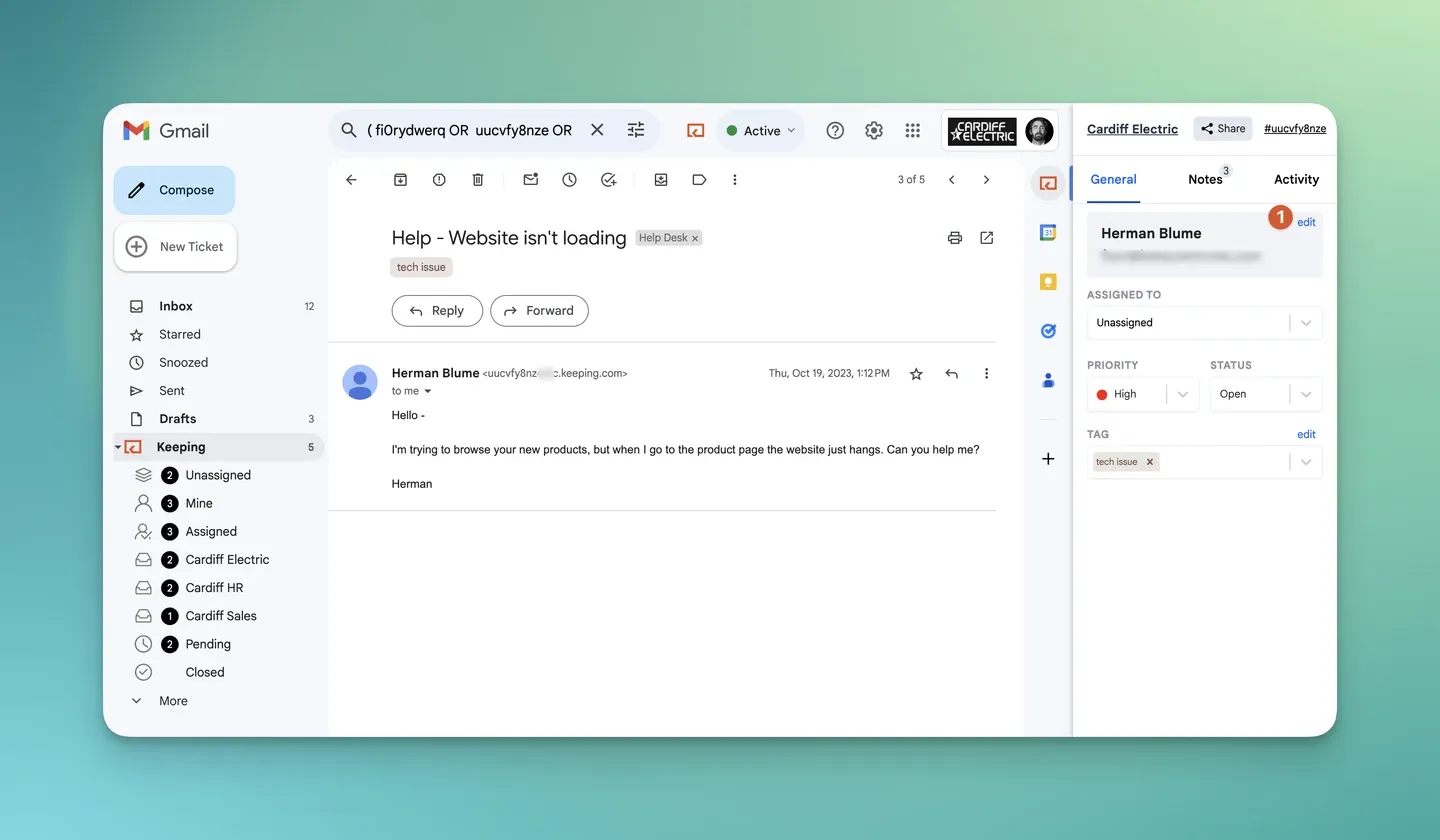
The full walkthrough is in Keeping’s Using Keeping in Gmail guide.
Running support@ through a Google Group or shared account? See how a shared inbox for Gmail helps your team assign, track and answer those requests.
Can you convert a distribution list to a shared mailbox?
Yes, in Microsoft 365, but it is a manual replacement. Microsoft’s documented process frees the group’s email address, creates a shared mailbox using it, and grants members mailbox access and sending permissions. It doesn’t turn the copies already sitting in personal inboxes into a shared conversation history.
Our guide to convert a distribution list to a shared mailbox covers that separate task; Microsoft’s conversion documentation is the source for the current process.
In Google Workspace, you can keep a Group address and change how the team works with it, using Collaborative Inbox or connecting it to a shared inbox tool. For Gmail teams considering Keeping, try it for 14 days, with no credit card required. As of October 7, 2026, Essentials starts at $14 per user/month billed annually, with a 2-user minimum.
Frequently asked questions about shared mailboxes and distribution lists
What are the disadvantages of using a shared mailbox?
A plain shared mailbox gives people access without assigning each request to an owner. Your team still needs a way to avoid duplicate replies, track unfinished work and agree on deletion. Microsoft also warns that users cannot be prevented from deleting messages from a shared mailbox.
What are the limitations of a shared mailbox?
Microsoft 365 documents a maximum of 25 users, 50 GB without a separate mailbox license, and access for internal users only. Larger storage and some advanced features need additional licensing. These are Microsoft 365 limits. Google Workspace delegation has its own limits and pricing.
Can you add a shared mailbox to a distribution list?
Yes. Microsoft lists SharedMailbox among the supported distribution-group member types. Messages sent to the list can therefore be delivered into that shared mailbox, alongside copies sent to other members. This combines distribution with shared access; it does not turn the distribution list itself into a mailbox.
Does Google Workspace have distribution lists?
Yes, Google Groups provides the equivalent email-list function: people send to one address and members receive the message. Google also supports group conversation history and a separate Collaborative Inbox mode. Choose the basic list when the goal is delivery, rather than assigning responsibility for incoming requests.
Is a Google Group a shared mailbox?
A Google Group is not the same as a delegated Gmail mailbox. Groups distributes messages and can retain a shared archive; Collaborative Inbox adds assignment and completion in the Groups interface. A delegated account or Google’s native shared inbox instead lets teammates work in one Gmail mailbox.
Do distribution lists accept email from outside the company?
They can, but Microsoft 365 distribution lists reject outside senders by default. An administrator must allow external email before customers or suppliers can write to the list. Google Groups also requires suitable organization and group permissions, so test delivery from an external address before relying on it.