Email workflow management can mean automated marketing campaigns or the process a team uses to handle incoming email. This guide covers the second meaning: how a message sent to a shared address gets routed, assigned, answered, tracked, and closed.
That workflow replaces the private system of stars, forwards, and memory that tends to form around a busy team inbox. It gives each message an owner and a visible next step, while customers keep emailing the same address.
What does “email workflow management” actually mean?
“Email workflow management” has two common meanings. Marketing teams use it for automated outbound sequences triggered by subscriber data or behavior. Support and operations teams use it for the path an incoming message follows from arrival to resolution: routing, ownership, collaboration, status, response targets, and closure.
Campaign Monitor defines an email workflow as a series of automated emails sent according to contact information, behavior, or preferences. That definition covers welcome series, abandoned-cart reminders, lead nurturing, personalized messages, timed sequences, and performance measurement.
Ready to transform how you work in Gmail?
Teams love Keeping because you can collaborate on a shared inbox without ever leaving Gmail. It's not magic, but it feels magical.
Those are useful marketing jobs, but they are outside this guide. Keeping does not send newsletters, drip campaigns, or bulk email, and it does not optimize campaign open rates. It manages the email a team receives and needs to finish together.
Why does the email your team receives need a workflow?
A shared address needs a workflow because “someone will pick it up” is not a reliable operating system. One person sorts the inbox, requests get forwarded or starred, and the meaning of each flag lives in that person’s head. When they are out, the process disappears with them.
The predictable results are duplicate replies, dropped messages, and no dependable view of what is still waiting. A shared inbox fixes the visibility problem by giving the team one place to work. A workflow adds ownership and repeatable rules, so email overload does not become the team’s default state.
What are the five steps of a team email workflow?
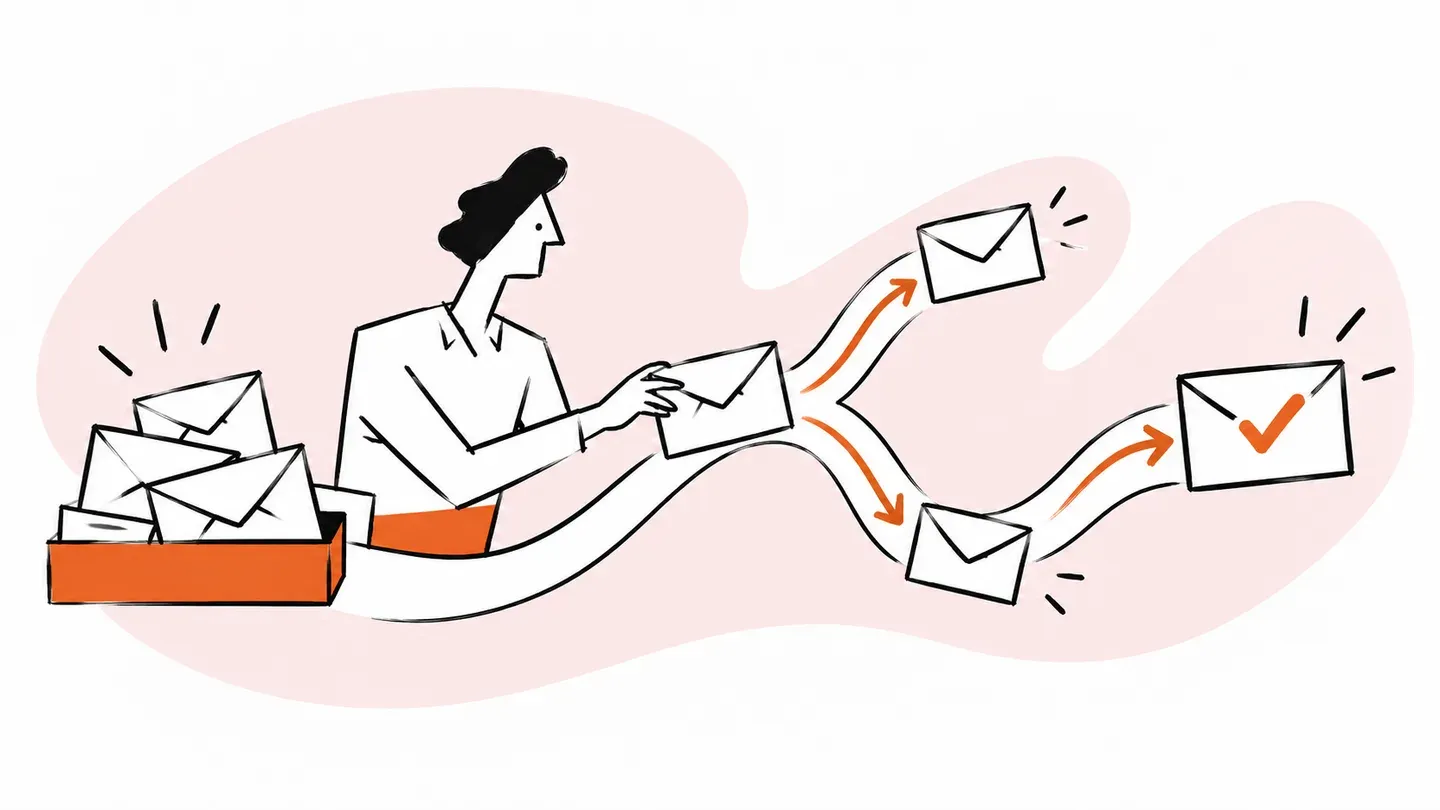
A team email workflow has five steps: route, own, work, track, and close. Each incoming message reaches the right queue, gets one accountable owner, carries the context teammates need, moves through visible statuses, and leaves the queue only when the request has been resolved.
- Route. Read the sender, subject, or message content and apply the right action. A rule can assign the email, add a tag, or set its priority before anyone opens it.
- Own. Put one name beside the conversation. Round robin assignment can spread new work evenly, but every message should still have one clear owner.
- Work. Keep discussion beside the email with internal notes and @mentions. Collision detection shows when a teammate is already replying, helping the team avoid competing answers, while shared templates make common replies faster and more consistent.
- Track. Use a small set of statuses such as Open, Pending, and Closed. Everyone can see whether the team owes the next reply or is waiting on the customer.
- Close. Finish the conversation when the request is resolved. A workflow can even close a message when it detects a simple “thank you” that needs no further response.
This is the practical core of team email management software. The same sequence also makes triaging tickets less subjective because the team has agreed what should happen next.
What email workflow examples can you copy?
Start with rules for repetitive decisions, not every possible exception. These five examples remove common manual steps while leaving judgment calls with a person.
| Trigger | Condition | Action | Why |
|---|---|---|---|
| New email | Subject contains “refund” | Tag billing, assign Finance |
Sends a sensitive request to the right specialist |
| New email at support@ | Any sender | Assign round robin | Shares new work without a dispatcher |
| New email | Sender belongs to a named account | Set priority High and assign its owner | Makes important relationships visible |
| Open conversation | No first reply after six hours | Notify owner and add an SLA tag | Surfaces a late response before it gets lost |
| Customer reply | Message is a simple thank you | Mark Closed | Clears work that needs no further action |
Good Gmail automation removes predictable sorting and status work. It should not auto-send a complicated customer answer simply because a keyword appeared in the message.
How do you set response-time targets for an email workflow?
Set one target for the first response and another for resolution, then define what happens when either target runs late. The workflow should alert the owner and make the late conversation visible with a tag. That creates an escalation path without requiring a manager to scan the inbox all day.
Measure incoming volume, first response time, and resolution time together. A slow first reply can point to routing or staffing; a long resolution time can expose difficult handoffs. Use a documented help desk escalation process and email response time tracking to find the actual bottleneck.
Keeping includes workflows on Essentials. Service level agreements and round robin assignment are Advanced-plan features, so include that difference when you choose a plan.
How does support email workflow management work inside Gmail?
Gmail-native support email workflow management puts assignments, notes, statuses, and automation beside the conversation. Teammates work from their own Gmail accounts, customers receive ordinary replies from the shared address, and the team does not need to migrate email or keep another tab open.
That makes it a strong fit for small and midsize Google Workspace teams. A very large operation that needs voice, chat, or complex cross-channel routing may be better served by a standalone platform. Our guide to help desk workflow covers that broader process, while Keeping’s customer support solution stays focused on shared email in Gmail.
The same approach also supports email collaboration software: internal notes keep context with the message, assignments make ownership explicit, and collision detection helps the team avoid duplicate replies.
Want a clear path for every incoming email inside the Gmail your team already uses? See how Keeping handles email workflow management.
What email workflow best practices should you use this week?
Build the first version around work your team already understands:
- List the five request types you receive most often.
- Write one routing rule for each type.
- Agree what Pending means and when to use it.
- Set one realistic first-response target.
- Review the workflow after two weeks and remove any rule that creates noise.
Keep the first version small enough to explain in five minutes. Keeping Essentials includes two workflows for up to ten agents. Advanced adds unlimited workflows, round robin assignment, and SLAs. Both have a 14-day free trial with no credit card and a two-user minimum; you can compare plans before deciding.
Name an owner for the workflow itself, too. That person does not need to handle every message; they watch for rules that route work to the wrong place, tags nobody uses, and exceptions that teammates keep solving by hand. A ten-minute review every other week is usually enough for a small team.
Document each rule in plain language beside the outcome you expect. “Refund in subject → Finance” is easier to audit than a clever rule nobody remembers creating. When volume or responsibilities change, update the rule and tell the people affected. A workflow only saves time when the team trusts what it will do.
When you are ready, start building your inbound email workflow in Gmail.
Frequently asked questions about email workflow management
What are examples of workflow management?
For an inbound email team, examples include routing refund requests to Finance, assigning new support messages round robin, tagging priority customers, alerting an owner before an SLA expires, and closing simple thank-you replies automatically.
What is the best workflow management tool?
The best tool fits where your team already works and makes ownership visible. For a small or midsize team on Google Workspace, a Gmail-native shared inbox is often the simplest fit; larger multichannel operations may need a standalone help desk.
Can you give me an example of a workflow?
When a message arrives at support@ with “refund” in the subject, a rule can tag it billing, assign it to Finance, and set it to high priority. Finance replies from the shared address, then closes the conversation when the request is resolved.
What are the 5 steps of workflow?
For incoming team email, the five steps are route, own, work, track, and close. The message reaches the right person, gets one clear owner, is handled with shared context, moves through visible statuses, and closes when the request is resolved.
What can an email workflow automate?
An email workflow can read the sender, subject, or content, then assign the conversation, add tags, set priority, change status, or alert a teammate. It can also close emails that do not need another reply, such as a simple thank-you message.
Is an email workflow the same as an email marketing campaign?
No. An inbound email workflow manages messages your team receives at shared addresses such as support@ or info@. Email marketing campaigns send newsletters, drip sequences, and bulk email to subscribers; Keeping does not send those campaigns.