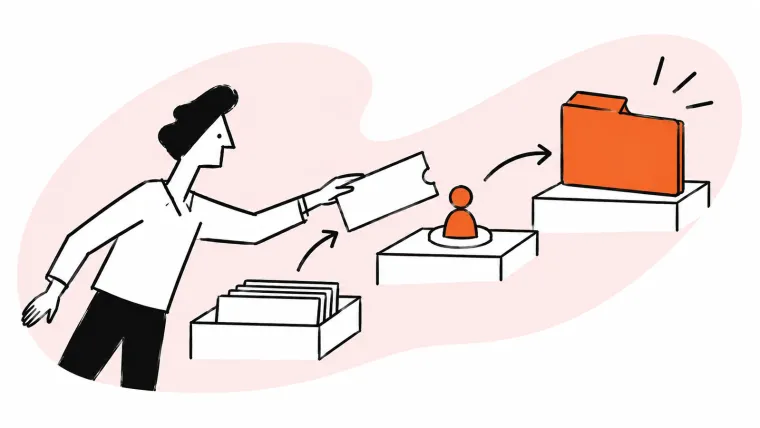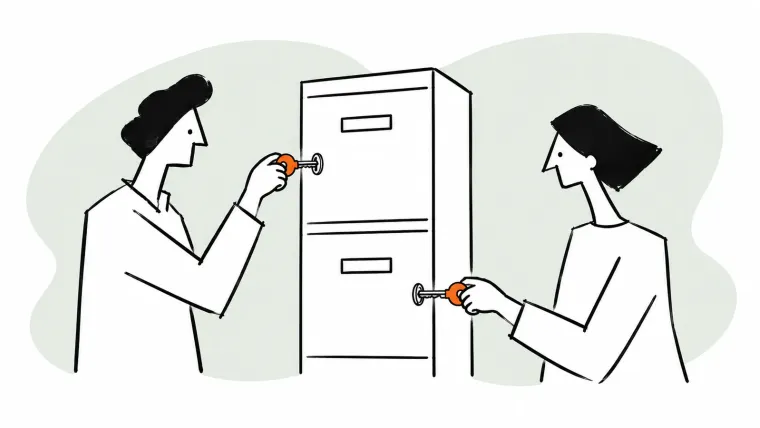

Here’s how to find lost emails in a shared Gmail inbox: search all folders, including Spam and Trash, then check filters, forwarding and the people sharing the account. If support@ is a Google Group, check its moderation queue too. A message can be missing from view without being permanently gone.
Once you find it, check whether the customer actually received an answer. In a shared inbox, “lost” can mean two different things: the email disappeared, or the team lost track of who was handling it. Restoring the message solves the first problem. Giving it an owner solves the second.
Start with the Gmail checks below. If several people handle the address, continue to the team causes before changing settings or asking the customer to resend everything.
Where lost emails go in Gmail: check these first
For missing emails in Gmail, search beyond the inbox before assuming deletion. Archived messages remain in All Mail; Spam and Trash need checking separately. Filters, forwarding and connected mail clients can also move messages out of view. If the account cannot receive new mail, check its available storage.
Ready to transform how you work in Gmail?
Teams love Keeping because you can collaborate on a shared inbox without ever leaving Gmail. It's not magic, but it feels magical.
Use this checklist in the account that received the message, which may be different from your personal Gmail account:
| Symptom | Where to look | What to check |
|---|---|---|
| Message vanished from the inbox | All Mail | Search with in:anywhere to include Spam and Trash too. |
| Message was deleted or flagged | Trash and Spam | Look before the 30-day automatic deletion deadline. Emptying either folder removes messages sooner. |
| Similar messages keep disappearing | Filters and Blocked Addresses | Review Gmail filters and rules for actions that archive or delete matching mail. |
| Another address or app receives it | Forwarding and POP settings | Check what happens to Gmail’s original copy. |
| It disappeared after another device was used | Connected email clients | Review deletion settings; a synced device is not a separate backup. |
| New messages never arrive | Account storage | Gmail shares storage with Drive and Photos; a full account can stop receiving mail. |
These checks follow Google’s missing-message guidance. For filters, open Settings → See all settings → Filters and Blocked Addresses. Edit the matching rule, rather than moving a message back repeatedly while leaving the cause in place.
Try in:anywhere from:customer@example.com, replacing the address with your customer’s. If that returns nothing, remove the sender restriction and search a distinctive word from the subject. Google’s search operators let you narrow results without relying on the inbox view.
Before searching again, confirm the destination address with the sender. Searching your personal inbox will not tell you whether a message reached the shared account or is waiting in a group’s queue.
Why do emails go missing in a shared inbox?
If you’re asking “why are my emails disappearing?” about a shared address, check the team as well as Gmail. Missing emails in a shared inbox can come from shared access or an ownership gap: a teammate archived the message, a Google Group held it for review, or several people saw it without replying.
First establish whether the message disappeared or the customer was simply left waiting.
A teammate archived or deleted the only copy
A delegated Gmail shared mailbox gives teammates access to the same account. Google permits delegates to read, send and delete mail. If one person archives a message there, it’s gone from the inbox for everyone else too. From their side, it looks like emails disappearing from the inbox on their own.
Ask who last handled the conversation before assuming a delivery failure. Gmail delegation changes who can access the mailbox; it does not give each delegate an independent backup. Agree on what archiving means, especially when one teammate uses it to tidy up and another treats the inbox as the work queue.
Everyone read it, nobody answered it
Imagine an invoice question arrives at info@. Alex opens it while checking orders. Sam sees the same request later and assumes Alex is handling it. Both know the message exists; neither has committed to answering it.
A read or unread marker is not a reliable record of responsibility. The practical fix belongs in your team inbox management process: one named owner, a visible next action and a handoff when that owner is away.
The Google Group held it for moderation
With Google Groups email, a message may be waiting for approval before anyone receives it. Open the group at groups.google.com and look under Conversations → Pending, using an account with permission to moderate content.
Google automatically deletes unapproved messages after 14 days and messages marked as spam after 7 days. A moderation queue needs an owner just as much as the inbox does. A sender’s “I emailed last week” is a reason to check Pending promptly.
The assignment lives in Groups, the reply lives in Gmail
Google Groups Collaborative Inbox does have assignment. Authorized members can Take, Assign and Mark as complete in the Groups interface, as Google’s instructions explain.
The workflow gap appears when teammates reply to delivered copies in Gmail without using those controls. A reply alone should not be treated as proof that someone assigned or completed the conversation in Groups. Agree where the team checks ownership before answering.
A shared-account filter hid it first
A filter that archives incoming mail can remove the message from the team’s work queue before anyone sees it; revisit the filter checks above.
How to recover a lost email in Google Workspace
Recover a lost business email by locating it first, then choosing the recovery route that matches what happened. You can move mail out of Trash yourself. Permanently deleted Workspace mail needs an administrator, while a held Google Groups message needs a moderator. These are different queues with different deadlines.
- Search the receiving account. Include All Mail, Spam and Trash. For archived mail, select it and choose Move to Inbox.
- Restore from Trash. Select the message and move it back before Gmail’s 30-day Trash window ends. For legitimate mail in Spam, use Not spam.
- Ask a Workspace admin. Under Directory → Users, select the account, choose Restore data, select the deletion date range and Gmail, then restore. Results can take several days.
- Check retained data. If applicable retention rules or holds preserved the message in Google Vault, an authorized user can search and export it. Vault cannot restore it directly into Gmail.
- Check the group’s Pending queue. A moderator may still be able to approve a held message before its separate deletion deadline.
- Use the right recovery tool. The Gmail Message Recovery Tool is for messages possibly deleted after unauthorized account access. It is not a general undo button for ordinary deletion.
Can you recover emails deleted more than 30 days ago?
For Google Workspace, sometimes. Admins have another 25 days after permanent deletion: up to 55 days when the message spends the full 30 days in Trash first. Emptying Trash earlier shortens that timeline. The admin tool cannot recover deleted spam or drafts, and the extra window does not apply to personal Gmail accounts.
How to stop missed emails in a shared inbox
To see who’s handling each support@ email, assign one owner, show its status and make replies in progress visible. Google Groups Collaborative Inbox provides ownership and status in Groups, without live reply visibility inside Gmail. Choose a workflow to manage a shared Gmail mailbox for support@ that your team will consistently use.
Build these checks into the working day:
- Give every email one owner. The owner follows the request through to resolution, even when someone else supplies an answer. Manual assignment is enough to start; round robin is an option when distributing incoming work. Reassign responsibility explicitly during absences instead of hoping a colleague notices.
- Give every email a status. Use open for work that needs attention, pending for a request waiting on someone, and closed for resolved work. Define those meanings together. “Pending” should include what you are waiting for, so tomorrow’s teammate can understand the next step.
- Make replies in progress visible. Collision detection shows teammate activity around a conversation. Combine it with ownership: knowing someone is typing helps avoid duplicate replies, but an owner still needs to follow through if that draft is abandoned.
- Sweep unassigned and unanswered mail daily. Designate who checks the queue and who covers their absence. Set a customer response time target, then review requests approaching it. Email tracking and response monitoring should help you find waiting customers, not just count messages sent.
- Choose Groups spam handling deliberately. Assign someone to review Pending. Relaxing Spam message handling can let suspicious messages reach members; it is not a substitute for review. Google says high-confidence spam is always rejected, even when a group’s spam controls are relaxed.
- Audit shared-account filters. Before changing a rule, identify which messages it affects and who depends on it. A personal shortcut that archives newsletters might also catch a customer’s forwarded receipt. Check the matching conditions and agree where those messages should go.
If maintaining ownership and response checks by hand is becoming hard, a shared inbox tool can make that work visible in Gmail. Delivery settings and moderation queues still need someone responsible for them.
Native Gmail options vs a shared inbox tool
Choose based on where your team will actually check responsibility, status and waiting customers.
| Option | Ownership | Status | Who’s replying | Response-time tracking | Where you work |
|---|---|---|---|---|---|
| Gmail delegation | Manual convention | Labels or convention | No team typing indicator | Manual | Delegated Gmail account |
| Groups Collaborative Inbox | Take / Assign | Mark as complete (in Groups) | No live indicator in Gmail | Manual | Groups for ownership; Gmail for delivered copies |
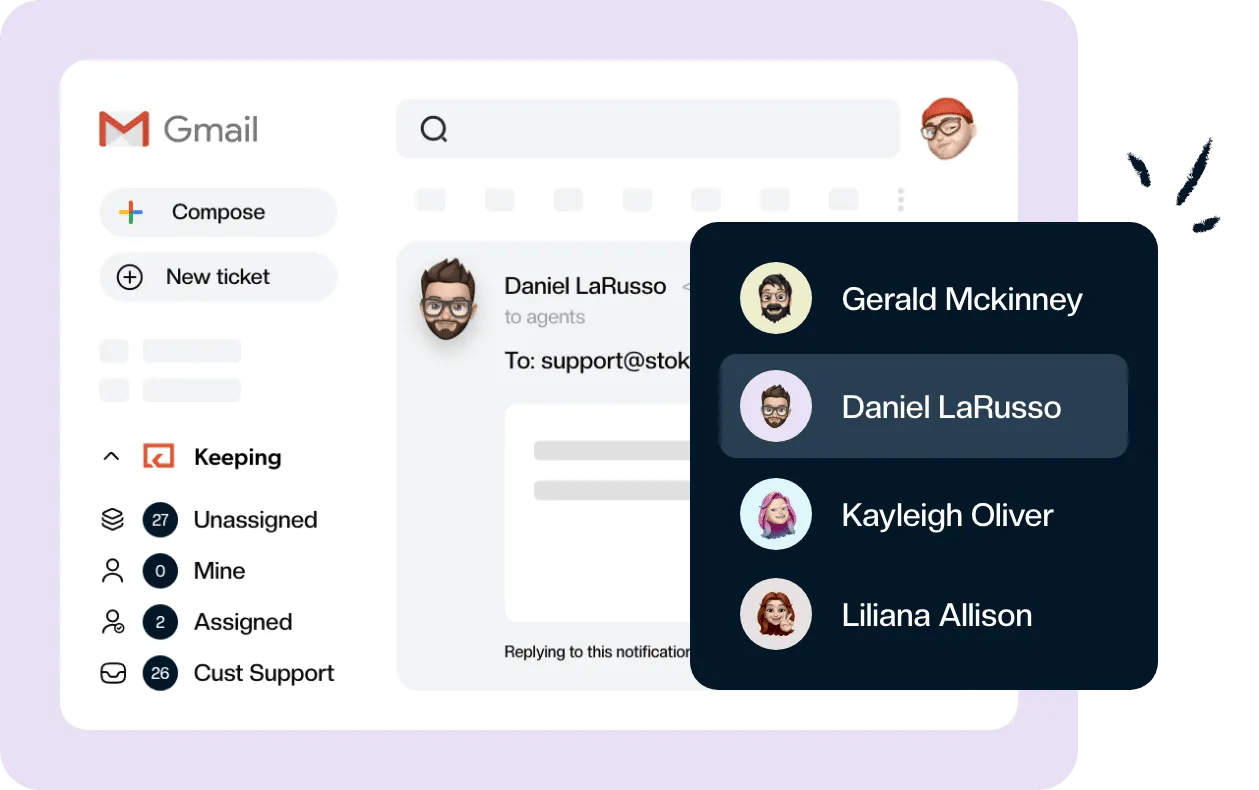
| Keeping | Named agent | Open / pending / closed | Collision detection | Reporting; SLAs on Advanced | Gmail, with web/mobile portal access |
Delegation can work when coordination is simple. Groups can work when everyone maintains the shared queue. Keeping adds assignment, statuses, collision detection and internal notes to help teams run support from Gmail.
Essentials costs $19 per user per month, or $14 per user per month billed annually, with a two-user minimum. Advanced adds SLAs and round robin assignment. See Keeping pricing for the full plan list.
For customer email management that helps you track every request and see who’s handling what, explore Keeping’s shared inbox for Gmail. Start a 14-day trial, with no credit card required.
Frequently asked questions about lost emails
How do I get back lost emails?
Start in Trash and move the message back if it is still there; Gmail normally keeps deleted messages for 30 days. For a work account, ask your Google Workspace administrator about Restore data after permanent deletion. Admin recovery has an additional 25-day window, so report the loss promptly.
Why are my emails not showing up in my inbox?
They may have been archived, moved by a filter or sent to Spam. Search beyond the inbox, then review filters that skip it or delete matching messages. If new email is not arriving at all, check account storage and confirm the sender used the address you are checking.
How do I recover my lost emails on Gmail?
Search with in:anywhere to include Spam and Trash, then move any archived or trashed message back to your inbox. Check forwarding and connected apps if messages keep disappearing. Google’s Gmail Message Recovery Tool is intended for mail possibly deleted after unauthorized access, rather than routine accidental deletion.
How do I restore my emails to my inbox?
Find the message in All Mail or Trash, select it and choose Move to Inbox. For a legitimate message in Spam, use Not spam. Then review any filter that archived it, because moving one message back does not change what the rule will do to future matching messages.
How do teams avoid duplicate replies in shared inboxes?
Assign one owner to each conversation and make replies in progress visible to teammates. Check the shared conversation before sending, and explicitly reassign it during a handoff. A shared inbox with collision detection helps people notice overlapping work, while ownership makes clear who is responsible for the next answer.