

To connect ChatGPT to Gmail, open Settings → Plugins in ChatGPT, choose Gmail, select Install plugin or Connect, and sign in with your Google account. ChatGPT can then search and read your email, draft replies and, on Plus, Pro, Business and Enterprise, send from ChatGPT on the web, asking first if you set its permissions to Always ask or Allow read actions.
The Gmail plugin works as you, on the Google accounts you connect yourself. If the mail that matters lands in a shared address like support@, ChatGPT for Gmail can’t show your team who’s handling what. That needs a different connection, covered in the shared inbox section, where ChatGPT saves drafts and a teammate sends.
How to connect ChatGPT to Gmail
Connecting ChatGPT to Gmail takes about a minute:
- In ChatGPT, open your profile menu, select Settings, then Plugins.
- Find Gmail and select it.
- Select Install plugin if it’s shown, then Connect if prompted.
- Sign in with the Google account that already gets the mail you want ChatGPT to use. A personal account won’t reach mail that only your work account can see.
- Review the permissions on Google’s screen and allow them. If ChatGPT says ChatGPT needs all requested permissions, select Try again and choose Select all on Google’s screen.
To use it in a conversation, type @ and choose Gmail, or select + and pick it from the menu. Then ask something your inbox knows, like “Which emails from this week still need a reply from me?”
Ready to transform how you work in Gmail?
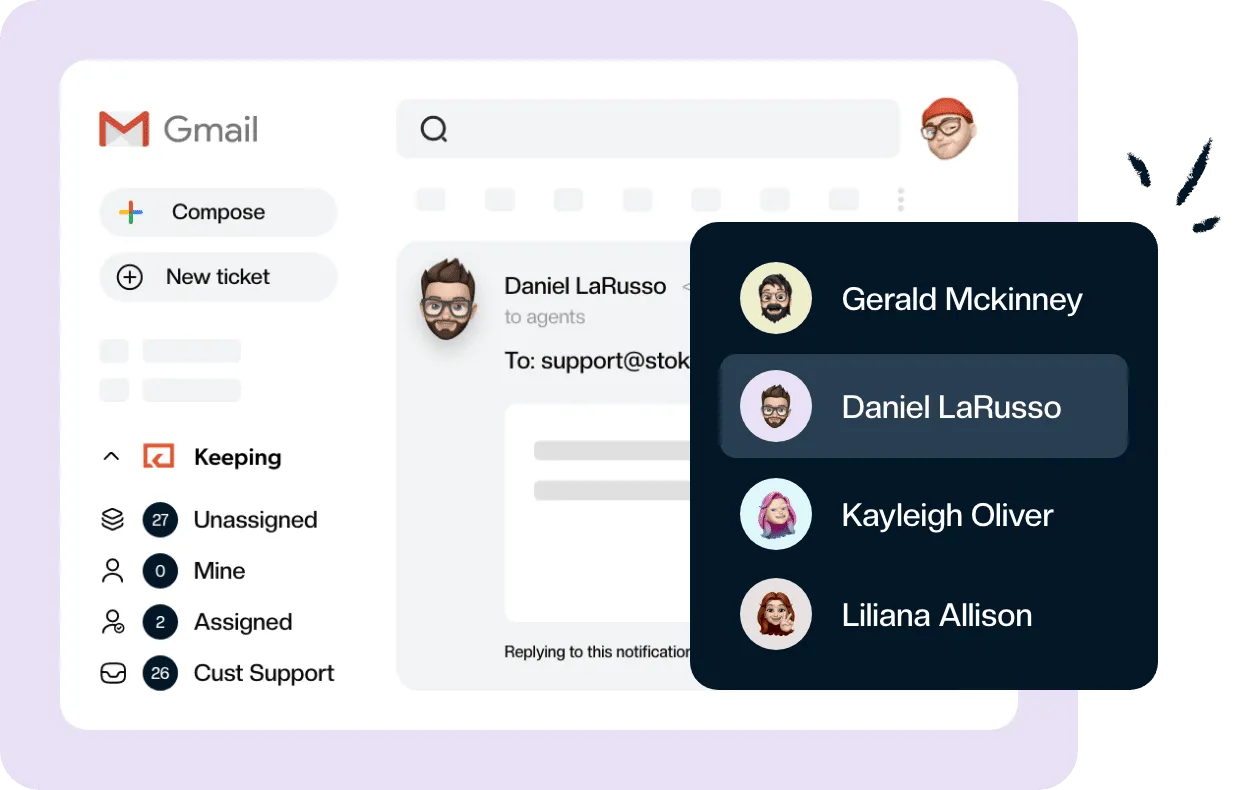
Teams love Keeping because you can collaborate on a shared inbox without ever leaving Gmail. It's not magic, but it feels magical.
ChatGPT used to call these connections connectors, then apps, and very old versions of the mobile apps still show Apps instead of Plugins, so follow whichever your screen shows.
On a work account there may be two extra steps. In ChatGPT Business many plugins are on by default, while Enterprise and Edu workspaces start with a selected set, and admins decide what’s available. And if your company’s Google Workspace restricts third-party apps, a Google admin may need to trust the ChatGPT/OpenAI app first (see the troubleshooting section).
What ChatGPT’s Gmail plugin can do
The ChatGPT Gmail plugin lets ChatGPT search and read the mail in the Google accounts you connected, recap threads, prepare replies and, on Plus, Pro, Business and Enterprise, send from ChatGPT on the web. It acts as you, with the access your Google account already has. It can’t see a shared team inbox as a team or tell your teammates what it did.
| ChatGPT can | ChatGPT can’t |
|---|---|
| Search and read your email in plain language | Reach a Google account you didn’t connect |
| Recap threads and pull out action items | See mail your Google account can’t already see |
| Draft replies and new emails | Show teammates who owns a conversation, or its status |
| Send from ChatGPT on the web, on Plus, Pro, Business and Enterprise | Leave internal notes the rest of your team can read |
| Search across several connected Google accounts in one conversation | Tell a teammate it already drafted a reply to a thread |
| With Work on Plus and Pro, respond when a new Gmail message arrives, pausing for your approval |
That last one is where the ChatGPT Gmail integration differs from most: a task in Work can run when new mail arrives, using only the account and permissions you gave that connection. Anything that needs your approval waits for you.
Chrome extensions that add a ChatGPT button inside Gmail are a different thing. They’re third-party tools with their own permissions and privacy terms, not OpenAI’s plugin.
If you were looking for a Gmail MCP setup for ChatGPT, Google also runs its own server for developers, with a Cloud project and OAuth client to set up yourself. Our guide to Google’s Gmail MCP server covers what it does and where it stops.
Can ChatGPT send emails?
Yes. If you’ve connected Gmail, you can ask ChatGPT to draft an email and send it from the same conversation, on Plus, Pro, Business and Enterprise plans in ChatGPT on the web. ChatGPT writes the draft and you choose to send it. Older guides and AI answers that say ChatGPT can only draft are out of date. It works with Outlook too.
How often ChatGPT stops to ask is set by its permissions, and OpenAI gives four levels:
| Permission | What ChatGPT does | Use it for |
|---|---|---|
| Always ask | Asks before reading anything or making changes | A work inbox, especially at first |
| Allow read actions | Reads without asking, asks before making changes | Everyday use on a work inbox |
| Allow low-risk actions | Approves low-risk actions on its own; higher-risk ones may need confirmation or be denied | Personal mail you’re relaxed about |
| Allow all actions | Acts without approval prompts; OpenAI labels it elevated risk | Not a work inbox |
Sending an email is the first example OpenAI gives of an action that may need extra review. For anything that writes to customers, stay on Always ask or Allow read actions.
To set a default for every plugin, use the permission control under Settings → Plugins. Allow all actions isn’t offered there, only on a single plugin or account. To set one Gmail account on its own, open Gmail under Settings → Plugins, find the account under Connected accounts, open its ••• menu, select Settings, then Permissions. In a Business or Enterprise workspace, admins can turn Google app actions on or off, and workspace policy may decide which prompts you see. OpenAI’s guide to app permissions has the details.
Is it safe to connect ChatGPT to Gmail?
It can be, if you keep approval on for anything that changes your mail and connect only the accounts you need. The connection uses Google’s own sign-in, and ChatGPT gets the access your account already has, nothing more. So should you connect ChatGPT to Gmail? For your own inbox, yes, on Always ask or Allow read actions. For a team inbox, read the shared inbox section first.
- No password changes hands. You sign in with Google and can disconnect at any time.
- Your account’s access, no more. ChatGPT reaches only the mail the connected account can already see.
- Training. OpenAI’s Google data controls FAQ says it doesn’t train its models on data from connected Google apps, even with “Improve the model for everyone” turned on. The exceptions: chats you submit as feedback, email you copy, paste or upload into a chat, and what ChatGPT includes in its response.
- Memory. With Memory on, ChatGPT may remember details it read in your mail. Review that under Settings → Personalization.
- Prompt injection. Incoming email can carry hidden instructions aimed at AI tools, and Google warns about it for its own Gmail MCP server. Be suspicious of any email that tells an assistant to forward or send something, and keep approval on for sending.
- Undoing it. Open Gmail under Settings → Plugins, open the account’s ••• menu and select Disconnect. That stops future access, but it doesn’t delete past chats or saved memories.
Can I connect multiple Gmail accounts to ChatGPT?
Yes. Open Gmail under Settings → Plugins, and under Connected accounts select Connect another account, then sign in with the other Google account. ChatGPT can then find emails across your connected inboxes in one conversation, and each account can have its own permission setting. If it reaches for the wrong one, name the account you mean in your request.
If the second account you have in mind is a team address like support@ or sales@, read the next section before you connect it. ChatGPT would get the mail, but not the team’s assignments, statuses or notes.
Can ChatGPT work on a shared team inbox?
Not as a team, through the Gmail plugin. It works on the Google accounts you connected. If that’s your own account, ChatGPT sees the copies of group or forwarded mail that land in your inbox, not the team’s queue. If you connect the support@ account itself, ChatGPT acts as support@ for whoever is chatting. Either way there’s no owner, no status, no internal notes, and nothing tells your teammates who’s handling what.
That’s what a shared inbox is for, so connect ChatGPT to the shared inbox itself. Keeping runs your team’s shared inbox inside Gmail, and its MCP server gives ChatGPT the team’s conversations, with assignments, tags and notes that everyone can see. It’s the same gap that moves teams off a shared mailbox in Gmail or Google Groups Collaborative Inbox.
Connect Keeping to ChatGPT
Keeping works in ChatGPT on every plan, including Free. You add it on chatgpt.com in a browser, because the mobile apps can’t add one:
- In ChatGPT on the web, click Plugins in the sidebar.
- Click +, then Add custom MCP server.
- Enter a name, such as Keeping.
- Under Connection, enter
https://mcp.keeping.com/. - Under authentication, choose OAuth. You don’t need a client ID or secret.
- Read the risk warning, select I understand and want to continue, and click Create as a plugin.
- Sign in with the Google account you use for Keeping, choose how much access to give ChatGPT, and click Allow.
To use it, type @ in a conversation and choose Keeping. On ChatGPT Business, only workspace admins and owners can add a custom MCP server, and on Enterprise and Edu an admin has to give your role the Create plugins with MCPs permission first. Keeping’s MCP connection guide covers the access levels and troubleshooting.
What changes for your team
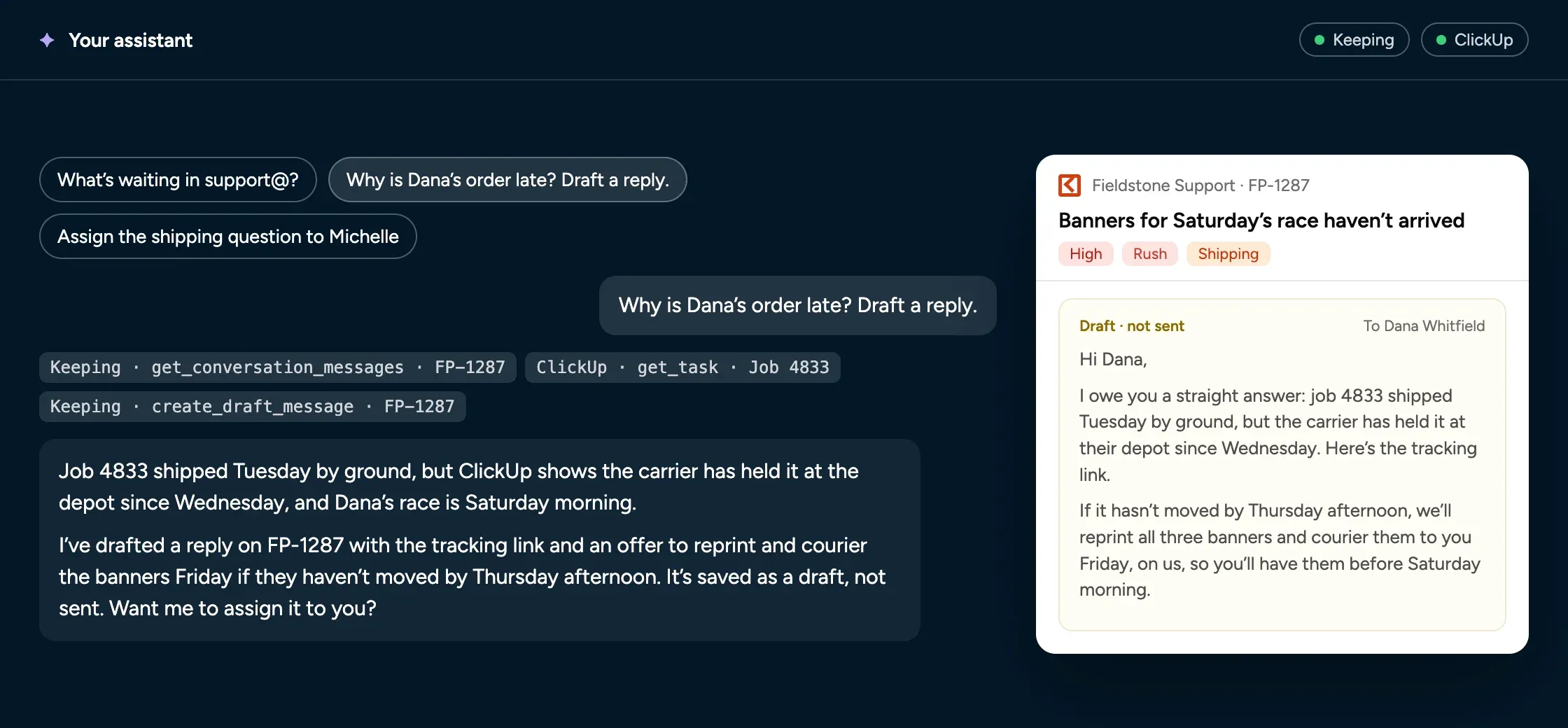
ChatGPT now sees every shared mailbox your Keeping login can see, and nothing more. Ask “What’s waiting in support@ that nobody has picked up?” and you get the unassigned conversations. Ask “Draft a reply to the refund request using our refund template” and the draft lands on the conversation in Keeping and in Gmail.
With Read and Write access, ChatGPT can assign, tag and add internal notes, and the whole team sees those changes on the conversation. It never sends: every draft waits in Keeping for a teammate to read it and send it from Gmail or the Keeping app, and collision detection still warns anyone who starts a second reply.
MCP access comes with every Keeping plan, limited on Essentials and full on Advanced and HIPAA (pricing). For more prompts and the Claude and Gemini setup, see how to run your Gmail shared inbox from Claude, ChatGPT, or Gemini.
Want ChatGPT on your team’s queue, not just your own mail? Start a free Keeping trial, connect support@, and run your shared inbox from ChatGPT the same afternoon.
ChatGPT Gmail connector not working?
Most problems come down to one of three things:
- Gmail is missing or says Disabled by admin. Your ChatGPT workspace hasn’t turned it on. An admin goes to Admin Console, selects the workspace and opens Plugins.
- Google shows an authorization or permission error on a work account. Your Google Workspace hasn’t approved the ChatGPT/OpenAI app for Gmail. A Google admin opens admin.google.com, goes to Security → Access and data control → API controls, manages app access, and sets the ChatGPT/OpenAI app to Trusted or approves its Gmail access.
- It uses the wrong account or stopped working. Check which account is connected under Settings → Plugins → Gmail. Select Reconnect if you see it, or disconnect the account and connect it again.
Using Claude instead? See how to connect Claude to Gmail.
Frequently asked questions about connecting ChatGPT to Gmail
Can you give ChatGPT access to emails?
Yes. Install the Gmail plugin under Settings, then Plugins, and sign in with your Google account. ChatGPT then reaches the mail in the accounts you connected, with the access those accounts already have. Outlook has its own plugin, and you can disconnect any account at any time.
Can ChatGPT send emails through Gmail without my approval?
It depends on your permission setting. With Always ask or Allow read actions, ChatGPT asks before it sends. OpenAI treats sending an email as an action that may need extra review, and labels Allow all actions, which drops the prompts, as elevated risk. Keep approval on for work mail.
Does OpenAI train on my Gmail data?
Not on data it reads directly from Gmail, according to OpenAI’s Google data controls FAQ, even with Improve the model for everyone turned on. The exceptions are conversations you submit as feedback, email you copy, paste or upload into a chat, and content included in ChatGPT’s response.
Can ChatGPT read my emails?
Yes, once you connect Gmail. ChatGPT searches and reads messages in the Google accounts you connected when a request needs them, with the same access you have. Set to Always ask, it asks before it reads anything. Set to Allow read actions, it reads freely but asks before changes.
Is there a ChatGPT for Gmail?
Yes. OpenAI makes a Gmail plugin for ChatGPT, which you install under Settings, then Plugins. It works inside ChatGPT, not inside Gmail. Third-party Chrome extensions put a ChatGPT button in Gmail itself, but OpenAI doesn’t make them, and each comes with its own permissions.