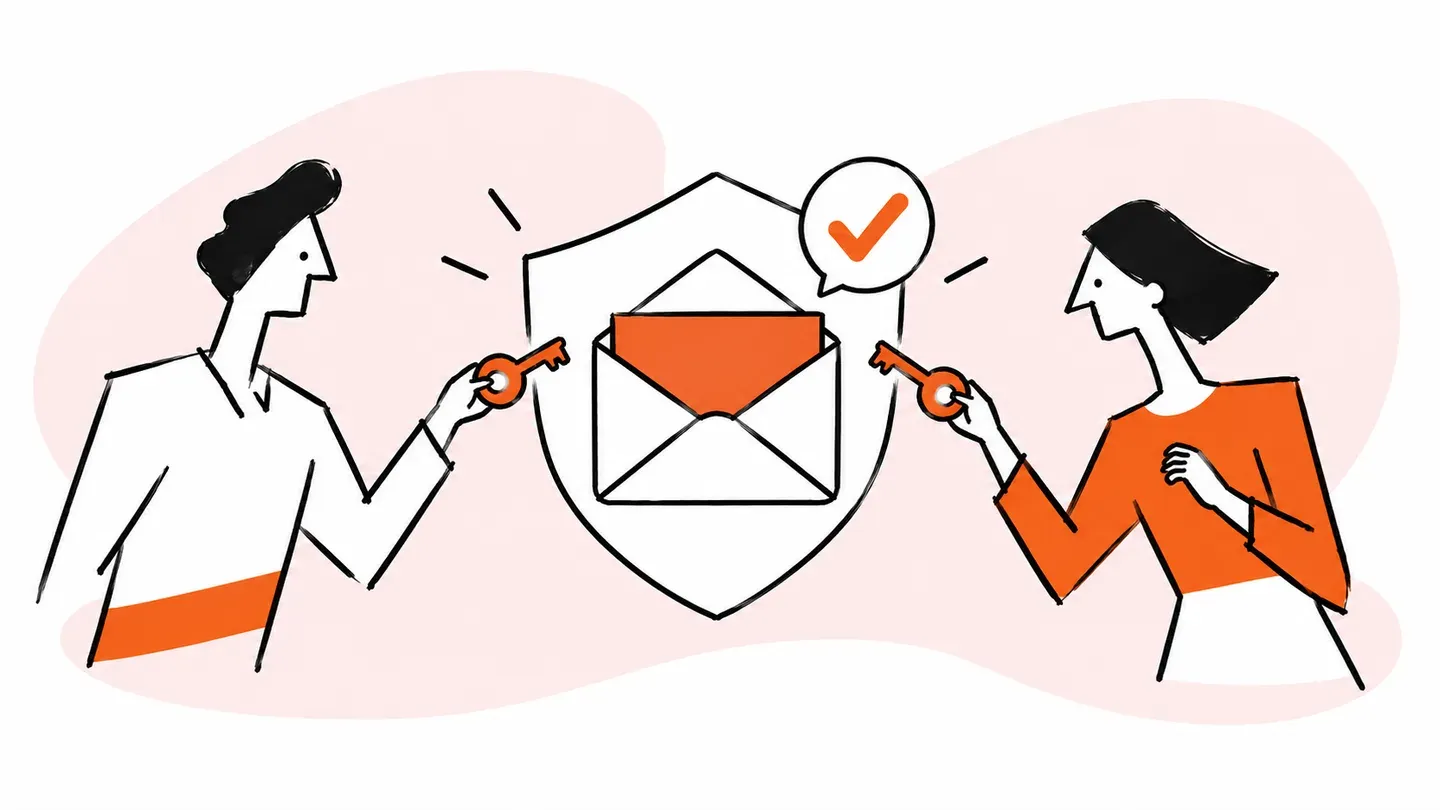
Secure email collaboration can mean protecting messages from attackers or controlling who can work from a team inbox. If your team shares a support@ or info@ address, the practical goal is simple: let each person answer from that address using their own Google login, without passing around its password.
The safest setup gives each teammate only the mailbox access they need, records who handled each conversation, and lets an administrator remove one person in a few clicks. Gmail delegation can provide basic access. A shared inbox adds assignment, statuses, internal notes, and an activity history when the mailbox becomes team work.
Secure email collaboration means two different things
Secure email collaboration can describe threat protection or safe team access. Threat protection keeps malicious or confidential content out of the wrong hands. Access control lets several authorized people work from one address without becoming indistinguishable. This guide covers access control for shared Gmail inboxes.
| Security problem | What it protects against | Typical controls |
|---|---|---|
| Protecting email from attackers | Phishing, malware, data leaks, intercepted or misdirected messages | Filtering, encryption, data loss prevention, authentication |
| Controlling who can work the inbox | Shared passwords, excessive access, unclear ownership, weak offboarding | Individual logins, mailbox permissions, roles, attribution, activity logs |
Both matter, but they solve different failures. Encryption does not tell you which teammate replied to a customer, and an activity log does not encrypt a sensitive attachment. If message confidentiality is your question, read how to send an encrypted email in Gmail.
Ready to transform how you work in Gmail?
Teams love Keeping because you can collaborate on a shared inbox without ever leaving Gmail. It's not magic, but it feels magical.
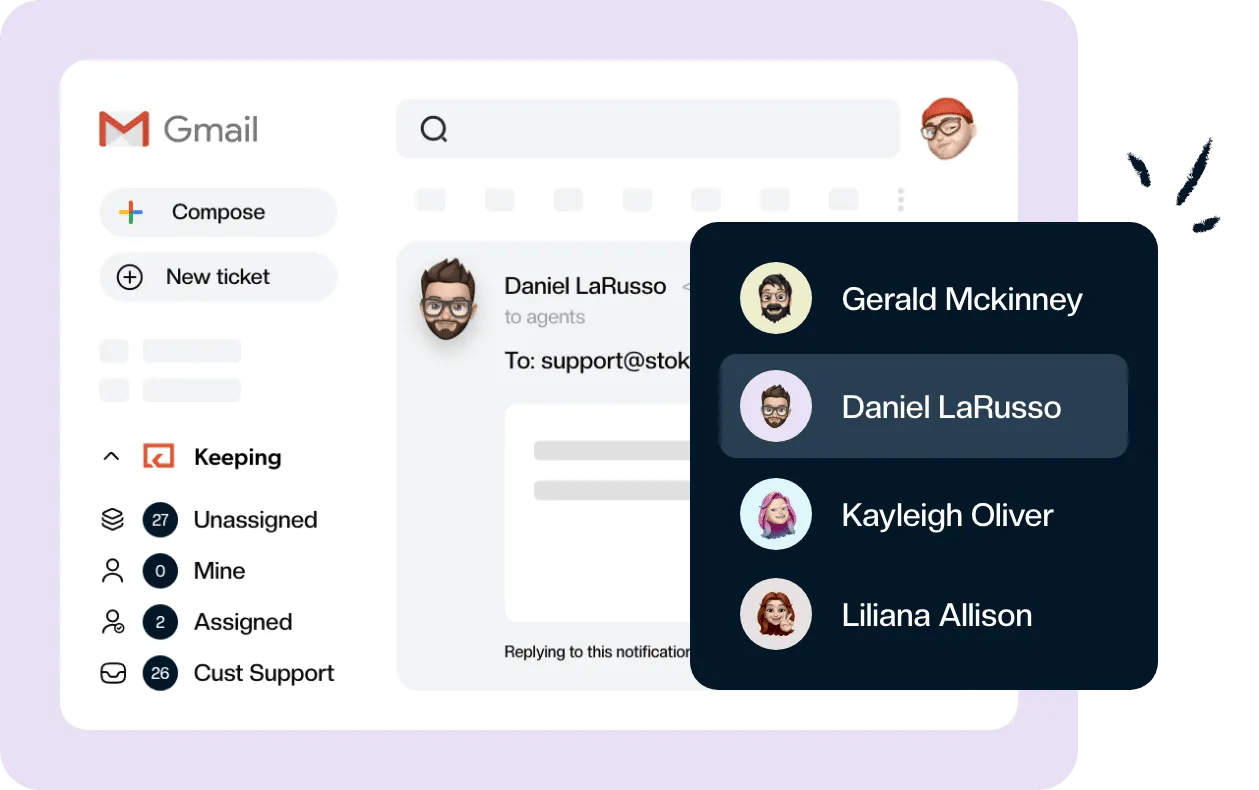
For a team inbox, secure access starts with identity. Every person should sign in as themselves. The system can then attach actions to a named teammate, limit them to the right mailbox, and revoke access without rotating a password for the entire team.
What does a shared inbox password actually cost you?
A shared password removes the controls that make access manageable. Everyone appears to be the same user, so you cannot reliably attribute a sent message or mailbox change. Offboarding becomes a password-reset project, and two-factor authentication often depends on one teammate’s phone or a shared recovery method.
Shared credentials also spread. They end up in password managers, chat messages, browser profiles, and old devices. When somebody changes roles or leaves, you must find every copy, rotate the credential, update connected tools, and redistribute it to everyone who still needs access.
Google may challenge sign-ins when many people access the same account from different devices and locations. A security check meant to stop an intruder can therefore interrupt legitimate support work. Worse, teammates may weaken security settings to make the account easier to share.
Individual access fixes the underlying problem. Each person keeps two-factor authentication on their own account. Your administrator grants and removes access centrally, while the mailbox continues receiving customer email. These are basic customer service security practices, not enterprise ceremony.
How do organizations handle email security for shared inboxes and service accounts?
Organizations separate the shared address from each worker’s identity. They keep the mailbox credential private, grant named users the minimum access required, enforce security on individual accounts, and log important actions. They also review membership and permissions regularly, especially when someone changes teams or leaves.
Service accounts need the same discipline, although they may be used by software instead of people. Keep credentials out of personal password stores, scope permissions narrowly, rotate secrets, and record which system owns the account. For a human-operated mailbox, prefer delegated or OAuth-based access so a password never needs to circulate.
Four ways to improve shared inbox security
The four common approaches range from one shared identity to individual, auditable access. The right choice depends on whether you only need people to read and send mail or need a workflow that shows ownership, status, and team discussion as well.
| Method | Own login? | Reply attribution | Remove one person | Assignment and internal notes | Cost |
|---|---|---|---|---|---|
| Shared password | No | No | Rotate the password for everyone | No | Free |
| Google Groups Collaborative Inbox | Yes | Group activity is visible | Remove group membership | Basic assignment; limited team workflow | Free with Workspace |
| Gmail delegation | Yes | Delegate address appears on sent mail | Remove the delegate | No assignment or internal notes | Free |
| Shared inbox tool | Yes | Named activity history | Remove mailbox or workspace access | Yes | Paid |
Shared password
A shared password erases individual identity. There is no clean attribution, two-factor authentication is awkward, and one departure can force a credential change across devices and integrations.
Google Groups Collaborative Inbox
A Google Groups Collaborative Inbox lets members take and complete conversations from their own accounts. It works well when your team is comfortable working in Google Groups. It is less natural for teams that want to stay in Gmail, and it lacks the richer status, note, automation, and reporting features of a dedicated shared inbox.
Gmail delegation
Gmail delegation lets a delegate read, send, and delete email without knowing the account password. Google says a Workspace account can have up to 1,000 delegates, with about 40 people typically able to access it at once; a personal Gmail account can have up to 10.
Google also documents that delegates cannot access Google Account settings, change the password, or use chat. Unavailable Gmail features include client-side encryption, Gemini in Gmail, Smart Compose, Smart Reply, spelling and grammar checks, emoji reactions, Drive attachments, Tasks, and Meet in Gmail. Those limits make delegation secure and useful, but less complete than working in your own inbox.
Shared inbox tool
A shared inbox tool gives everyone an individual login while adding the workflow a team address needs. Look for per-mailbox access, admin and agent roles, assignment, collision detection, internal notes, statuses, and a conversation activity log. Some tools also support sharing Gmail labels while keeping work in Gmail.
How do you evaluate secure email access management and team email security solutions?
Secure email access management answers five questions: who can sign in, which mailboxes can they see, what can each role do, what happened to a conversation, and how quickly can access be removed? A credible tool makes those answers visible to an administrator and supports them with documented security practices.
Use this checklist when comparing email collaboration software:
- Does each person use their own Google account through OAuth or SSO?
- Can an admin grant access per mailbox and distinguish roles?
- Does each conversation show changes, assignees, status, and replies?
- Where is customer data hosted, and is it encrypted at rest?
- Can you review a current independent security report, such as SOC 2 Type II?
- Can you remove a person without changing the shared address or disrupting teammates?
These checks turn vague “team email security solutions” claims into testable facts. Certifications matter, but they do not replace product controls. A SOC 2 report cannot rescue a workflow that still asks six people to use the same password.
A shared inbox for teams should also fit the risk and complexity of the work. A two-person info@ address may only need delegation. A support team handling customer data usually needs assignment, clear status, restricted mailbox membership, and an audit trail.
How to share a Gmail account securely
Set up secure team access by connecting the shared address, granting access to named people, and making ownership visible on every conversation. Keeping does this with Google OAuth, per-mailbox permissions, admin and agent roles, internal notes, assignment, statuses, and an activity log.
- Connect the shared address. Add the support@, sales@, or info@ mailbox without distributing its password.
- Grant named access. Choose which teammates can see that specific mailbox and whether each person is an administrator or agent.
- Use individual Google sign-ins. Each teammate authenticates with their own account, so Keeping never needs to see or store their Google password.
- Discuss work in internal notes. Use notes and @mentions rather than forwarding customer messages into personal inboxes.
- Assign one owner and set a status. An assignee makes responsibility clear; Open, Pending, and Closed states show what needs attention.
- Review activity and membership. Check conversation history when needed and remove access promptly when roles change.
Keeping is SOC 2 Type II certified, encrypts customer data at rest, and hosts it in the United States on Google Cloud Platform. Its security and privacy practices explain the controls, and current compliance material is available through the Keeping trust center.
If you want per-mailbox access control inside Gmail, see how secure email collaboration works. Essentials starts at $14 per user per month when billed annually, with a 14-day trial and no credit card required; you can also compare plans.
Is encryption the same as secure team access?
No. Encryption protects message content from unauthorized reading. Secure team access controls which coworkers can open and act on a shared mailbox. A team may need both, but configuring one does not provide the other.
Gmail offers different confidentiality options depending on your Google Workspace edition and administration settings. Gmail delegates cannot use client-side encryption, which may rule delegation out for some regulated workflows. Read the dedicated guide to sending encrypted email in Gmail before choosing a method for sensitive messages.
Frequently asked questions about secure email collaboration
What shared inbox tool has the best security and privacy features?
The best shared inbox tool is one that uses individual sign-ins, limits access by mailbox and role, and records conversation activity. Check its independent certifications and data practices too. Keeping uses Google OAuth, supports per-mailbox admin and agent roles, encrypts customer data at rest, and is SOC 2 Type II certified.
How do teams manage email securely?
Teams manage email securely by giving each person an individual account, granting only the mailbox access they need, and recording who changes or answers each conversation. They should also enforce Google account security, remove access promptly during offboarding, and use internal notes instead of forwarding customer messages between personal inboxes.
Explain Gmail login methods for accessing multiple accounts securely
The safest method is to sign in to your own Google account and receive authorized access through Gmail delegation or a shared inbox tool that uses Google OAuth. Adding several Google accounts in the browser can also work. Avoid sharing one mailbox password, because it removes attribution and complicates two-factor authentication and offboarding.
Is it safe to share an email account password with your team?
No. A shared email password makes every login and sent message look like the same person, complicates two-factor authentication, and may remain known after someone leaves. Give each teammate named access from their own Google account instead. Then you can remove one person without interrupting everyone else.
What is the difference between Gmail delegation and a shared inbox?
Gmail delegation lets another Google account read, send, and delete mail without learning the mailbox password. A shared inbox tool adds team workflow around that access, such as assignment, statuses, collision detection, internal notes, and reporting. Google Groups Collaborative Inbox is another native option, but it changes how the address and messages are managed.
How do I share a Gmail account securely?
Share access rather than the account password. Use Gmail delegation for basic access, Google Groups when a group workflow fits, or a shared inbox tool for individual access plus assignment and accountability. Keep two-factor authentication on each person’s Google account, grant only required mailboxes, and review access whenever roles change.
Does Keeping have SOC 2 compliance?
Yes. Keeping is SOC 2 Type II certified, as documented in its security and privacy practices. You can request current compliance material through the Keeping trust center.
Ready to replace a shared password with named access and a clear activity history? See secure email collaboration in Gmail with per-mailbox permissions, Google sign-in, and SOC 2 Type II controls.