
A shared inbox lets several people read and answer email sent to one address, such as support@ or info@, using their own accounts. With a collaborative setup, the team can also assign each conversation, track its status, and discuss the reply without forwarding it around.
In Gmail and Google Workspace, you have four main routes: Gmail delegation, Google’s Admin-console shared inbox, Google Groups Collaborative Inbox, or an add-on such as Keeping. They solve different problems. Access to the same messages does not automatically tell you who is handling them.
If an assistant only needs to answer a manager’s email, delegated access may be enough. If several agents share responsibility for customer requests, you need a way to separate work that is unclaimed, underway, waiting on someone, or finished.
What is a shared inbox?
A shared inbox is a team workspace for email sent to a common address. People use individual logins to handle the same correspondence, with replies coming from the shared address. Depending on the setup, it also provides conversation owners, statuses, internal notes, and a shared view of unfinished work.
Ready to transform how you work in Gmail?
Teams love Keeping because you can collaborate on a shared inbox without ever leaving Gmail. It's not magic, but it feels magical.
How a shared inbox works
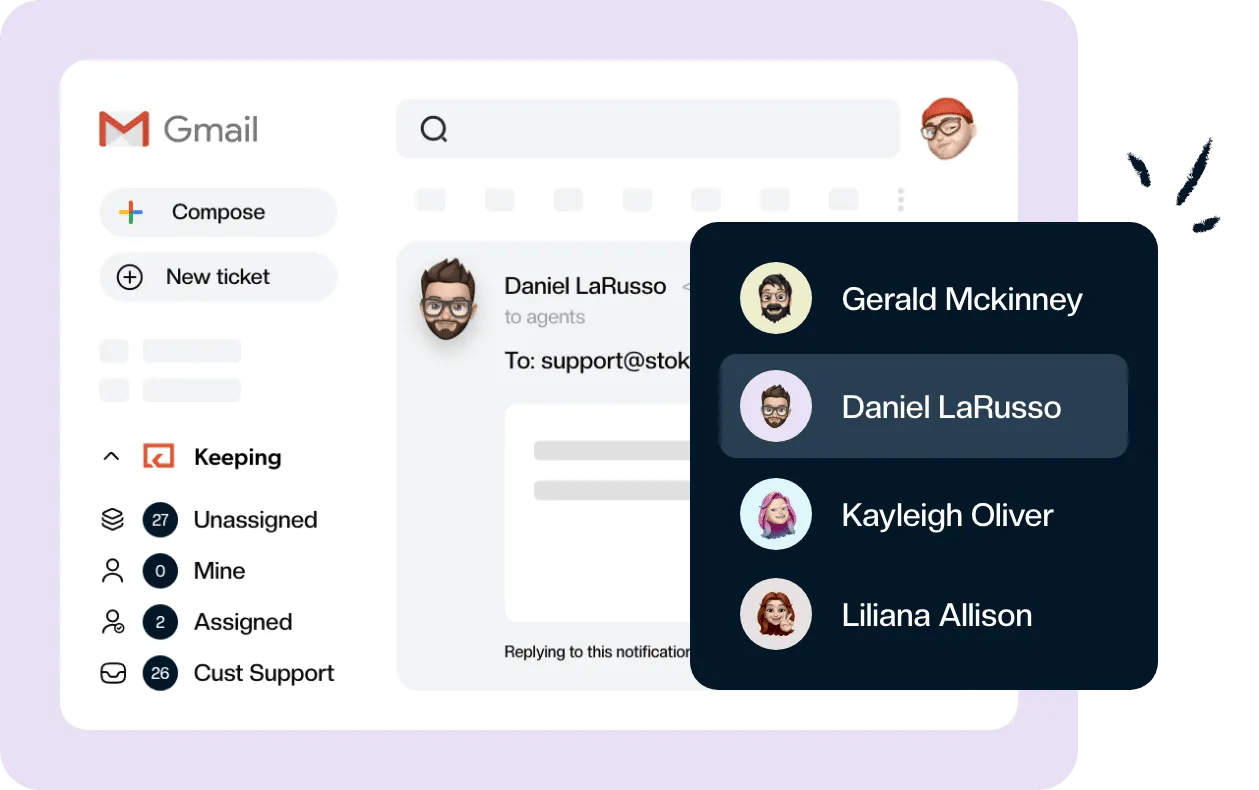
The customer emails one address, while your team handles the conversation behind it. In a collaborative system, one agent takes responsibility, asks a teammate for context in an internal note, and replies as support@. Another agent can see the reply and avoid sending a second answer.
The distinction is between sharing access and sharing responsibility. Delegation provides access to a mailbox. Assignment adds an owner to an individual request. Notes preserve the reason for a decision, while a status tells the next person whether anything still needs doing.
For example, imagine a customer asks to change a delivery address. The support agent owns the conversation, an operations teammate checks whether the parcel has shipped, and the agent sends the final answer. Nobody needs to copy the customer into the internal discussion or ask the whole team who is dealing with it.
The same pattern fits sales@ inquiries, info@ questions, internal IT requests, and HR correspondence. Access should match the work: a person answering general inquiries does not necessarily need to read sensitive personnel messages.
Shared inbox vs shared mailbox vs distribution list
“Shared inbox” and “shared mailbox” often describe the same arrangement. The names do not guarantee particular collaboration features. Microsoft 365 has a native shared mailbox option, while Gmail teams choose among the approaches below.
A distribution list delivers copies to members. It does not, by itself, give those copies a common owner or completion state. Our guide to converting a distribution group to a shared mailbox explains that distinction for Microsoft teams.
A shared email inbox should let the team answer a practical question: what happens to this request next? If everyone can read the message but nobody knows the answer, you have shared visibility without a reliable handoff.
Our best shared inbox software for Gmail guide compares the products. Keeping adds owners, notes, and collision detection for teams that want to keep working inside Gmail.
How to get a shared inbox in Gmail and Google Workspace: 4 options
Choose the option that supports your team’s assignment, collaboration, and reporting needs. The Google and Keeping capabilities below were checked in October 2026. Availability and plan requirements matter, especially if you’re comparing a native mailbox with a support workflow.
1. Gmail delegation
Delegation lets another person handle a Gmail account without receiving its password. It fits an assistant covering an executive or a small group that needs mailbox access but can coordinate responsibility separately.
Google lists up to 10 delegates for personal Gmail and 1,000 for work or school accounts, with 40 accessing an account simultaneously under typical use. Heavy activity can lower that concurrent figure. These are access limits, not recommendations for how many people should share one queue. See Google’s delegation documentation and our Gmail delegation guide.
The account owner grants access and the delegate accepts an invitation. Your Workspace administrator may need to enable delegation first. Delegates can handle mail, but delegation doesn’t supply a ticket owner, an internal discussion beside the thread, or a support response-time report.
Mobile access is no longer a blanket “no.” Google announced delegated accounts in the Gmail apps in June 2026 and added an August 21 update saying rollout had resumed. Check availability on your accounts rather than relying on the announcement’s original July completion dates.
2. Google’s Admin-console shared inbox
Workspace administrators can create a shared address and give colleagues delegated access through the Admin console. Google’s shared-inbox documentation lists Business Starter, Business Standard, and Business Plus, and still describes a phased release as of October 2026.
If the option appears in your Admin console, you can create the mailbox and add delegates there. If it hasn’t reached your organization, Google points you to delegated Gmail accounts instead. Sent messages identify the shared address in From and the delegate in Sent by.
This is useful native shared access. It is based on delegation, however, so don’t mistake the “shared inbox” name for a ticket-assignment system. Decide how you will record ownership before several people begin answering from it. Our Gmail shared inbox guide covers the available approaches in more detail.
3. Google Groups Collaborative Inbox
A Collaborative Inbox adds responsibility tracking to a Google Group. Members with the right permissions can take a conversation, assign it to another member, and mark it complete, duplicate, or requiring no action.
A group owner or manager enables Collaborative Inbox features, with conversation history turned on. The collaboration controls live in Google Groups. Receiving group email in Gmail is not the same as working in that shared queue. Google’s setup guidance and conversation-handling guide explain the permissions and workflow.
It can suit teams willing to manage the queue in Groups. The question is whether colleagues will consistently return there to take and complete work. If they reply only from personal copies in Gmail, the team still needs to maintain a reliable record of ownership.
Read our Google Groups Collaborative Inbox guide for the trade-offs. You can also use Google Groups with Keeping if you want collaboration controls in Gmail.
4. A shared inbox add-on inside Gmail
Keeping brings assignment, conversation statuses, internal notes, and teammate activity visibility into Gmail. Reporting gives managers a way to examine reply times instead of reconstructing them from individual sent folders.
After joining your organization and signing in to the extension, select Keeping in Gmail’s left sidebar. Unassigned, Mine, and Assigned narrow the queue. Opening a conversation shows its controls on the right. The public Using Keeping in Gmail guide explains this workflow.
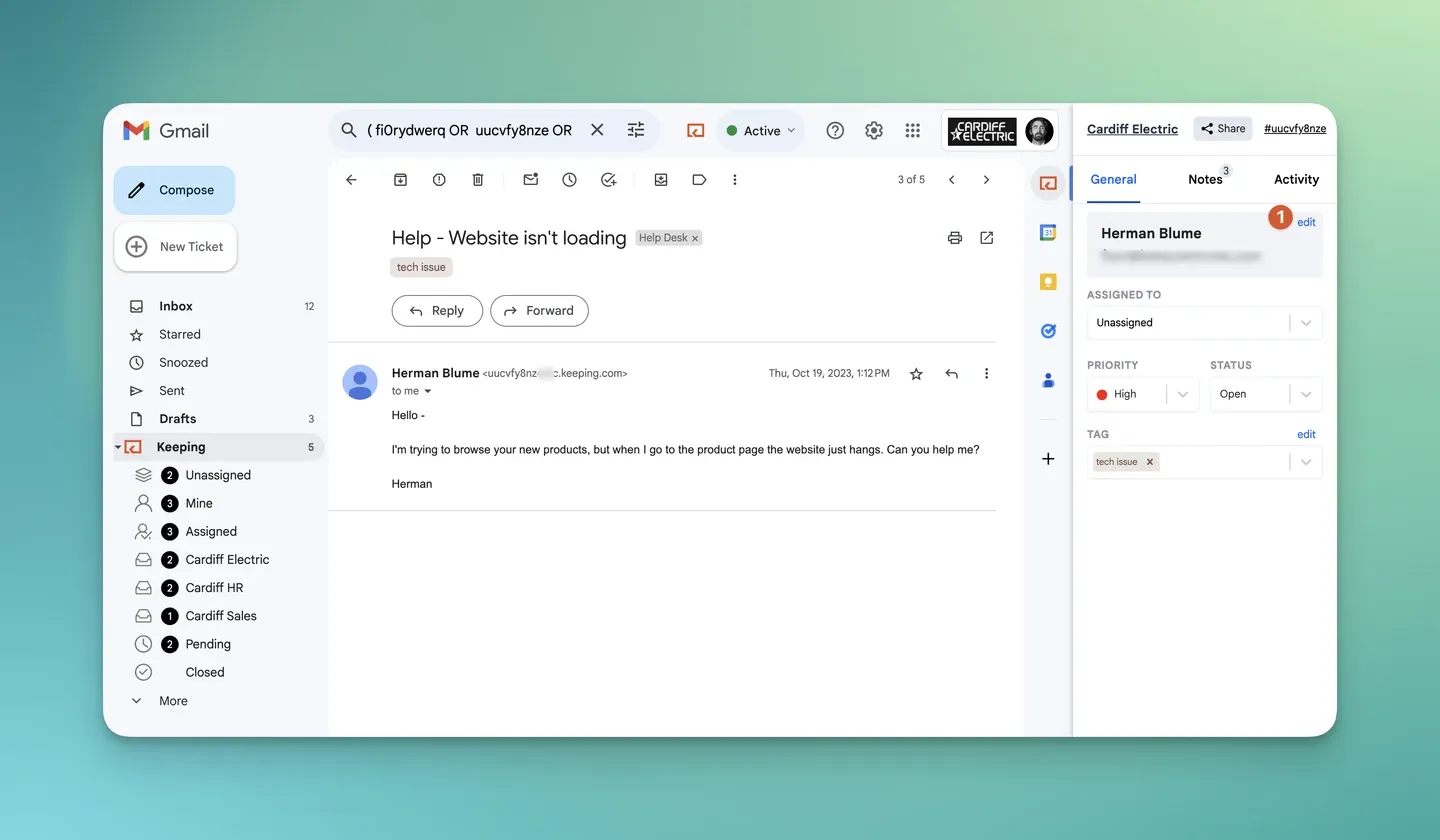
Screenshot from the Using Keeping in Gmail help guide.
This option adds a subscription and a service to administer. Essentials includes 2 mailboxes, up to 10 agents, shared templates, collision detection, and standard reporting. Advanced adds features including round robin assignment, shared drafts, SLAs, and CSAT. Choose the plan against your actual requirements.
Before connecting info@ or support@, establish whether it is an account, alias, or group. An alias is another address for an existing inbox, not a separate team workspace. See our Google Workspace email alias guide. Sharing one password is not a substitute for granting individual access.
To put your chosen approach into use:
- Choose the shared address and the people who need access.
- Select one of the four options based on the workflow you need.
- Give each person individual access and check they can open the queue.
- Agree who takes new requests and what each status means.
- Prepare shared templates for common questions.
- Enable reply-time reporting where available, then test a complete handoff. Keeping offers a 14-day trial with no credit card. Compare the plans and pricing.
For the detailed walkthrough, see our Gmail shared inbox setup guide.
Shared inbox vs Google Groups vs delegation vs help desk
Delegation shares mailbox access. Google Groups adds a queue with assignment, while Keeping adds collaboration inside Gmail. A help desk is a broader category that can include email ticketing and other service channels. Choose by the work you need to coordinate, then check the specific product and plan rather than relying on its label.
Capabilities and pricing checked October 2026. The help-desk column describes what to evaluate, since features differ by product.
| Question | Delegation / Admin-console shared inbox | Google Groups Collaborative Inbox | Shared inbox in Gmail: Keeping | Help desk |
|---|---|---|---|---|
| Where do you work? | Delegated Gmail mailbox | Google Groups for queue controls | Gmail; web/mobile portal also available | Product-specific agent workspace |
| Can you assign a conversation? | No built-in ticket assignment | Take or assign conversations | Assign an agent; round robin on Advanced | Check assignment and routing options |
| Can you track status? | Mailbox labels; no ticket status workflow | Complete, duplicate, no action needed | Open, Pending, Closed | Check statuses and escalation workflow |
| Are internal notes available? | No dedicated ticket notes | Not Keeping-style notes beside a Gmail thread | Shared notes with @mentions | Check private notes and access rules |
| Can you see teammate activity? | No built-in collision alert | No Gmail collision alert | Collision detection | Check presence and collision controls |
| Can you report reply times? | No native support reply-time report | No equivalent Keeping report | Standard reporting; Advanced adds more | Check metrics, calendars, and exports |
| What do you budget for? | Underlying Google accounts and edition | Google setup and administration | Essentials: $19 per user per month, billed monthly; $14 per user per month, billed annually. 2-user minimum | Required plan, seats, channels, and add-ons |
| When does it fit? | Shared access with simple coordination | Teams comfortable managing work in Groups | Teams needing accountability in Gmail | Teams whose service requirements need a broader system |
Shared inbox and help desk are overlapping categories. Keeping, for example, lets you use Gmail as a help desk. The deciding question is whether your chosen system supports the work, not whether its website calls it an inbox or a help desk.
Consider a broader system when you need to coordinate phone, chat, or other channels alongside email, or when your escalation and reporting requirements exceed the inbox’s capabilities. Our email ticketing system guide explains the tracking model. Assess channel support separately before buying.
If your team wants a Gmail team inbox with an owner on each request, explore Keeping’s shared inbox for Gmail. Try a real conversation that needs both a handoff and a follow-up before deciding whether the workflow fits.
Why teams use a shared inbox
Teams use a shared inbox to make unfinished work visible. The benefit is most obvious when responsibility crosses between people: someone leaves for lunch, a question needs specialist input, or a customer follows up while the original agent is away.
You don’t need an enormous support operation to encounter this. In Keeping’s aggregated usage reporting for June 22 through September 20, 2026, the median team received about 18 new customer conversations on a working day. The busiest quarter received 44 or more. Those figures, published in our customer service tools guide, describe the observed teams, not a threshold at which you must buy software.
Even a modest queue becomes difficult when every message generates “Are you handling this?” A visible owner lets teammates work on something else. A shared history lets a substitute read the previous answer instead of asking the customer to repeat it.
Forwarding is particularly awkward for handovers. The person who receives a forward may miss later replies, while the original recipient assumes the task has moved. Keeping the conversation and its internal context together makes the next action easier to identify.
Activity visibility helps with the opposite problem: two people answering at once. Collision detection in Gmail gives colleagues a signal to coordinate before sending conflicting replies. The team still needs to decide who should respond.
If requests seem to disappear, investigate why emails go missing in a shared inbox before assuming delivery failed. A request can be sitting in plain sight with no owner, an inappropriate status, or an unanswered internal question.
Shared inbox best practices
Shared inbox and shared mailbox best practices start with one owner per conversation, clear status definitions, and individual access. Keep internal context with the email, make teammate activity visible, and reuse accurate templates. Set reply targets in working hours, then review both response times and unanswered work so quick replies don’t hide neglected requests.
Keeping’s published response-time data shows why that last distinction matters. Among more than 274,000 conversations received from June 22 through September 20, 2026 that later received a reply:
- 33% of first responses took under one working hour.
- About three quarters took under 24 working hours.
- 15% took more than 48 working hours.
- The typical team answered 30% within one working hour.
The calculation uses each account’s configured working schedule. At eight working hours per day, 24 working hours is about three business days, and 48 is about six. These buckets cover responded conversations: they are not a reply rate across all inbound email and cannot be compared directly with elapsed-hour benchmarks.
Sources: Keeping’s aggregated reporting, published in how to track email response times and our customer service tools guide. Use the figures to ask where your own queue stalls, not as a promise of results.
1. Give every email one owner
Assign a person who is responsible for the next customer-facing action. That person can ask colleagues for help without leaving responsibility ambiguous. A conversation assigned to “everyone” is still waiting for somebody to act.
Agree who checks new, unassigned work and who covers when that person is unavailable. During a handoff, name the next owner and record the next action. For example: “Please confirm the shipment and update the customer” is more useful than “Can someone look?” A small queue may need only manual assignment. Automatic distribution should account for availability and the knowledge needed to answer.
2. Agree what “done” means
Define your statuses in terms of the next action. Use Open for work that needs attention, Pending when you are waiting on something, and Closed when no further action is currently required. Write down the team’s interpretation so agents make the same decision on similar requests.
Don’t close a conversation merely because somebody sent a reply. “I’ll check with the warehouse” leaves work outstanding. In Keeping, sending a reply closes the conversation by default. If your team often replies before the work is done, change that default in the mailbox settings, or choose Send & pending when you send. A status should make the queue easier to trust, rather than give the team a tidier-looking number.
3. Talk in internal notes, not forwards
Keep the reason for a decision beside the conversation. A note can explain what you checked, what remains uncertain, and which colleague needs to respond. That context is especially valuable when the next agent did not participate in the original discussion.
Use internal notes on emails for coordination, and write the customer’s answer separately. A useful note might say: “Replacement approved; waiting for stock confirmation before promising a ship date.” Avoid copying an entire chat thread into the ticket. Record the decision and next step, then mention the colleague who needs to act rather than notifying the whole team.
4. Make it visible who is replying
Check teammate activity before drafting a response, particularly on urgent messages that attract everyone’s attention. If someone is already replying, coordinate with that person instead of racing to send your own answer. Collision detection helps make that moment visible.
Presence and ownership serve different purposes. Someone may open a conversation to read background without taking responsibility, while the assigned agent may be investigating outside the inbox. Keep the owner field accurate and use a note when work changes hands. If duplicate replies continue, inspect the handoff itself: activity indicators cannot settle two conflicting assumptions about who should answer.
5. Set a first-reply target in working hours
Choose a target your team can staff, publish the business hours it applies to, and measure against that same schedule. An overnight email should not be judged against an unstated expectation that somebody was on duty.
Keeping’s data shows 33% of responded conversations received a first response within one working hour. The typical team’s figure was 30%. About a quarter took at least 24 working hours, roughly three eight-hour business days. Look at slow cases as well as the average. When using customer response time benchmarks, check the unit and population before treating another team’s result as your target.
6. Use shared templates for repeat questions
Create shared replies for questions that recur, then leave room for the details that make the answer correct. Order status, refund eligibility, and account access may each need a template, but the agent should still check the customer’s circumstances before sending it.
Keep one current version of each answer and give somebody responsibility for updating it when a policy changes. A fast, outdated reply simply creates another conversation. Our shared Gmail templates guide covers the available approaches. During queue reviews, ask which questions repeatedly require the same explanation. Those are better template candidates than hypothetical questions nobody has actually asked.
7. Give each person their own login
Grant access to individuals rather than circulating the mailbox password. That makes onboarding, permission changes, and offboarding easier to manage. Access should follow the person’s current responsibilities, including which mailboxes contain information they need to see.
Review membership when people change roles as well as when they leave. Remove obsolete delegates and group members, and check access in any connected service. Your secure email collaboration process should also explain how to handle sensitive content in notes and replies. Decide who should read HR, finance, or customer information before granting individual access.
8. Review the queue weekly
Examine what remains unanswered, what has been waiting longest, and which owners are overloaded. A response-time report describes replies that happened; the live queue reveals work that may never have reached that report. You need both views to understand service.
Pick a few stalled conversations and identify the actual obstacle: missing information, unclear responsibility, no available specialist, or a status that hid the next action. Then change the process that caused it. Our shared inbox management guide goes deeper into daily triage and handoffs. Keep the review focused on clearing work and preventing repeats, rather than ranking people without considering the requests they handle.
Disadvantages and limits of a shared inbox
A shared inbox makes email accessible to a team, but it does not automatically create a good support process. Native options have different coordination limits, add-ons require administration, and shared visibility can expose information too broadly. You still need clear ownership, appropriate access, and a way to find work that has stalled.
The main trade-offs are practical:
- Delegation provides access without ticket assignment. Labels and team agreements may suffice for simple work, but someone must maintain them.
- Groups adds a separate place to coordinate. Decide whether your team will consistently use its queue controls instead of only answering email copies.
- Native sharing is not a support reporting system. If reply-time analysis matters, identify how you’ll measure it before choosing the setup.
- Add-ons need review and upkeep. Check extension permissions, mail routing, access, and plan limits with whoever administers your Workspace account.
- One visible queue can encourage interruption. Being able to inspect every request doesn’t mean everybody should monitor every request all day.
Keeping also processes email through its service. Working in Gmail does not mean all processing stays inside Google. Evaluate that architecture against your organization’s requirements.
Finally, email may be only one part of your service operation. If the same request moves between phone, chat, and email, test how the full history will stay together. Adding more agents to a shared address won’t by itself solve a missing cross-channel workflow.
Using a shared inbox for customer service
Use support@ as a managed queue with a clear service promise. An acknowledgment can confirm receipt and state your staffed hours, while an assigned agent remains responsible for a useful answer. An automatic message should not suggest that somebody has already investigated the problem.
Consider a customer reporting a failed delivery. The first agent acknowledges the issue, checks the order, and asks operations for context in a note. If an answer depends on the carrier, the conversation remains visibly waiting, with an owner responsible for returning to it.
When the next shift arrives, it should be able to see what was promised and when the customer needs an update. “Waiting on carrier” is useful context, but it is not a reason to let the conversation sit indefinitely. Keep the customer informed even when resolution depends on another company.
As of October 2026, Keeping’s Advanced plan includes SLAs and CSAT surveys and reports. Those features can help you track service commitments and collect feedback, but the team still needs realistic targets and a process for acting on slow or unsatisfactory cases.
Start your evaluation with a request that spans more than one person. Check that the next agent can find the history, understand the internal context, and send the correct reply from the shared address. See how a shared inbox for customer support fits that workflow, then test it with the people who will use it.
Frequently asked questions
What is the difference between a shared inbox and a shared mailbox?
The terms often mean the same thing: email that several people can access for a shared address. A product called a shared inbox may add assignment, internal notes, and reporting, but the name alone doesn’t establish that. Compare the actual workflow and permissions.
How do I access a shared inbox in Gmail?
Access depends on the setup. With delegation, accept the invitation and open the delegated account from your Gmail account menu. With Keeping, join your organization, sign in to the browser extension, and open Keeping in Gmail’s left sidebar. Your administrator must first grant the appropriate access.
What is the difference between Google Collaborative Inbox and a shared inbox?
Google Collaborative Inbox is one specific way to coordinate shared email, using Google Groups. It lets permitted members take, assign, and complete conversations in Groups. Shared inbox is the broader category, which also includes delegated mailboxes and products that provide collaboration controls inside Gmail.
Can multiple people use the same Gmail account at the same time?
Yes, through delegated access rather than a shared password. Google says a work or school account supports 40 concurrent delegates under typical use, within a maximum of 1,000 delegates. Heavy usage can reduce concurrent access. Those limits do not add conversation ownership or prevent duplicate replies.
Is a shared inbox the same as a help desk?
A shared inbox can function as an email help desk when it includes ownership, tracking, and collaboration. Some help desks also coordinate other support channels and more complex service processes. Decide which capabilities you need, then evaluate the specific product rather than treating the two labels as opposites.
How many people can share an inbox in Gmail?
Google’s delegation limits are up to 10 delegates for personal Gmail and up to 1,000 for work or school accounts. Shared-inbox add-ons have their own plan limits, which are separate from Google’s delegation limits. Check both the access model and the subscription requirements for your chosen setup.